Meal Pre-Order Management
Description
This section provides instructions for placing pre-orders, including selecting accounts, filtering items, and completing the order process.
Navigate to Meal Pre-Order
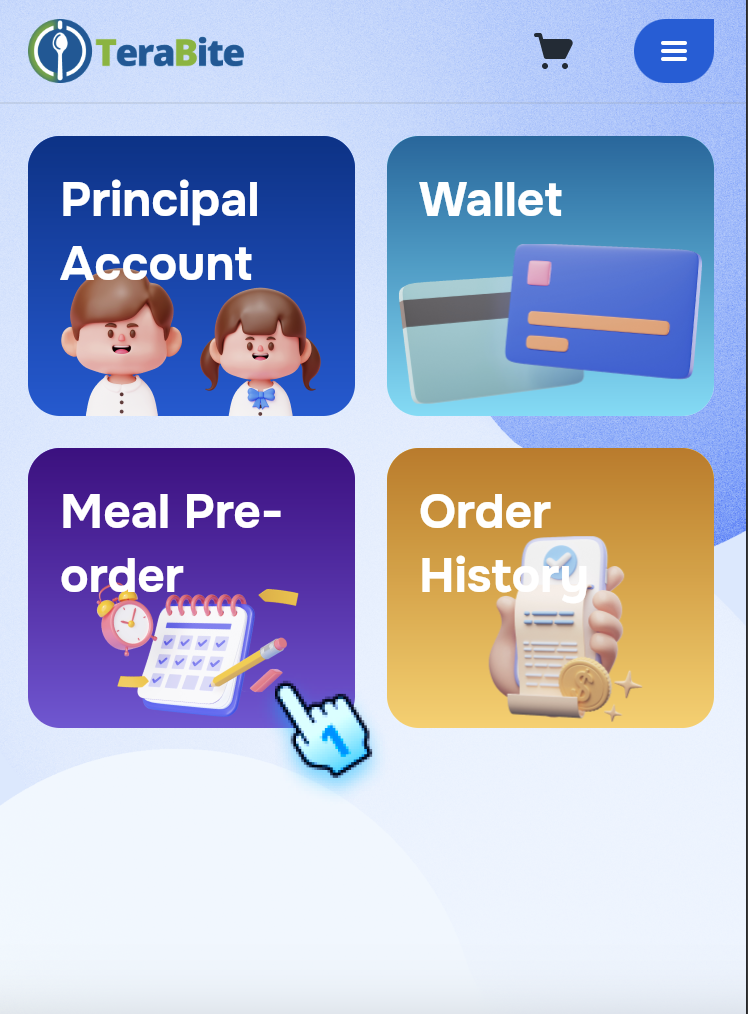
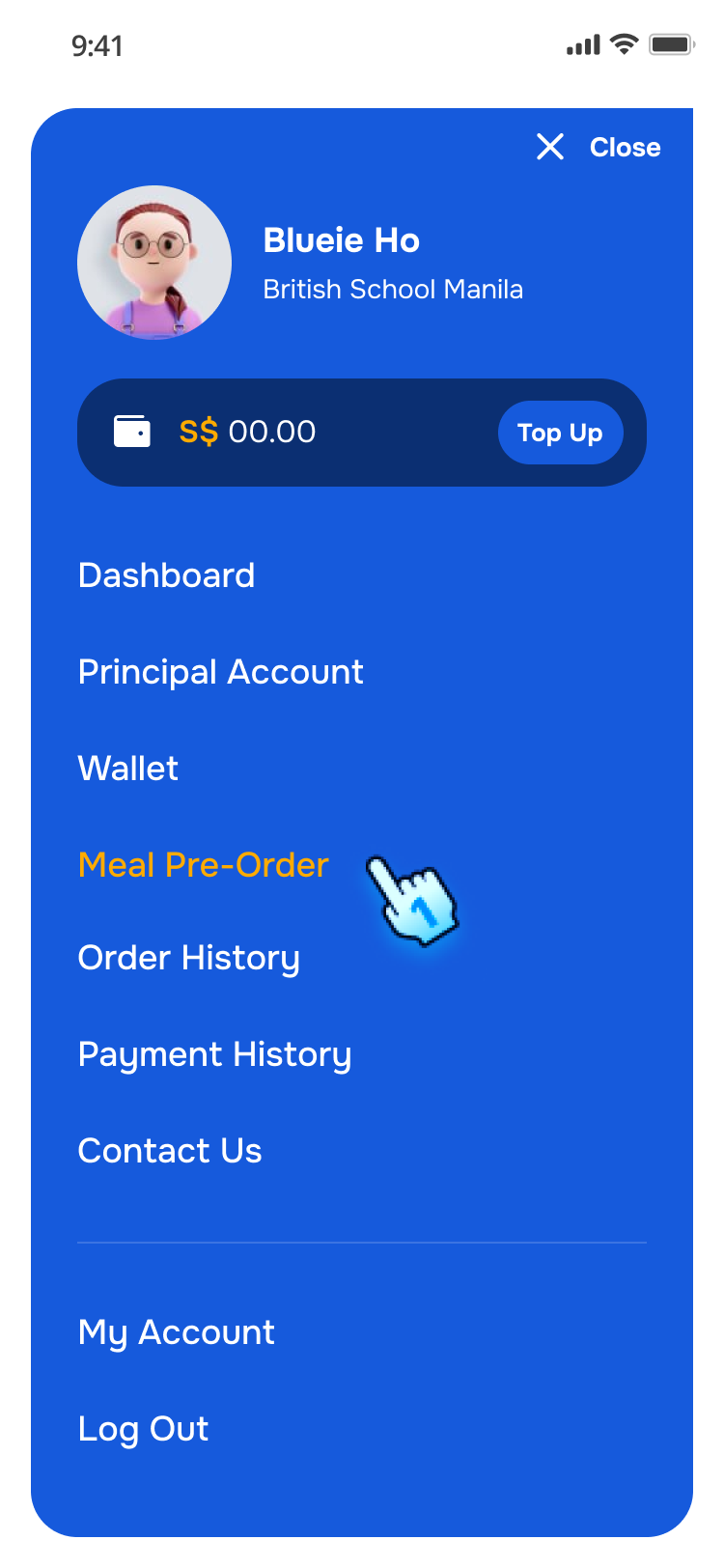
- Access Meal Pre-Order Section
- Log in to the C-Portal.
- Navigate to the Meal Pre-Order section.
- Tap on Meal Pre-order in Menu Or
- Tap on Meal Pre-order in Dashboard.
- The Meal Pre-Order page will be displayed.
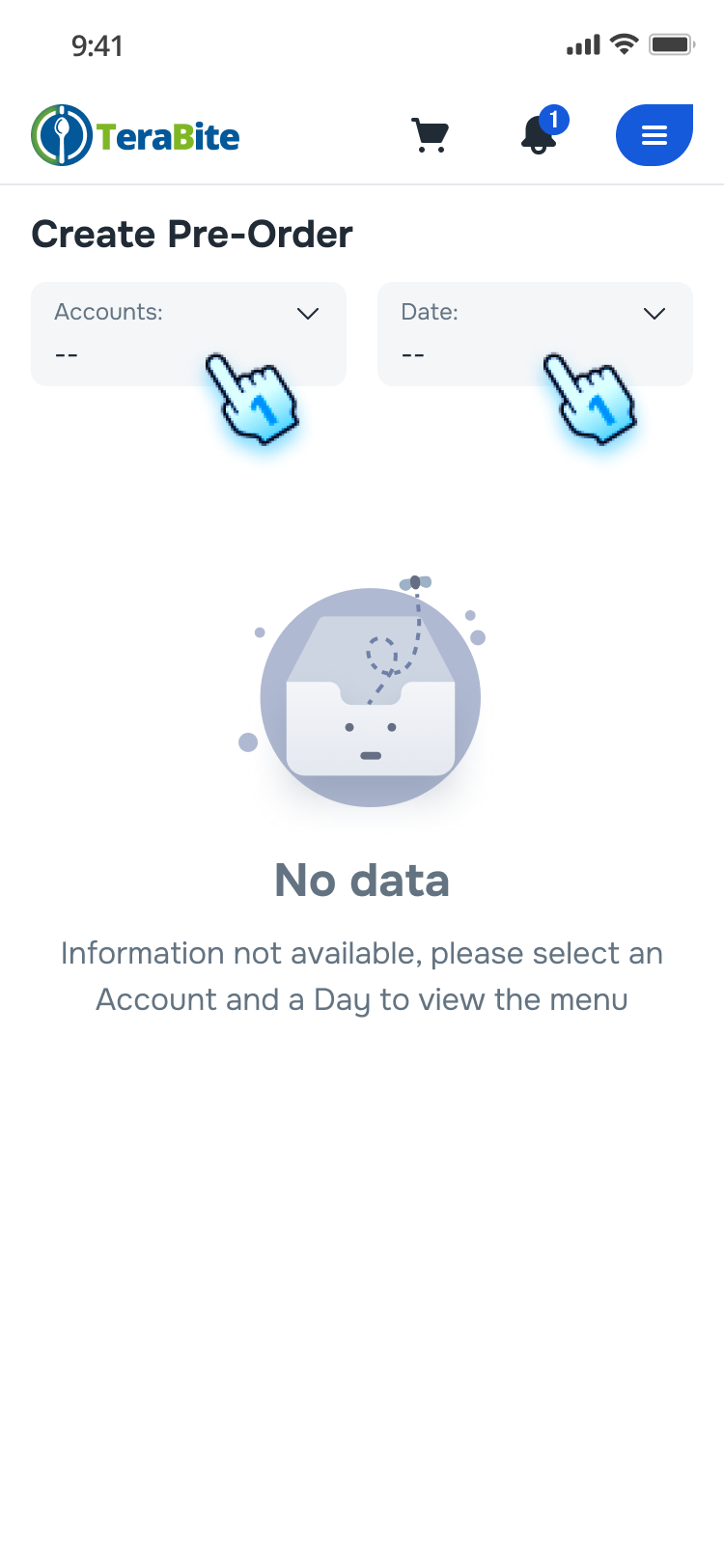
- Select Account/Sub-Account and Date for Pre-Order
- Tap on Account Card and go to step 4
- Tap on Date Card and go to step 5
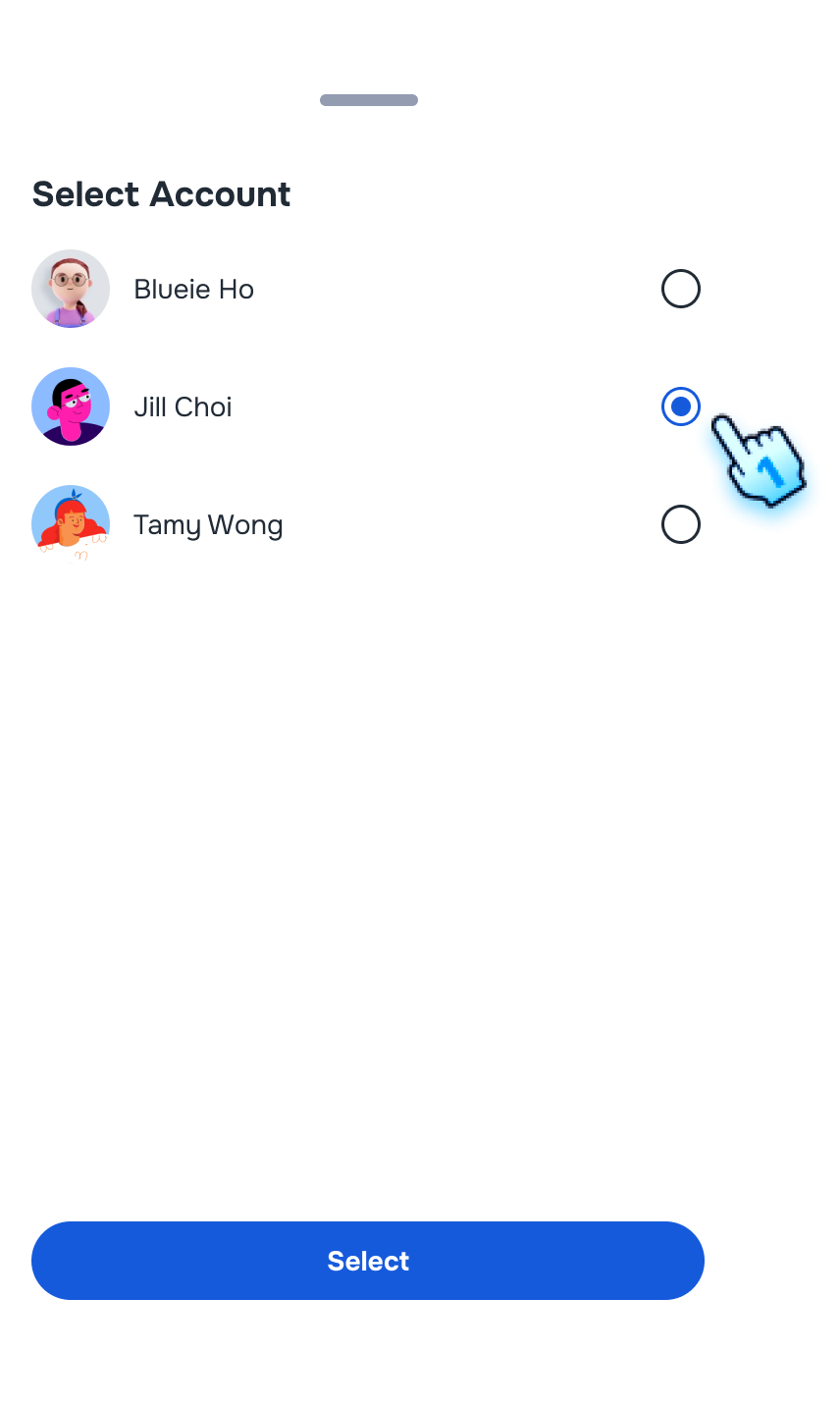
- Choose an account or sub-account from the list.
- Tap on to select the desired Account/ Sub-account
- Tap on "Select" button
- The selected account/sub-account will be displayed on the Accounts card.
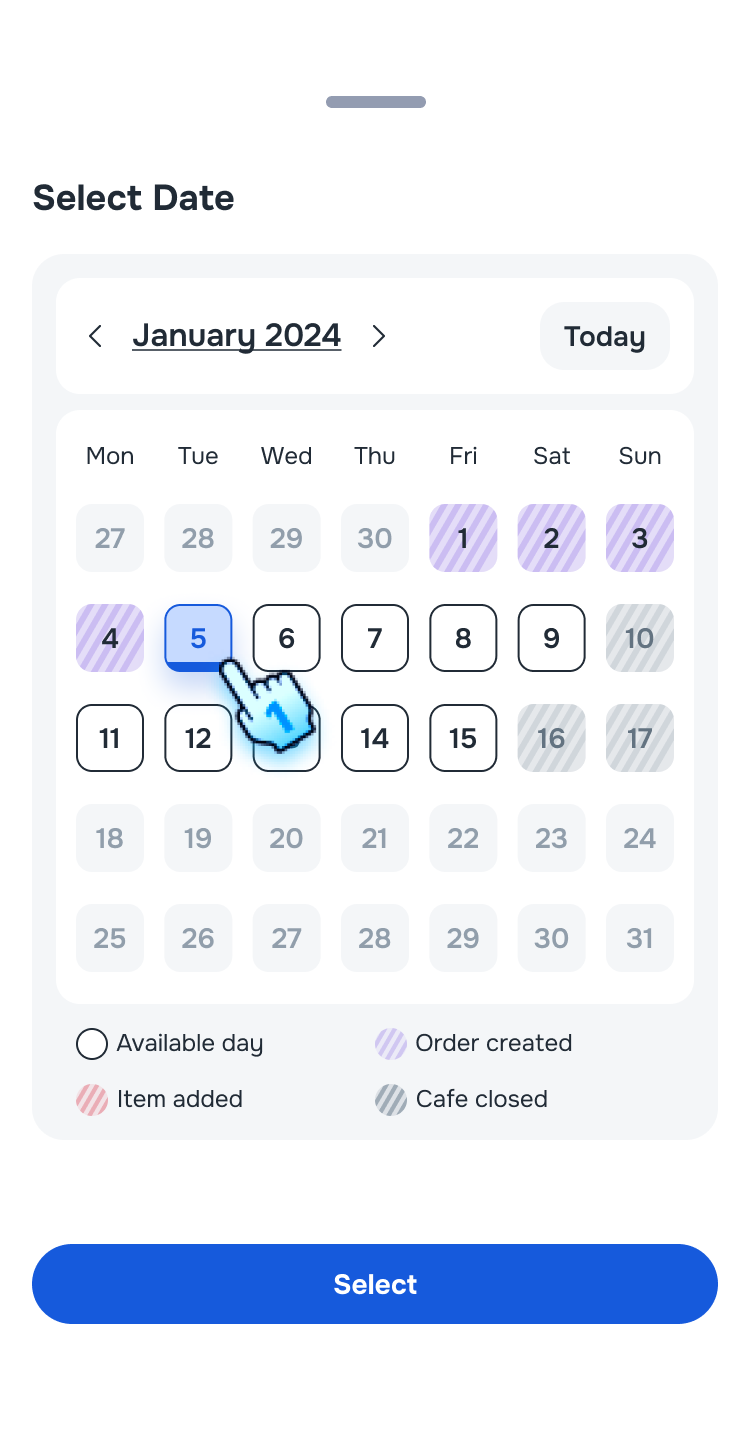
- Select Day for Pre-Order
- Tap on Day card
- The Calendar will display including:
- White: Empty order
- Purple dash: Pre-Orders created. Onclick to navigate to the section Review Created Pre-Orders
- Red dash: Items added
- Blue underscored: Today
- Choose a specific day.
- Select a specific day from the calendar.
- Tap on "Select" button
- The selected date will be displayed in the Days card
Filter Items and View item detail
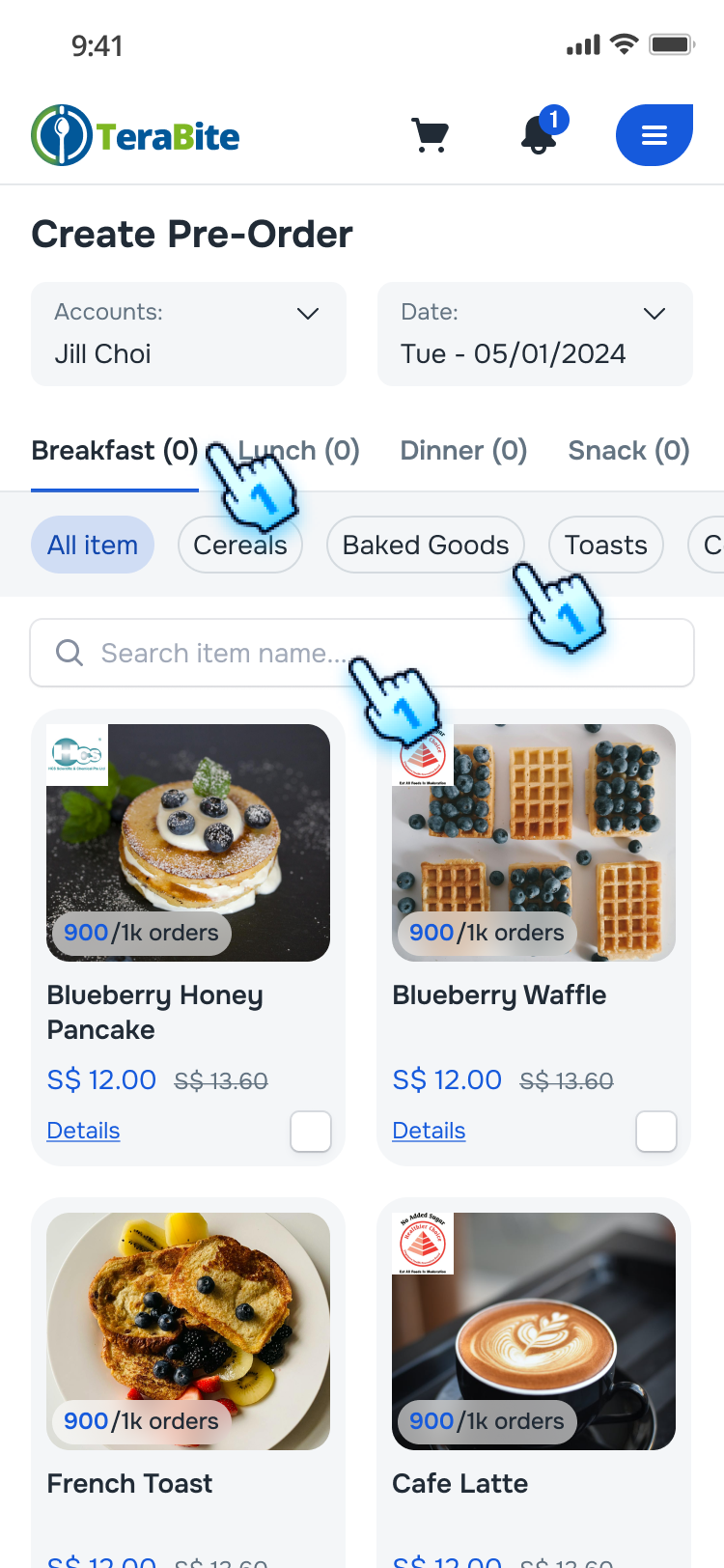
- Filter by Meal Time
- On the pre-order items selection page, select a meal time (e.g., breakfast, lunch) and/ or
- Select a category and/or
- Search by the product name
- The items will be filtered based on the selection.
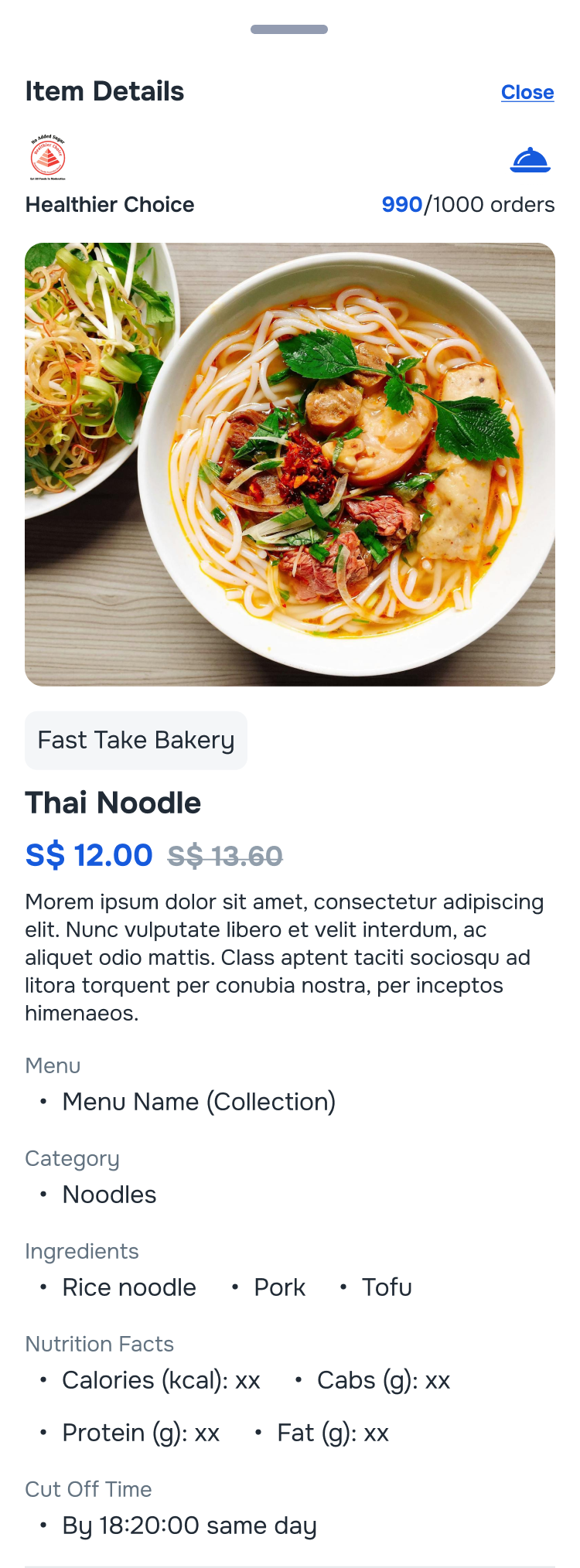
- View item detail
- Tap on "Details" button at each item
- Item detail will be displayed
Select Items and Adjust Quantity
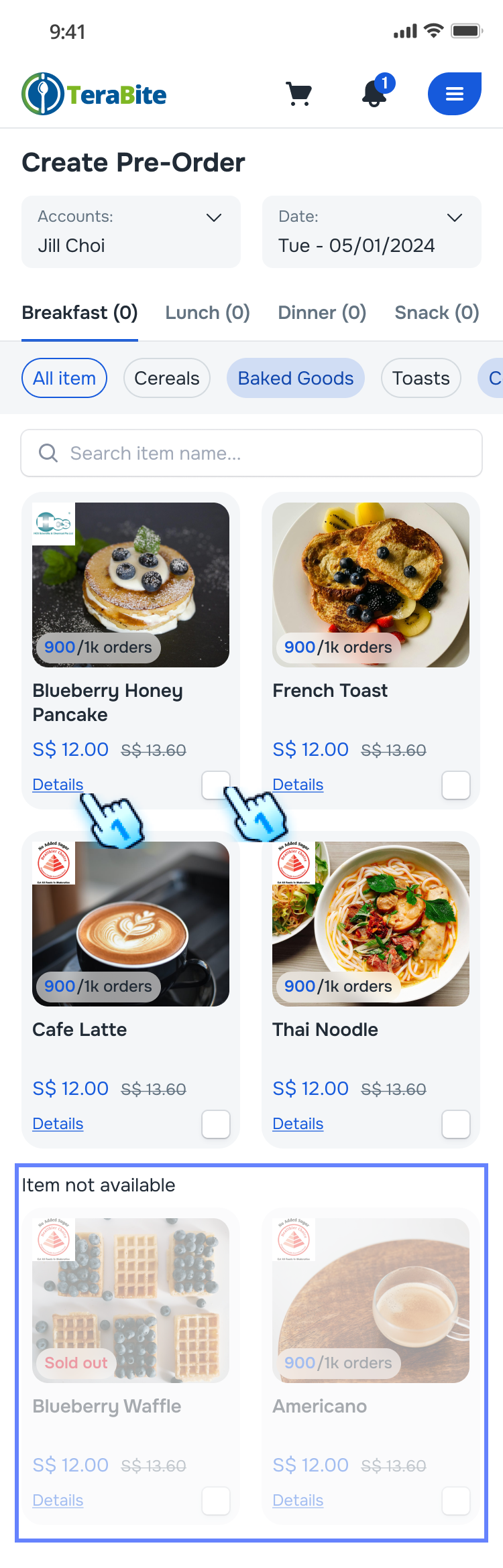
- Select Items
- Tap the checkbox next to each item to add it to the pre-order.
- The selected items will be added to the cart. *Note: The unavailable items will be greyed out
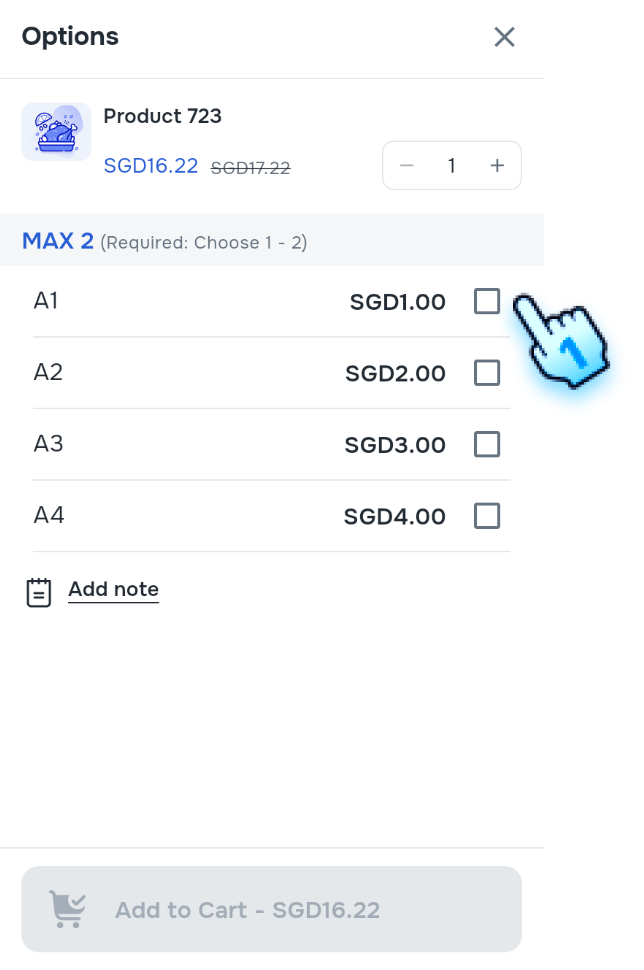
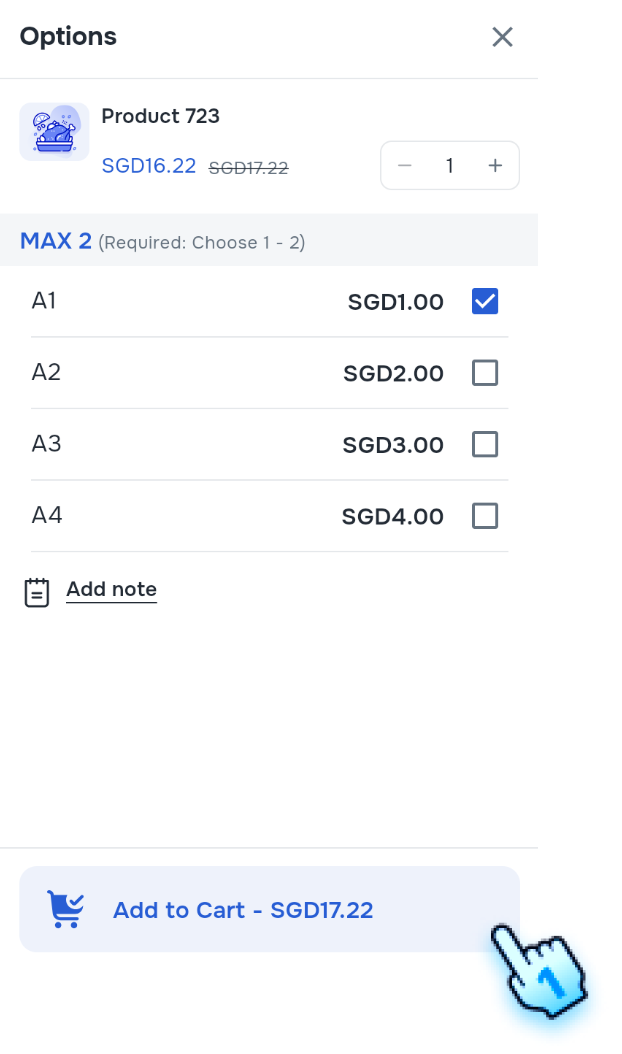
- Select Item with Options
- Tap the checkbox on an item with options to open the Options popup.
- Select the desired options and add the item to the cart.
- The selected items will be added to the cart.
- Adjust Quantity
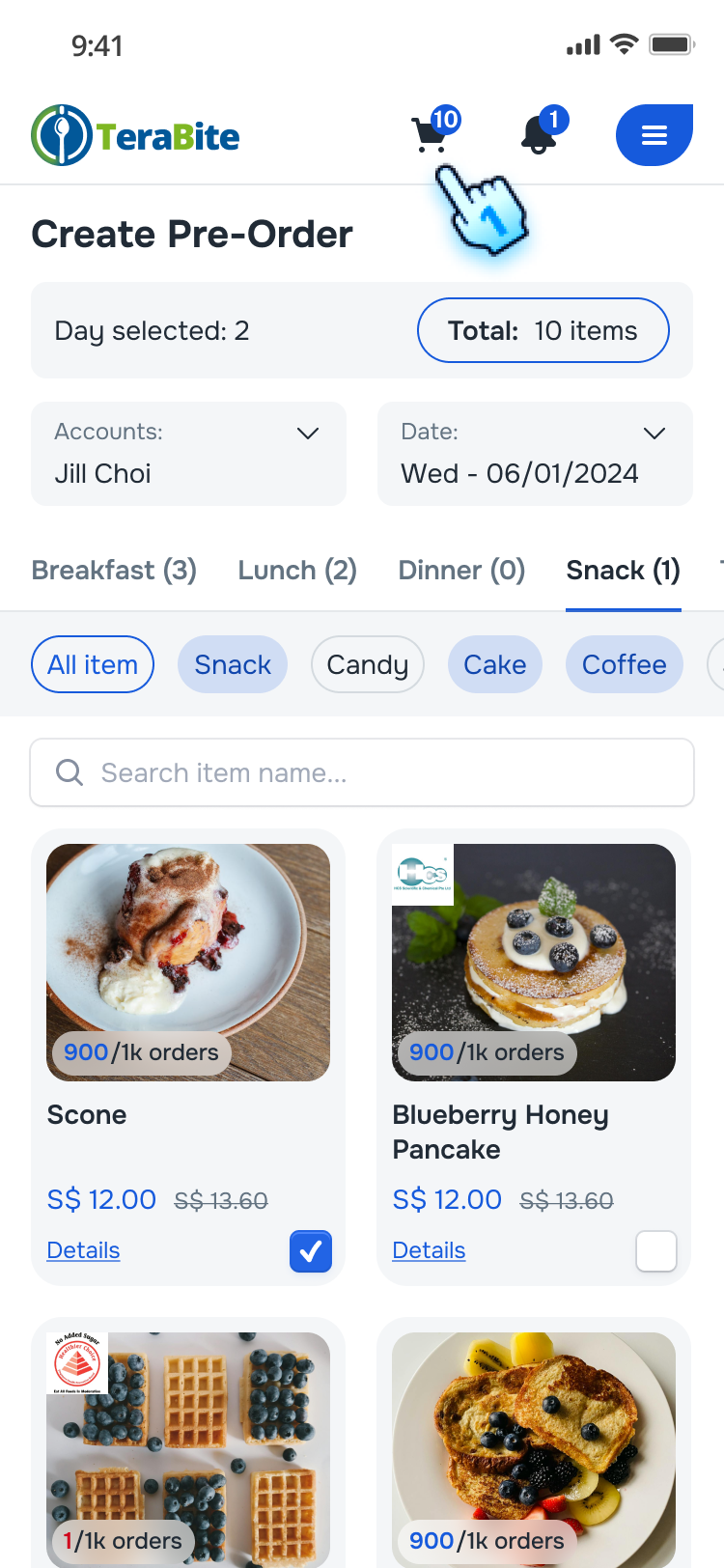
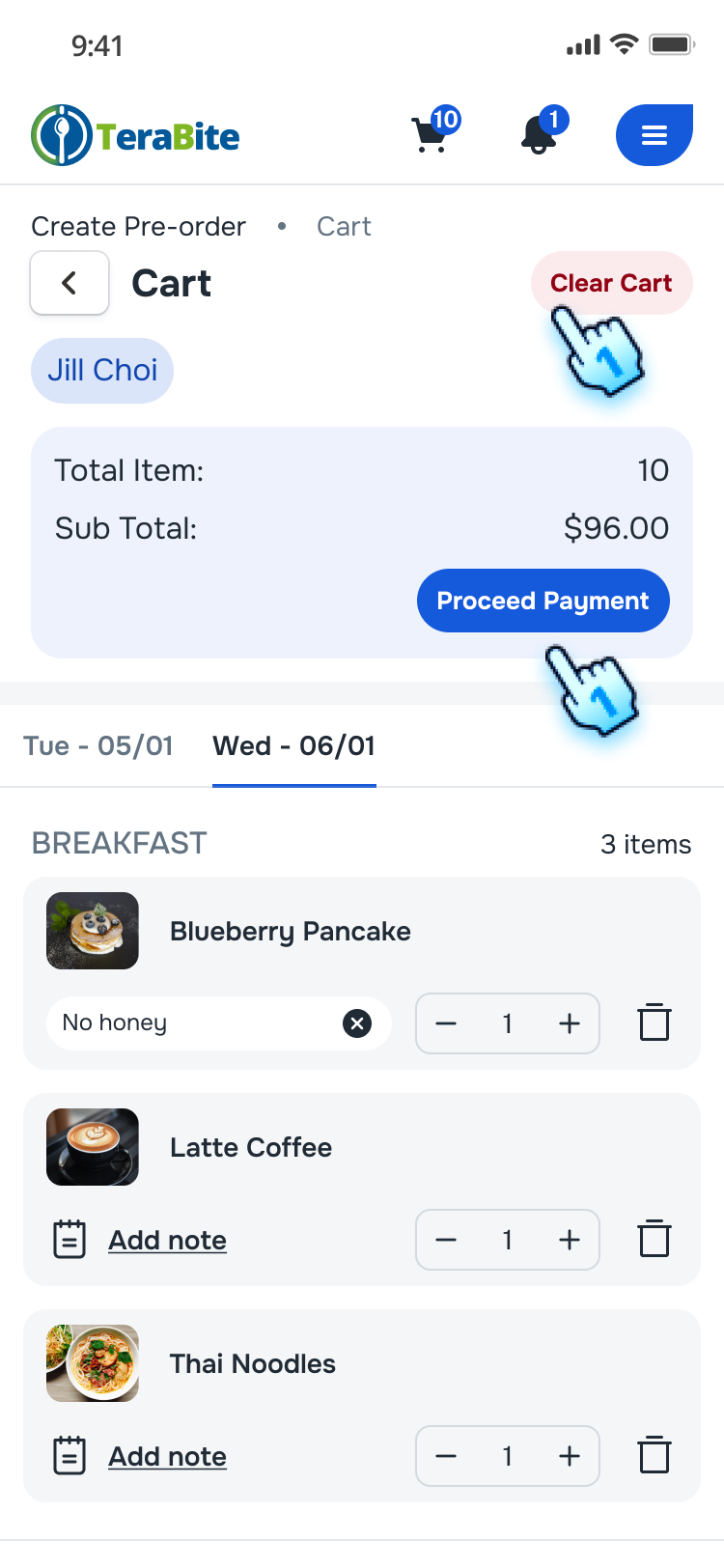
- Tap the cart icon to view the order summary.
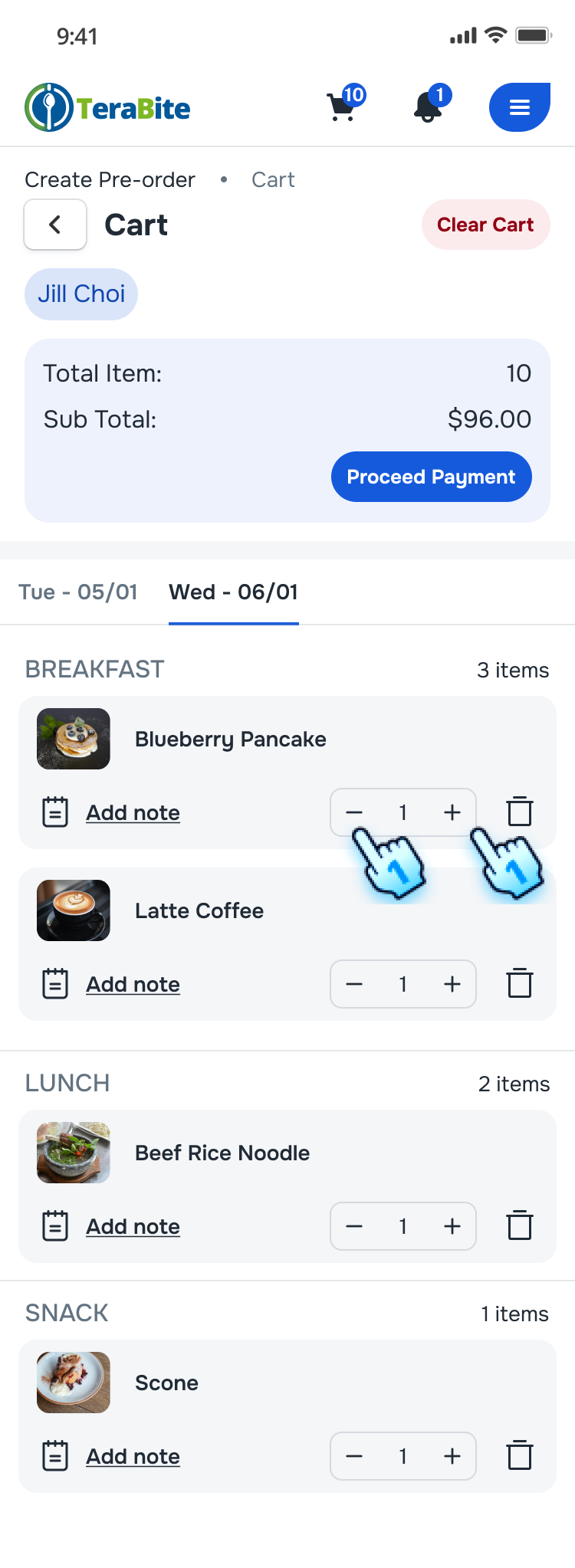
- Modify the quantity of each item as needed by tapping +/- button.
- The total order amount will be updated accordingly.
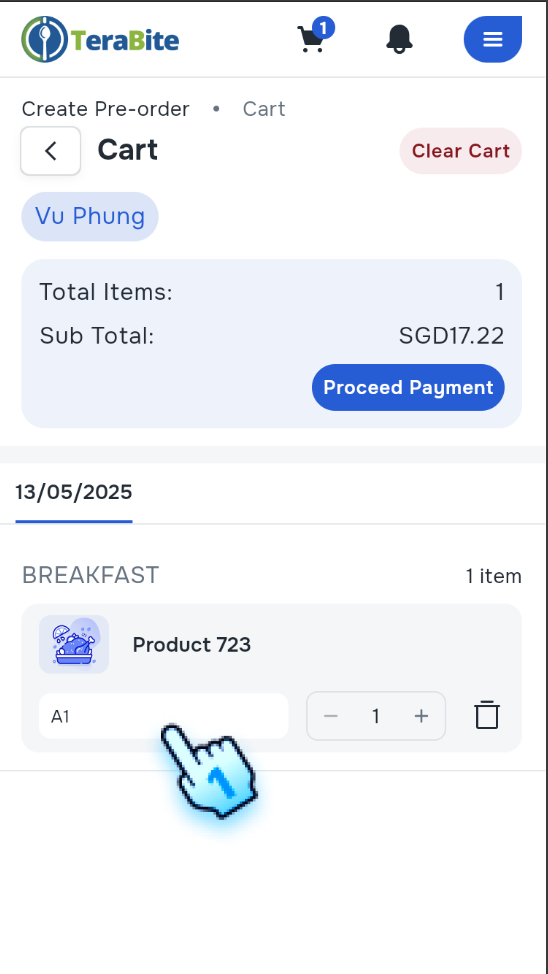
- Open Options Popup from Cart
- Access the Options popup from the cart to update item options.
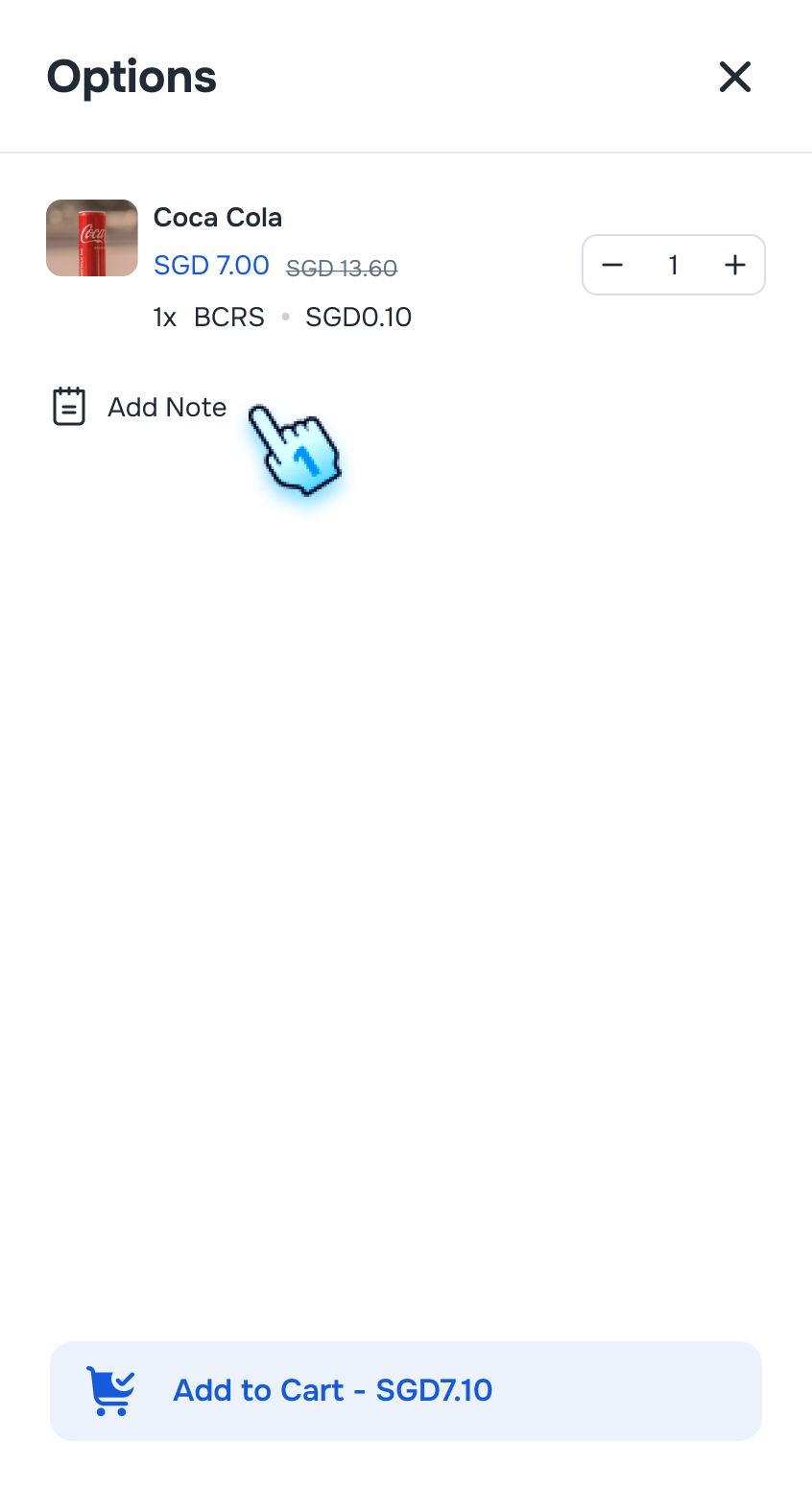
- Add Notes
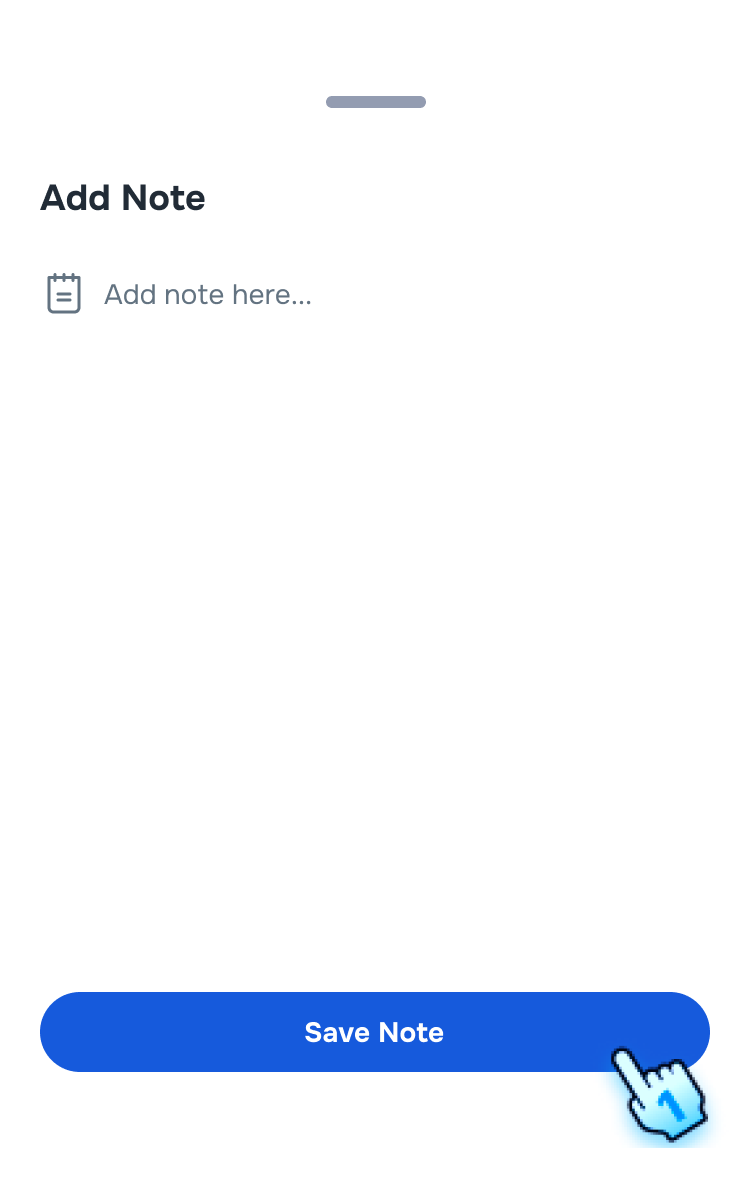
- Tap "Add Note" button and Enter any special instructions or notes.
- Tap "Save Note" to attach the note to the each items.
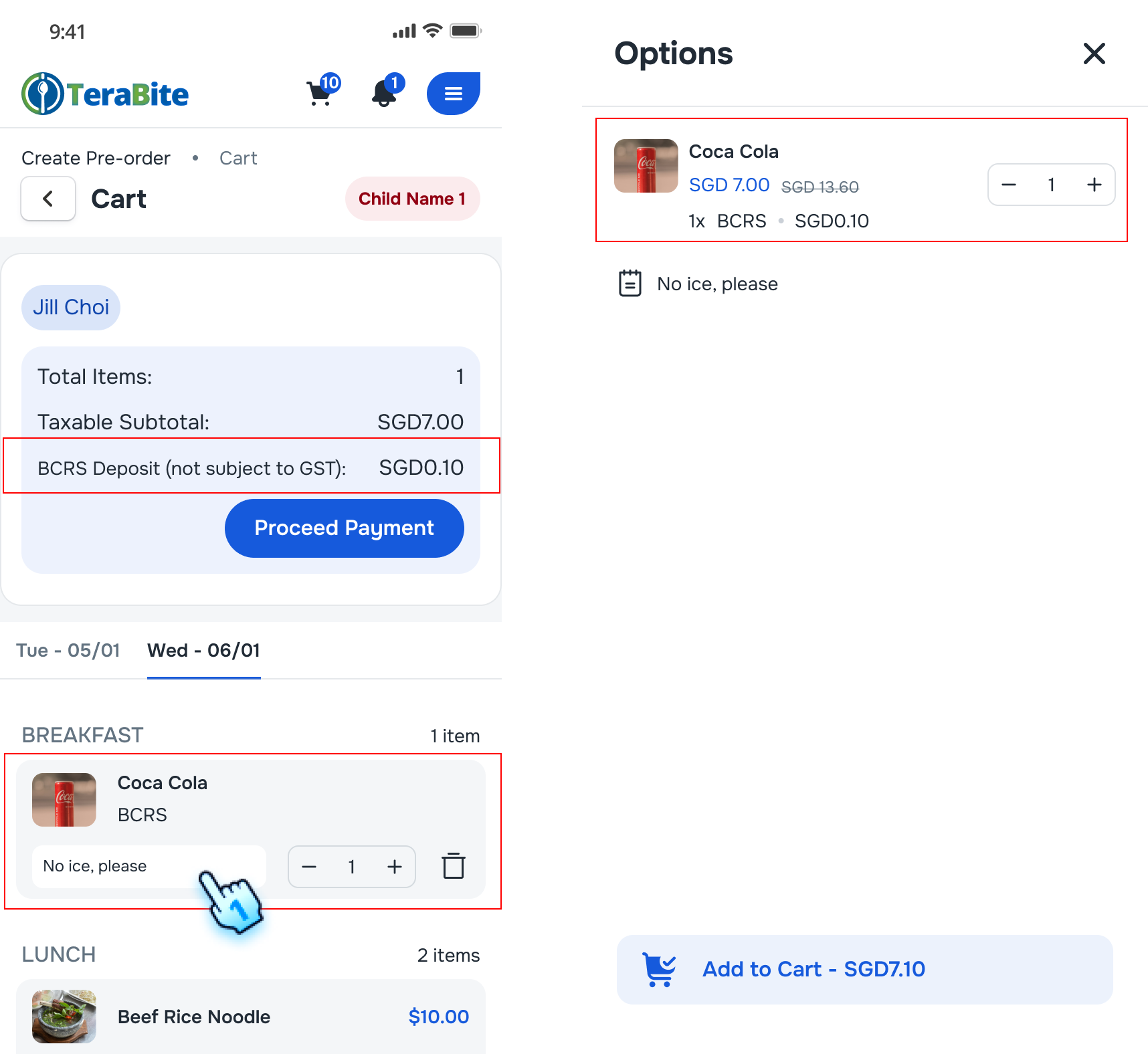
- BCRS label
- BCRS-flagged items are labelled in the cart and in the Options detail
- Clear cart or Proceed Payment
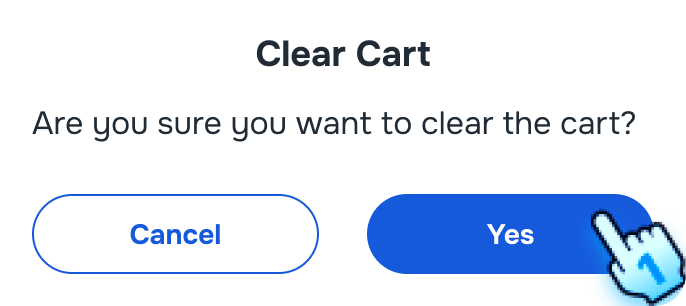
- Tap Clear Cart button and Confirm the pop-up dialog to clear all items in the cart Or
- Tap Proceed Payment to go to Complete Order Section
Complete Order
- Check Out
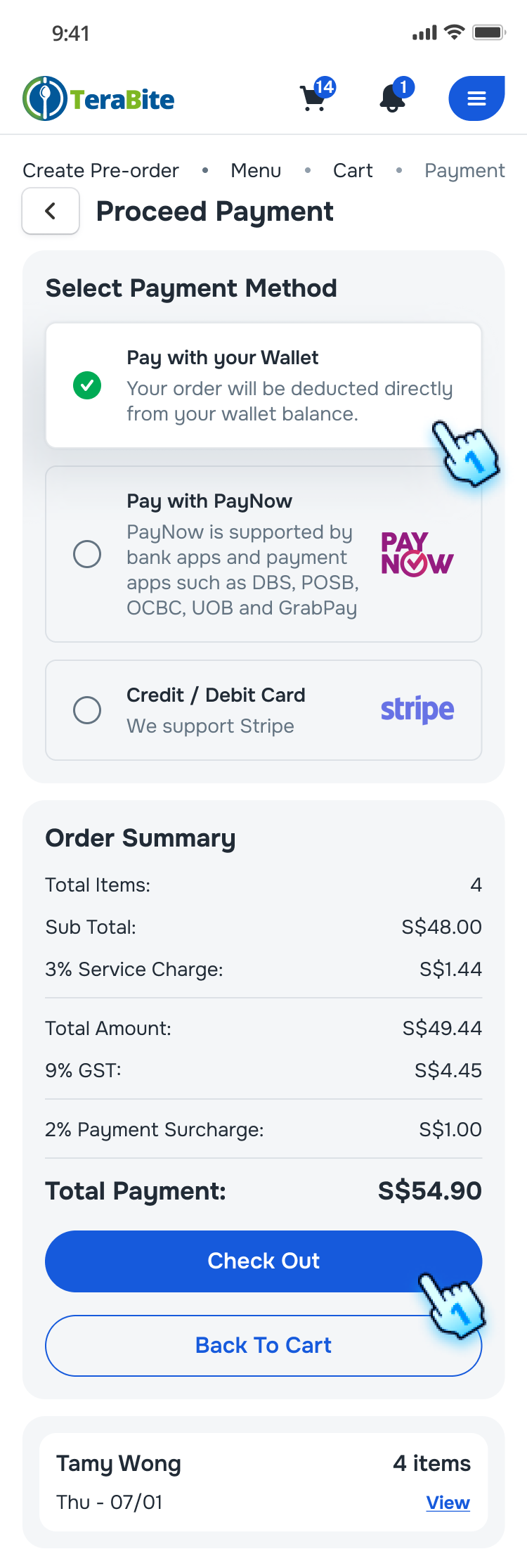
- Choose a payment method from the available options (e.g., credit card, e-wallet).
- Click the "Check Out" button.
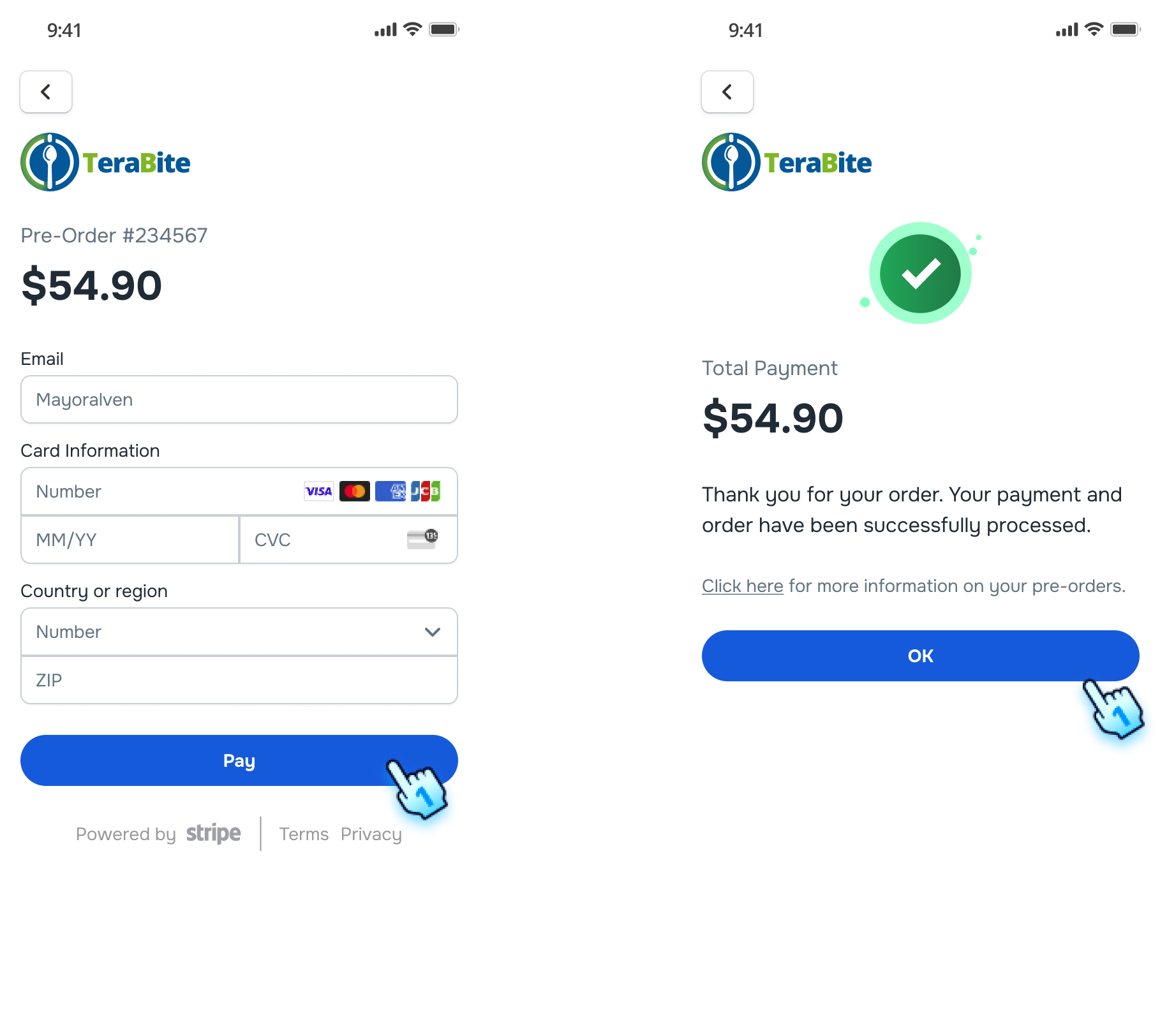
- Follow checkout process:
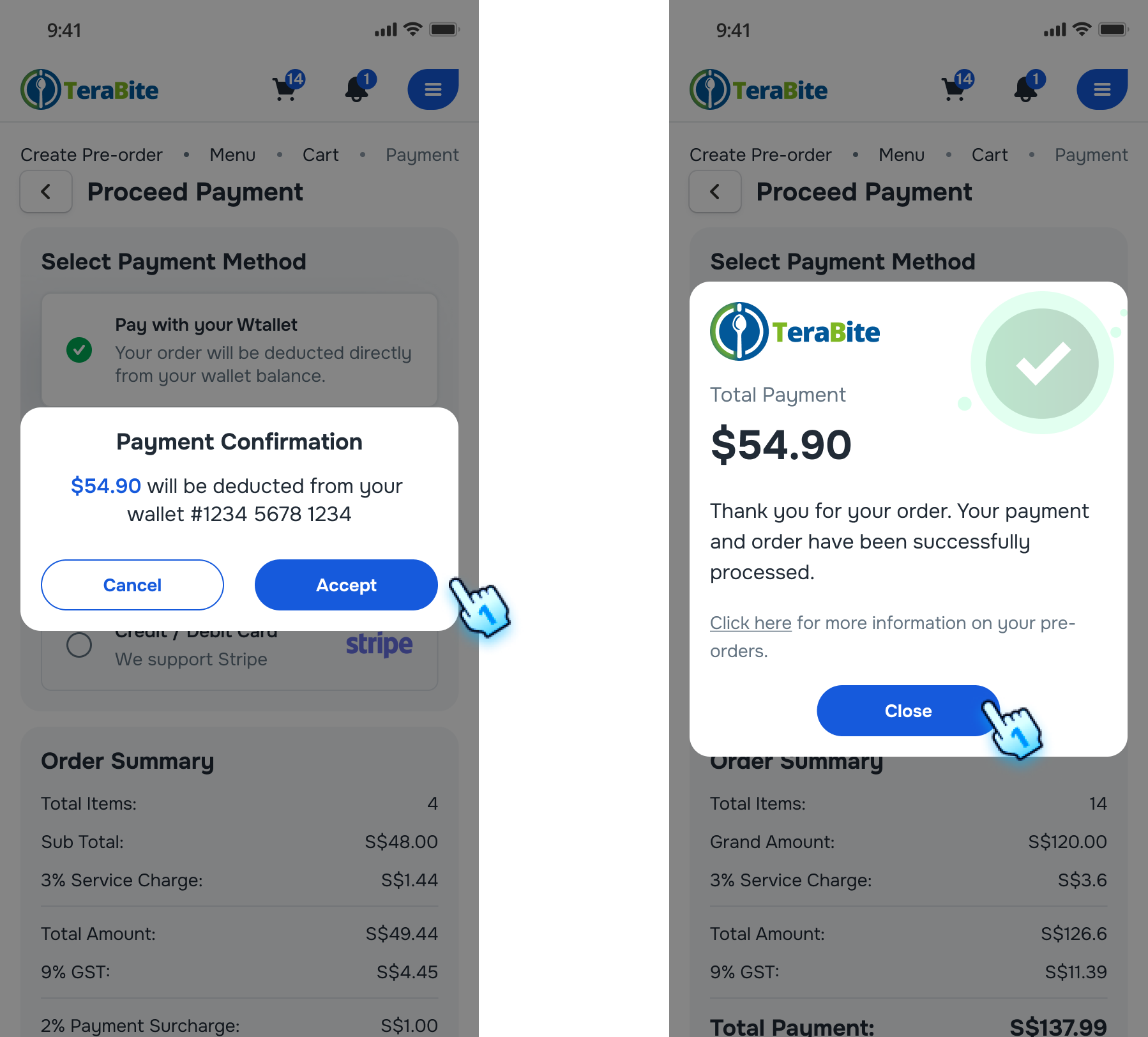
- Pay with Wallet: Tap on "Accept" button on the confirmation dialog
- Credit/ Debit card: Enter Card required information and Click "Pay" button to confirm payment
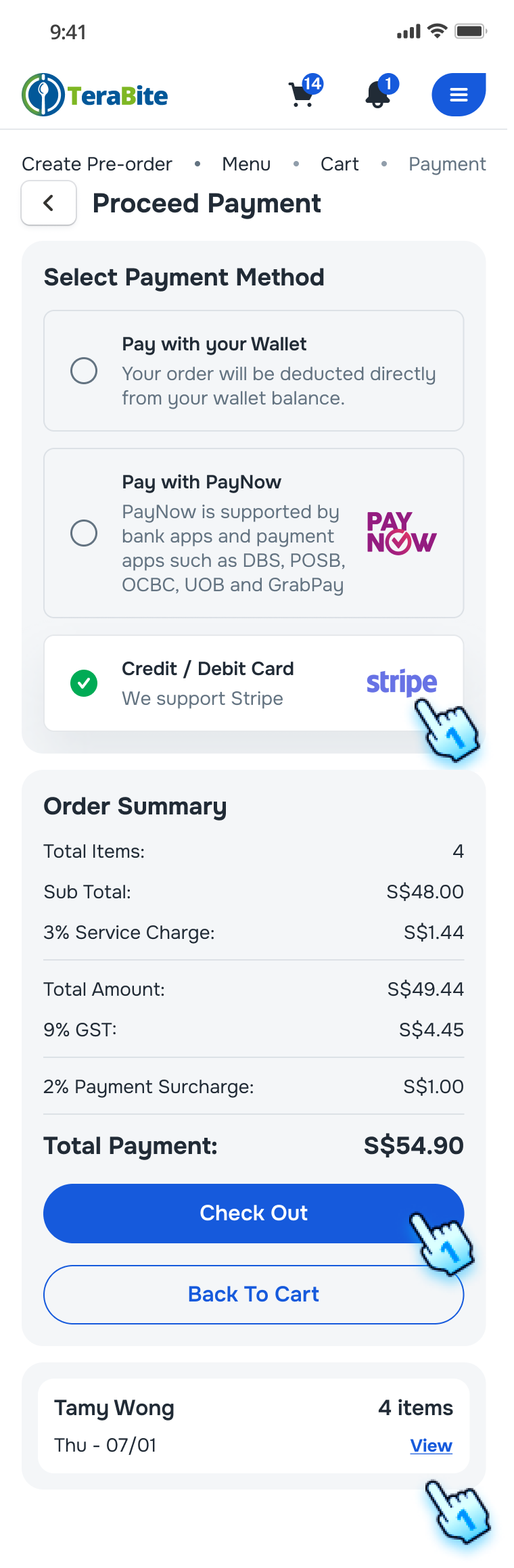
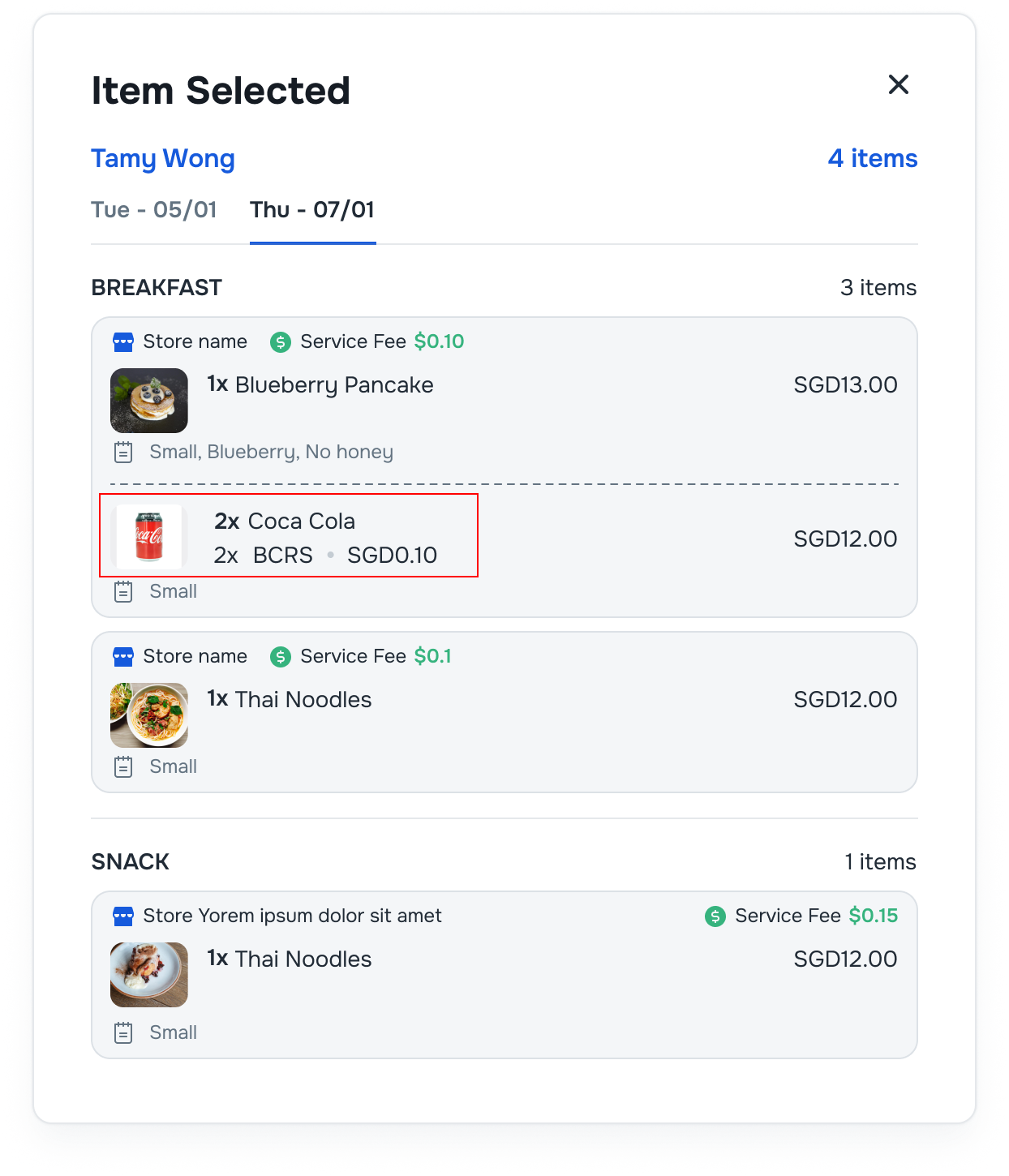
- Select View button to review the Items Selected before checkout.
- BCRS-flagged items are labbeled.
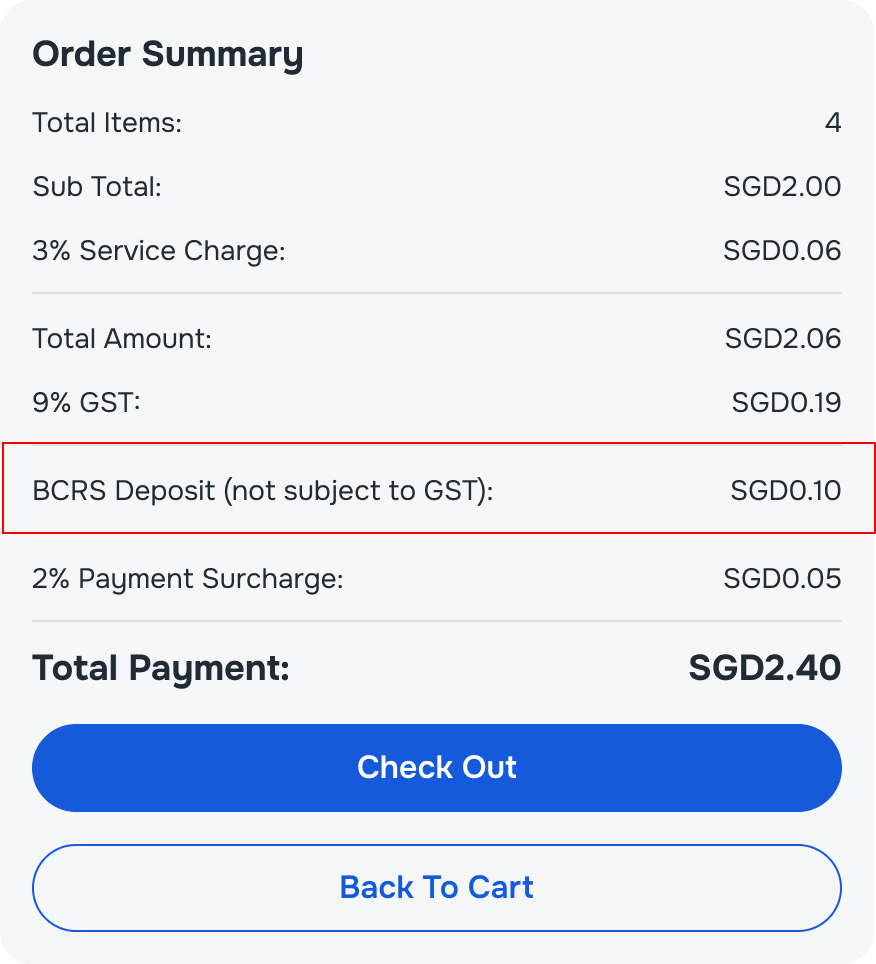
- Order Summary with BCRS deposit
- BCRS Deposit (not subject to GST) is added in the Order Summary
- The system now follows a strict calculation order to ensure BCRS deposits are handled correctly:
- Step 1: Calculate Subtotal, apply Discounts (Only for POS), Service Fees, and GST to taxable items only.
- Step 2: Add the BCRS Deposit ($0.10 * Qty) to the total.
- Step 3: Apply the Payment Fee (Acquirer Fee) to the final sum, as this fee applies to the total processed amount. *Payment fee is due to the Acquirer who will charge for a whole payment transaction.
Review Created Pre-Orders
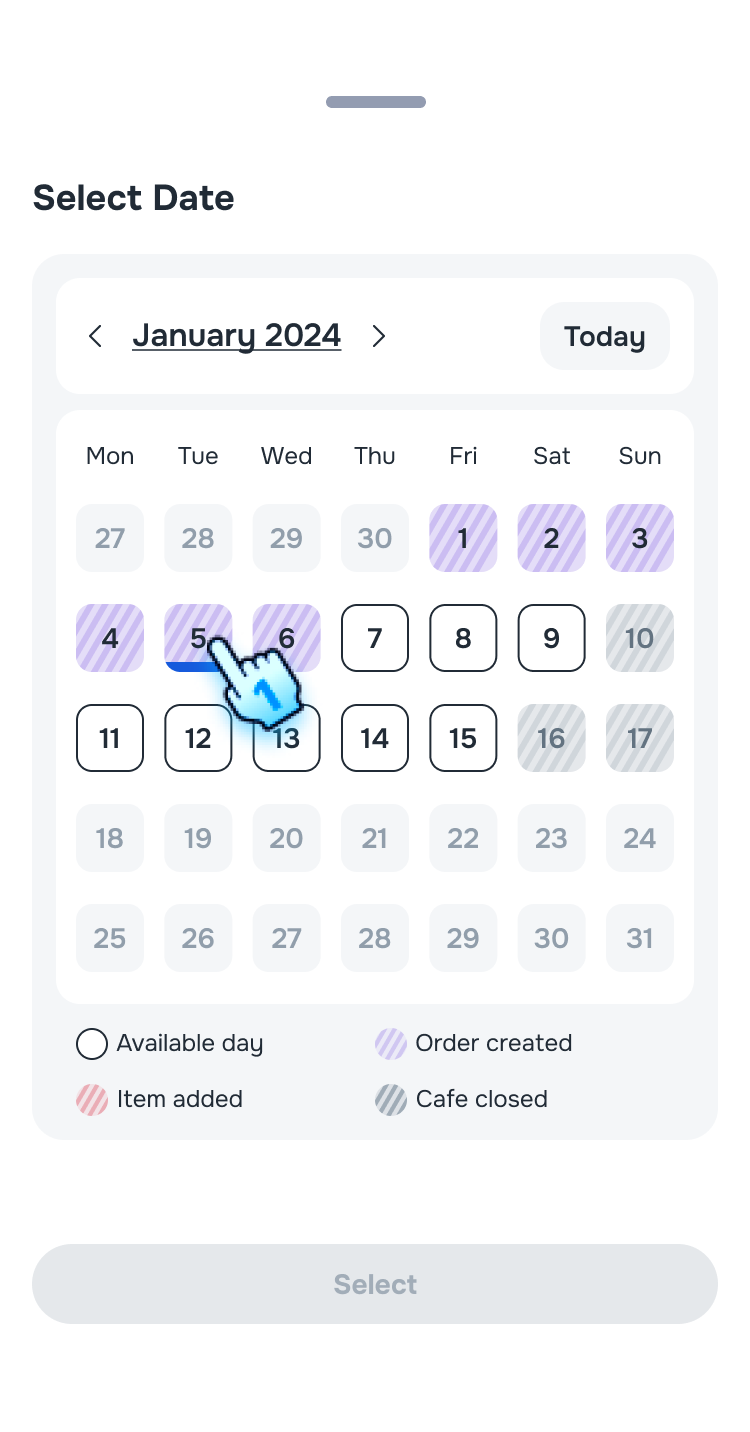
- Select the Created Pre-Orders
- Tap on Day card
- Tap on Purple-Dash Day to display the Created Pre-Order
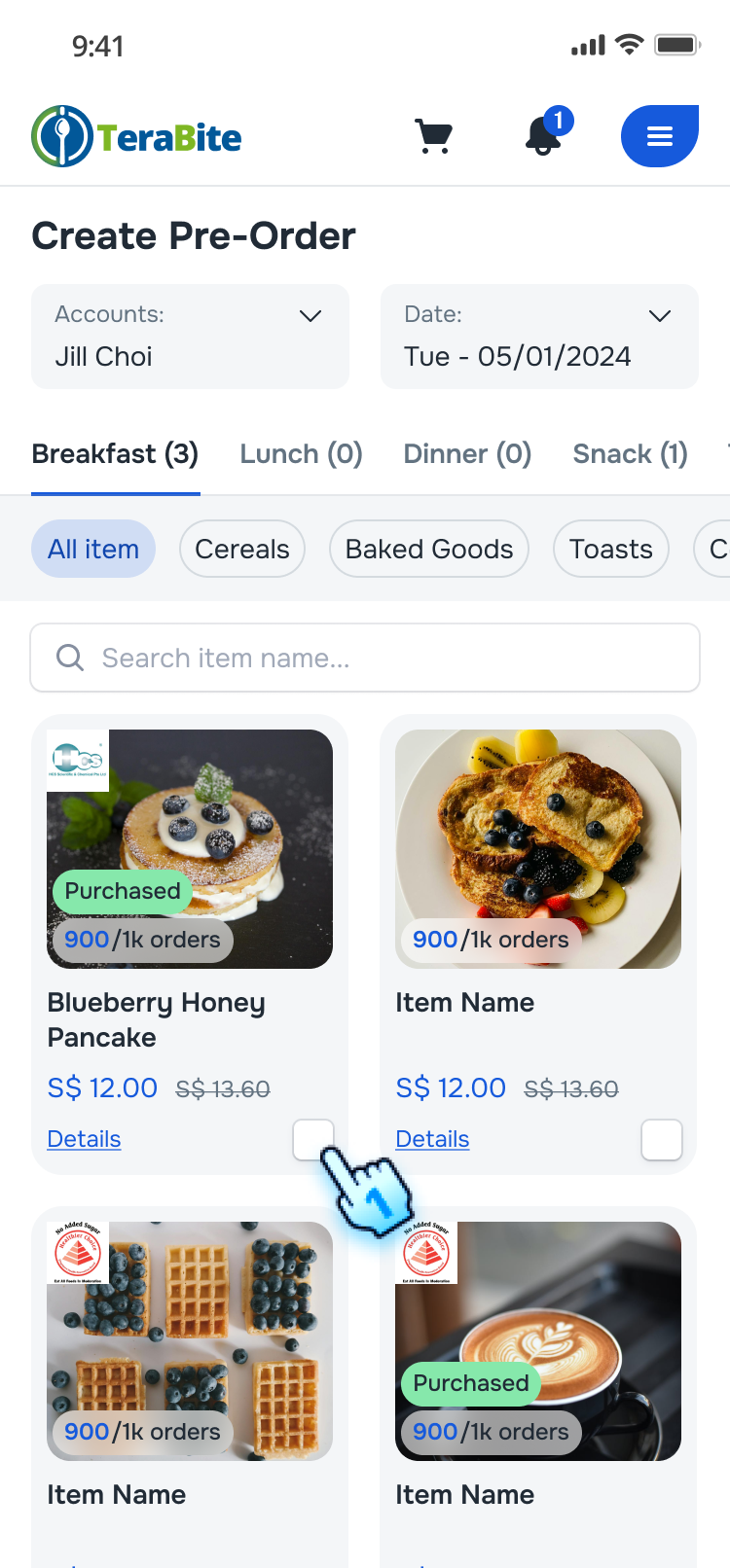
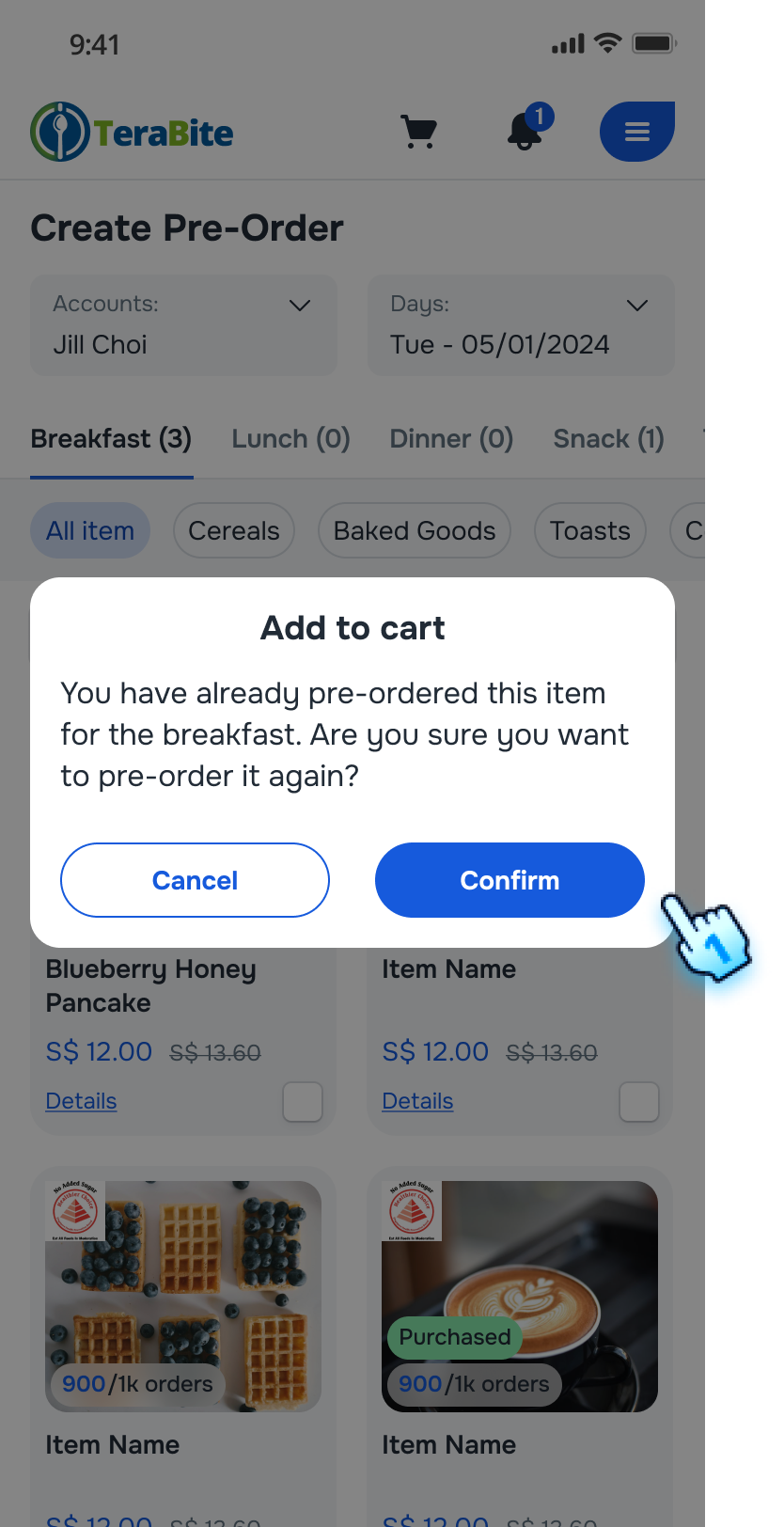
- Attempt to Add Purchased Items
- After select the Created Pre-Order day, Tap the checkbox next to each purchased item to add it to the pre-order.
- Click "Confirm" button on the confirmation dialog
- The item is added in cart again.
Conclusion
The Pre-Order Menu section provides a detailed guide for placing and managing meal pre-orders. By following these steps, users can efficiently select items, adjust quantities, and complete their orders, ensuring a seamless ordering experience.