Order History
Description
This section outlines the procedures for viewing and managing order history, including filtering orders and canceling orders.
View Order History
- Access Order History
- Log in to the C-Portal.
- Navigate to the Order History section.
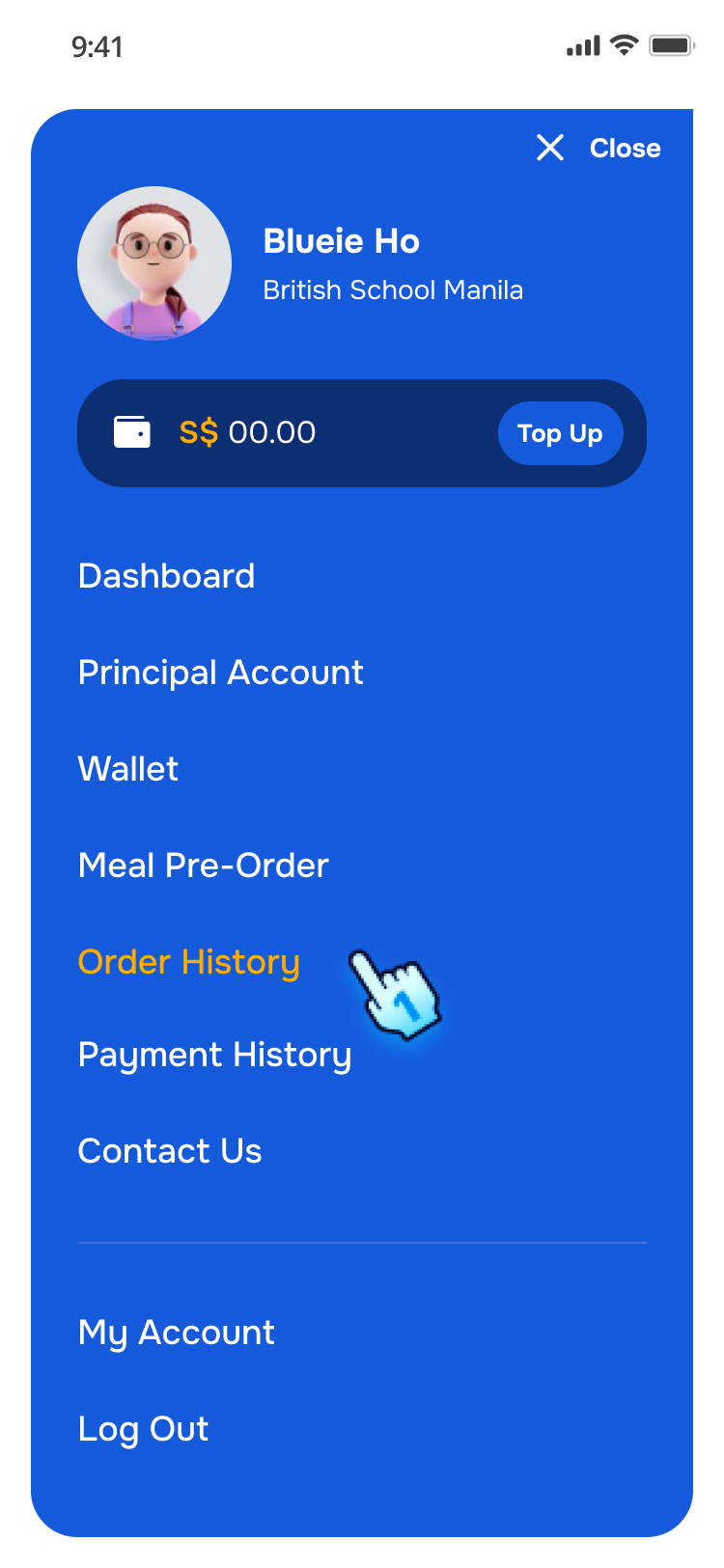
- Navigate to Order History from Menu Or
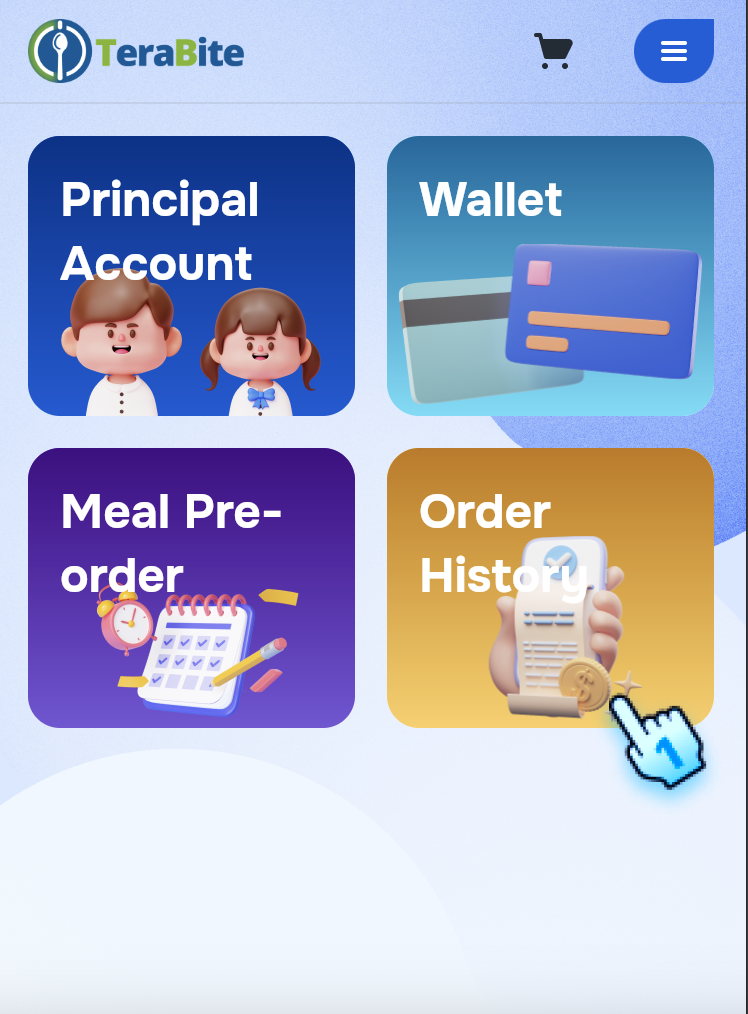
- Navigate to Order History from Dashboard
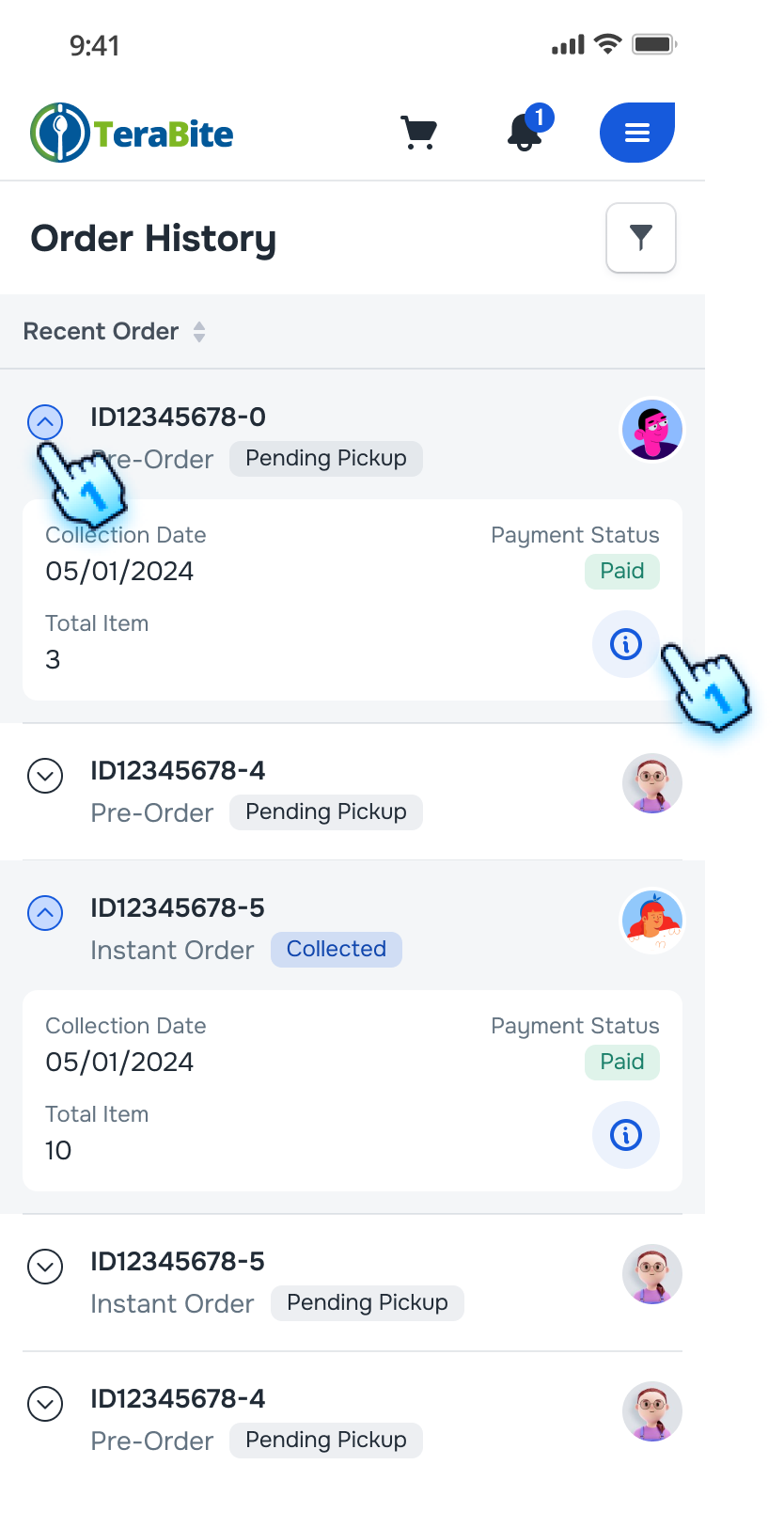
- A list of orders will be displayed, including order ID, status, collection day, total items, and payment status.
- View Order Details
- Click expand/collapse button to view more order information
- Click the "i" button next to an order to view the Order History Details
- Order History Details
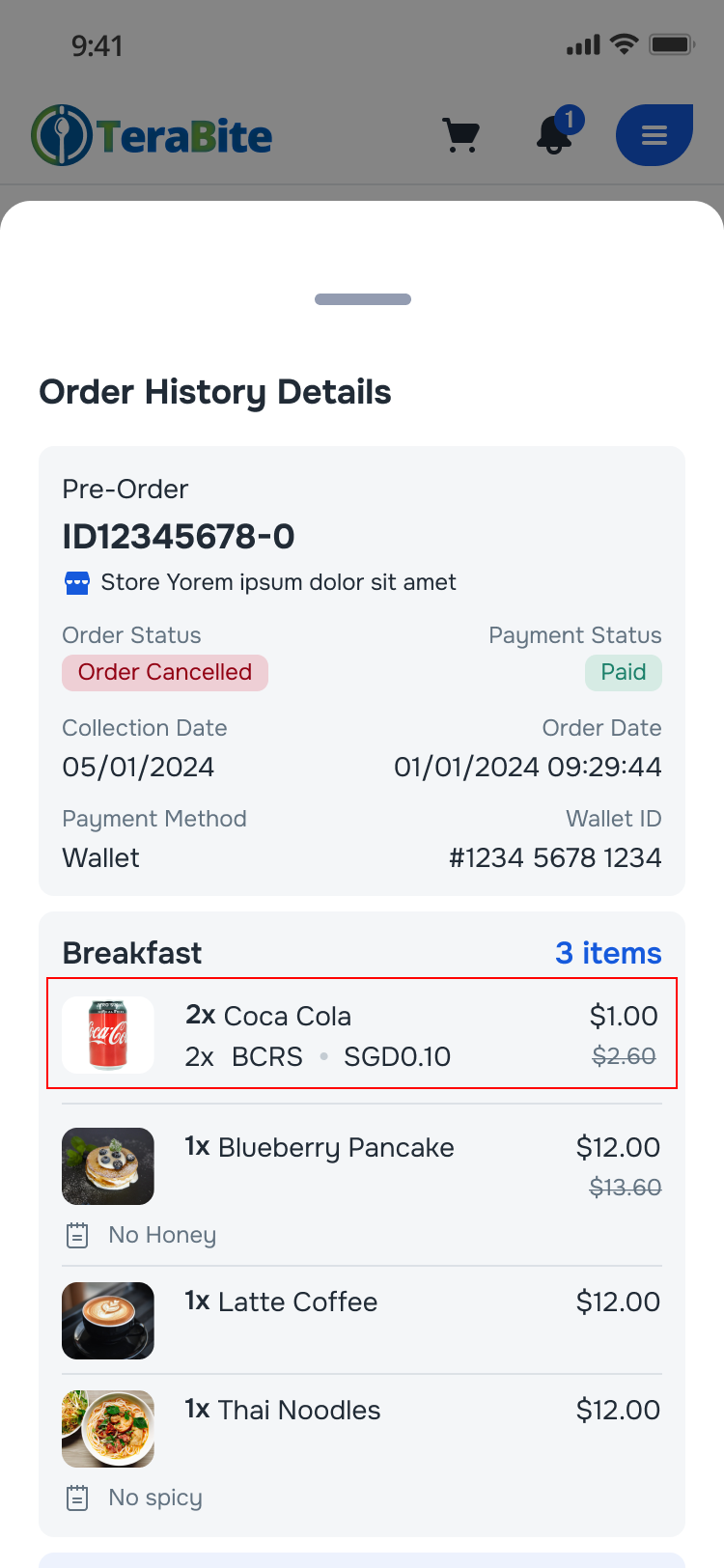
- The Order History Details page will be displayed, showing itemized information
- BCRS-flagged items are labeled.
Cancel Orders
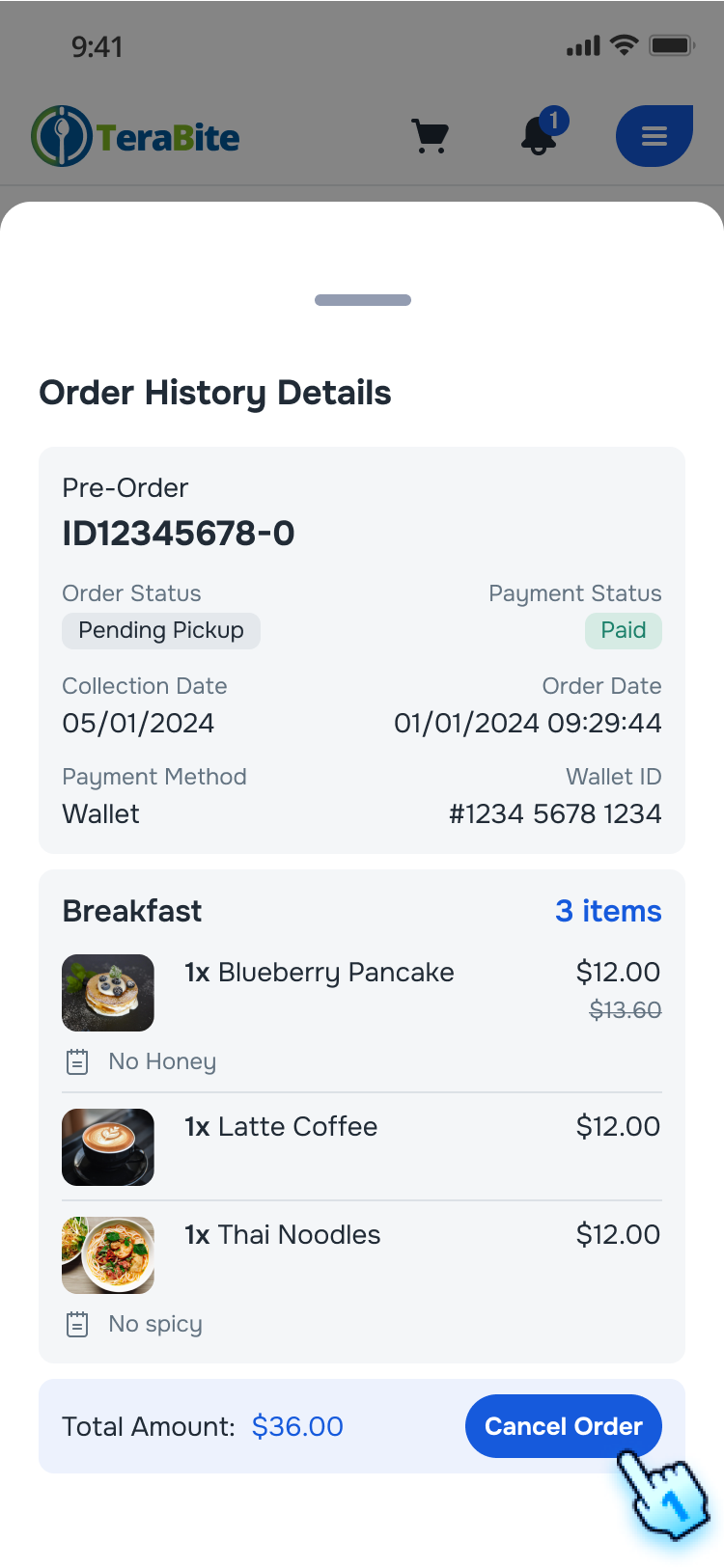
- Cancel Order Before Cut-Off Time
- On the order details page, click the "Cancel Order" button.
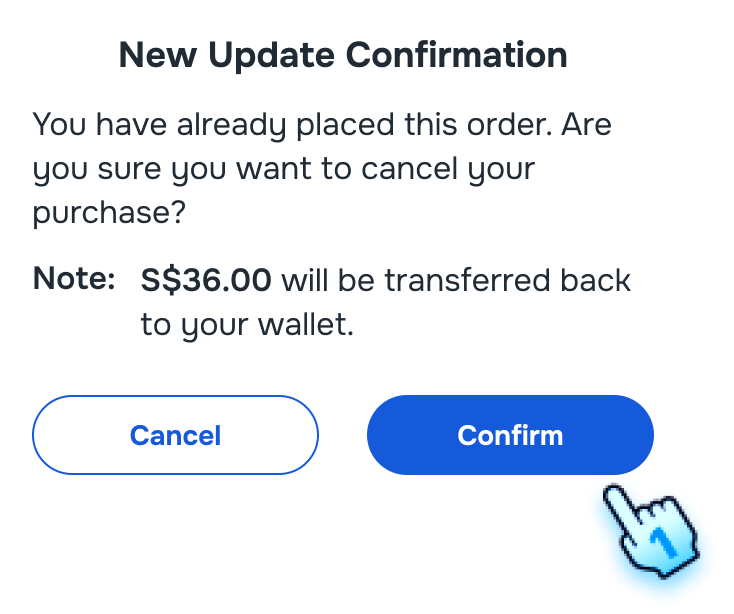
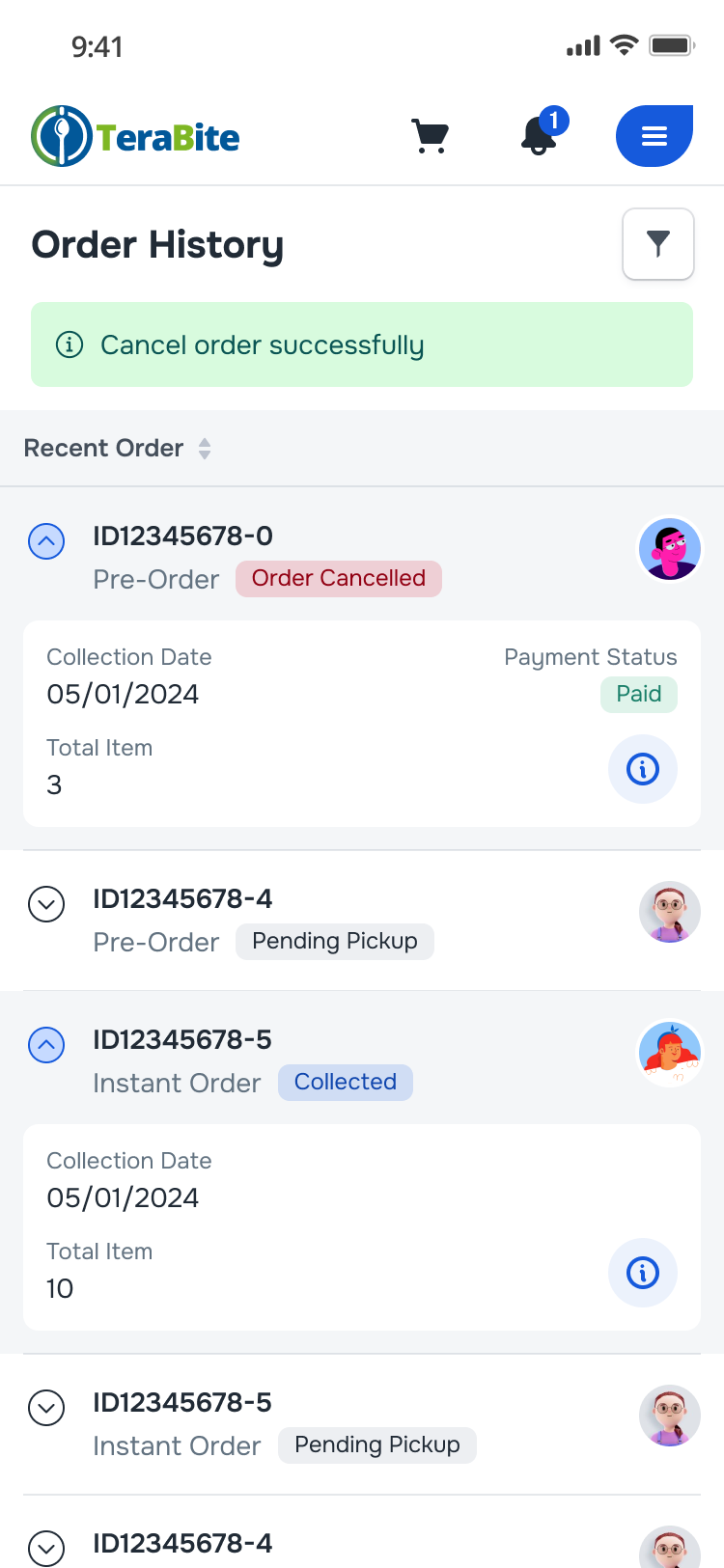
- A confirmation dialog will appear.
- Confirm the cancellation by clicking "Cancel."
- A confirmation message will indicate that the order has been canceled successfully.
- Attempt to Cancel Order After Cut-Off Time
- If the order is past the cut-off time, the "Cancel Order" button will be hidden.
- The user will not be able to cancel the order.
Filter Orders
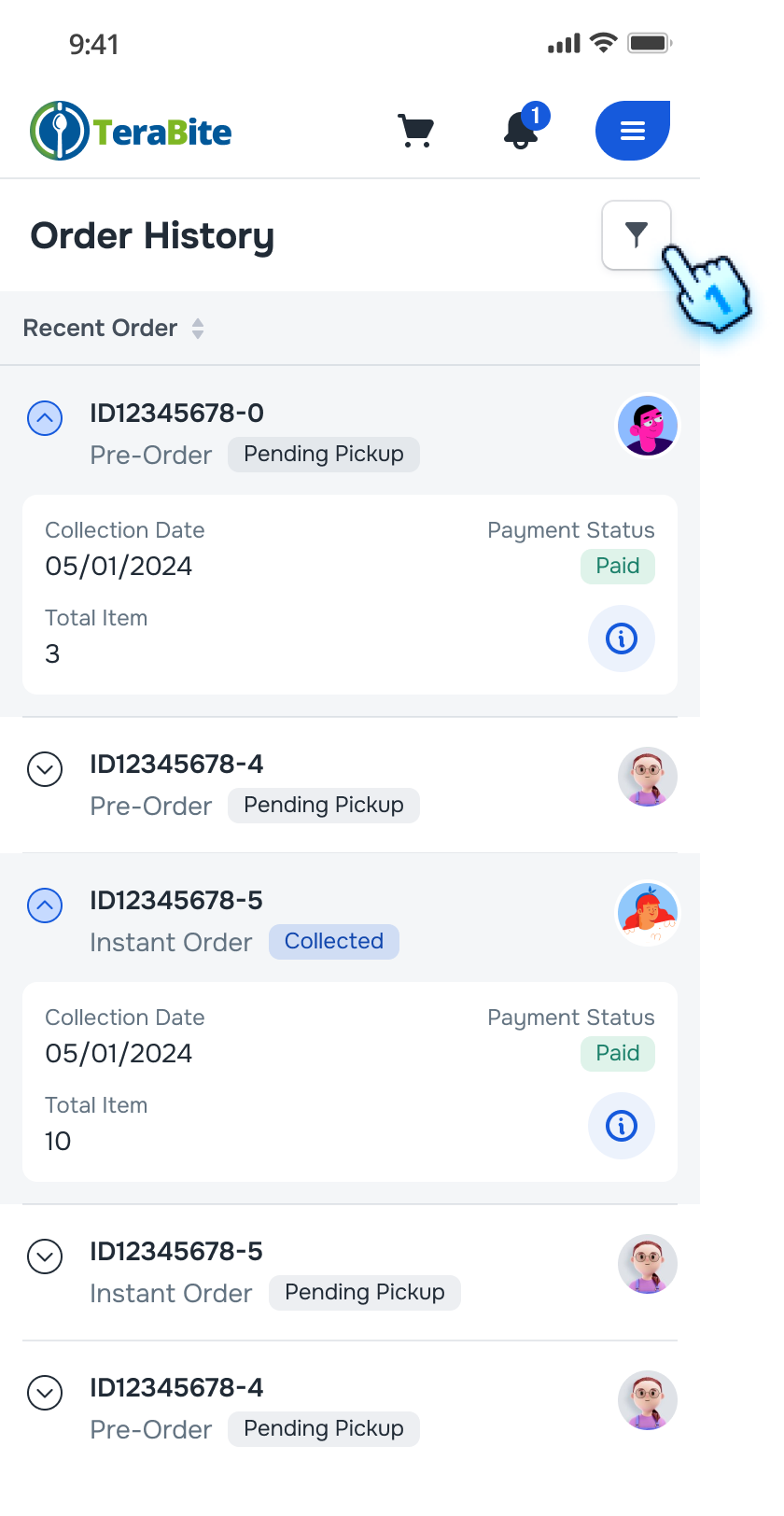
- Access to Filter setting
- Click the filter button on the Order History page.
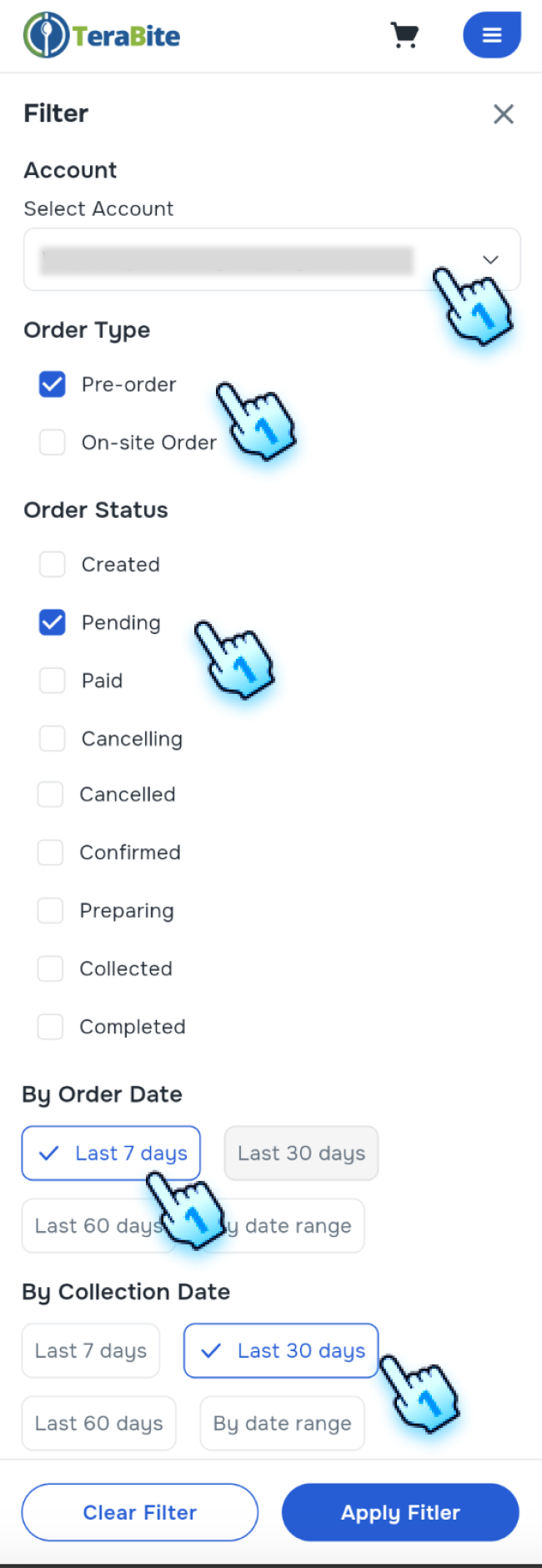
- Select Filter Criteria
- Select Account/ Sub-Account
- Select Order Type (Pre-Order, Instant Order)
- Select a status filter (e.g., Created, Preparing,Completed, Pending, etc.).
- Select By Order Date
- Select By Collection Date *Note: Criteria can be single selected or multiple selected
- Apply filter
- Click "Apply Filter."
- The order list will update to show orders according to the filter crieria.
Conclusion
The Order History section provides a clear guide for viewing and managing past orders, including filtering and canceling orders. These steps enable users to track their orders and make necessary adjustments within the allowed time frame.