Member Linking Management
Description
This document outlines the procedures for inviting and managing member links within the application.
Inviting Members to Link Accounts
- Member Invite to Link with Existing Member
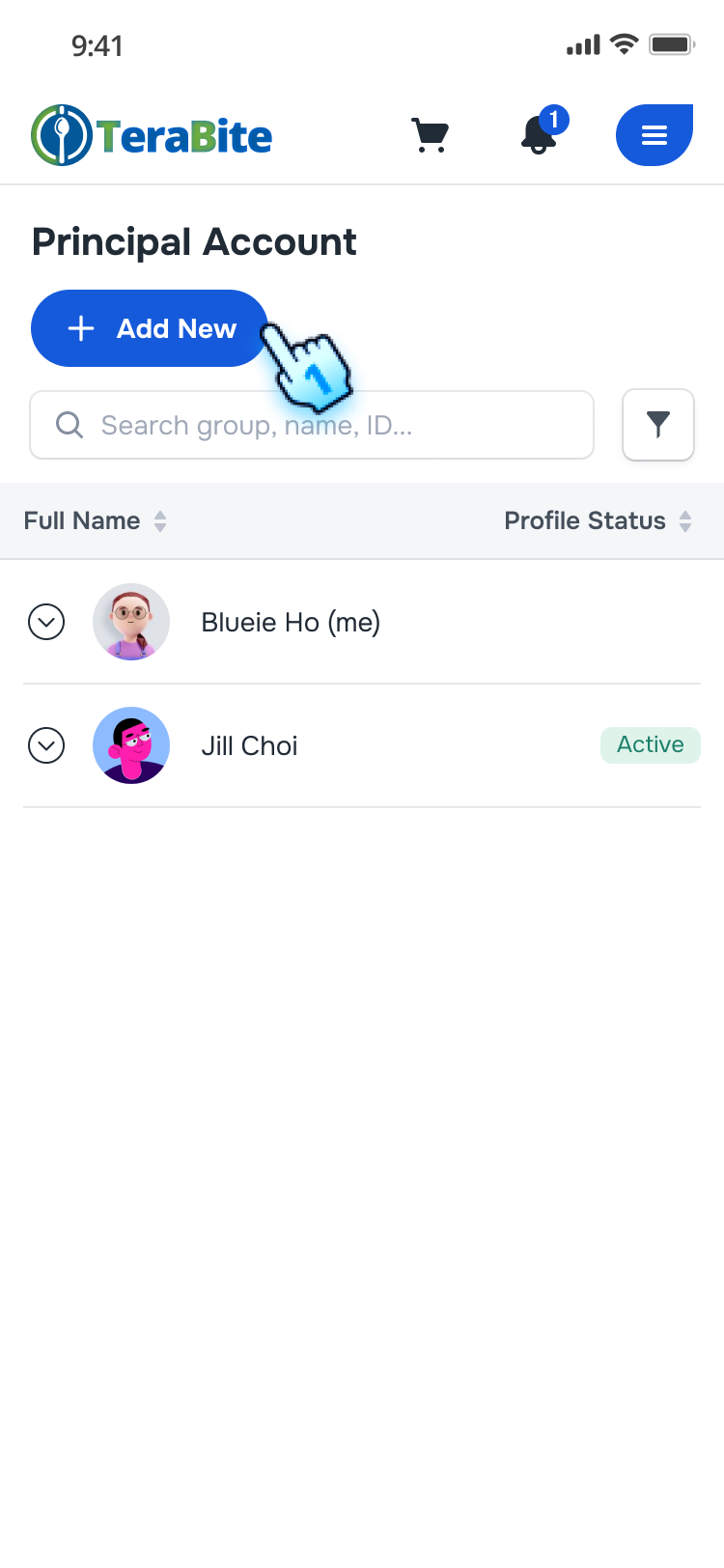
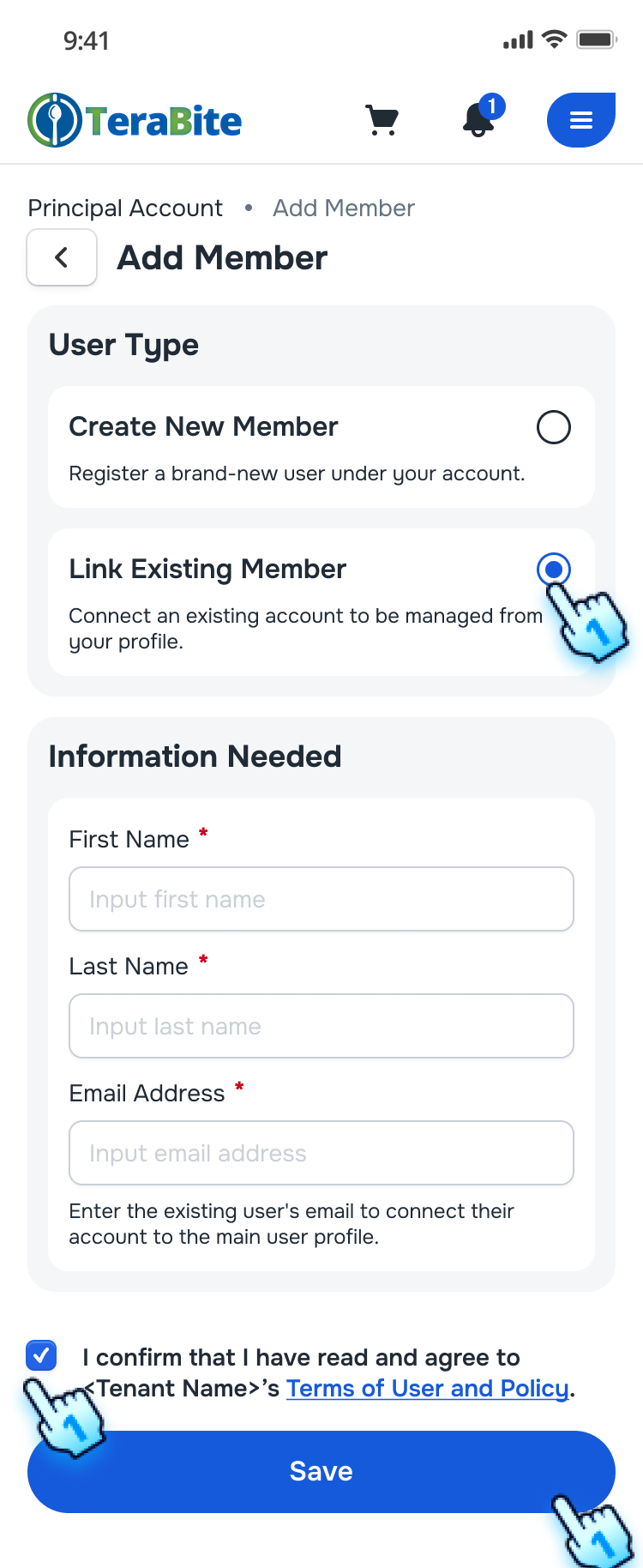
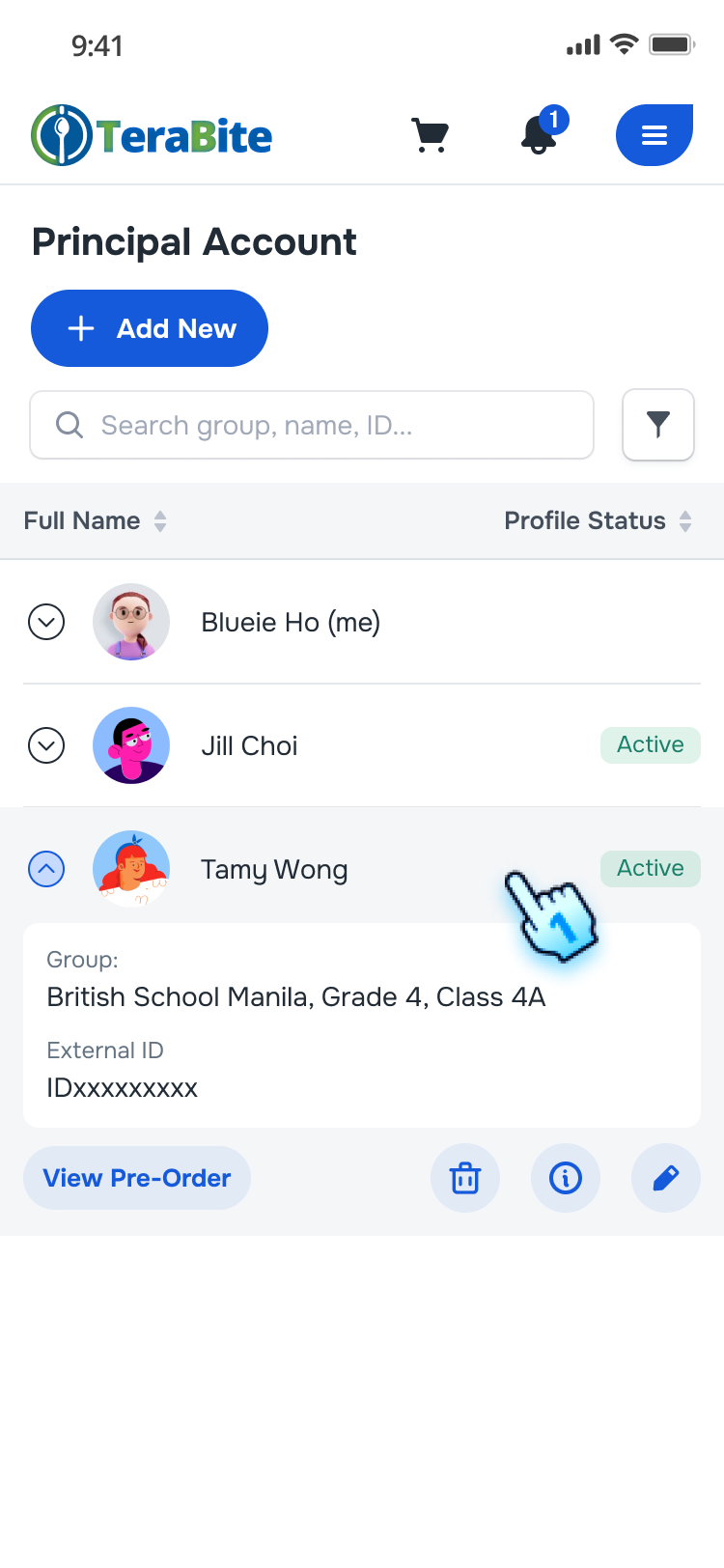
- Accesses the Principal account, clicks the "+ New Member" button
- Selects "Link to Existing Account," and confirms the addition with the required information.
- A success message displays, and the invitation is sent. Note:
- Not allow to link the same account twice.
- Attempts to link an account that has sub-accounts and submits the link invitation. An error message displays indicating the user has been a sponsor in others.
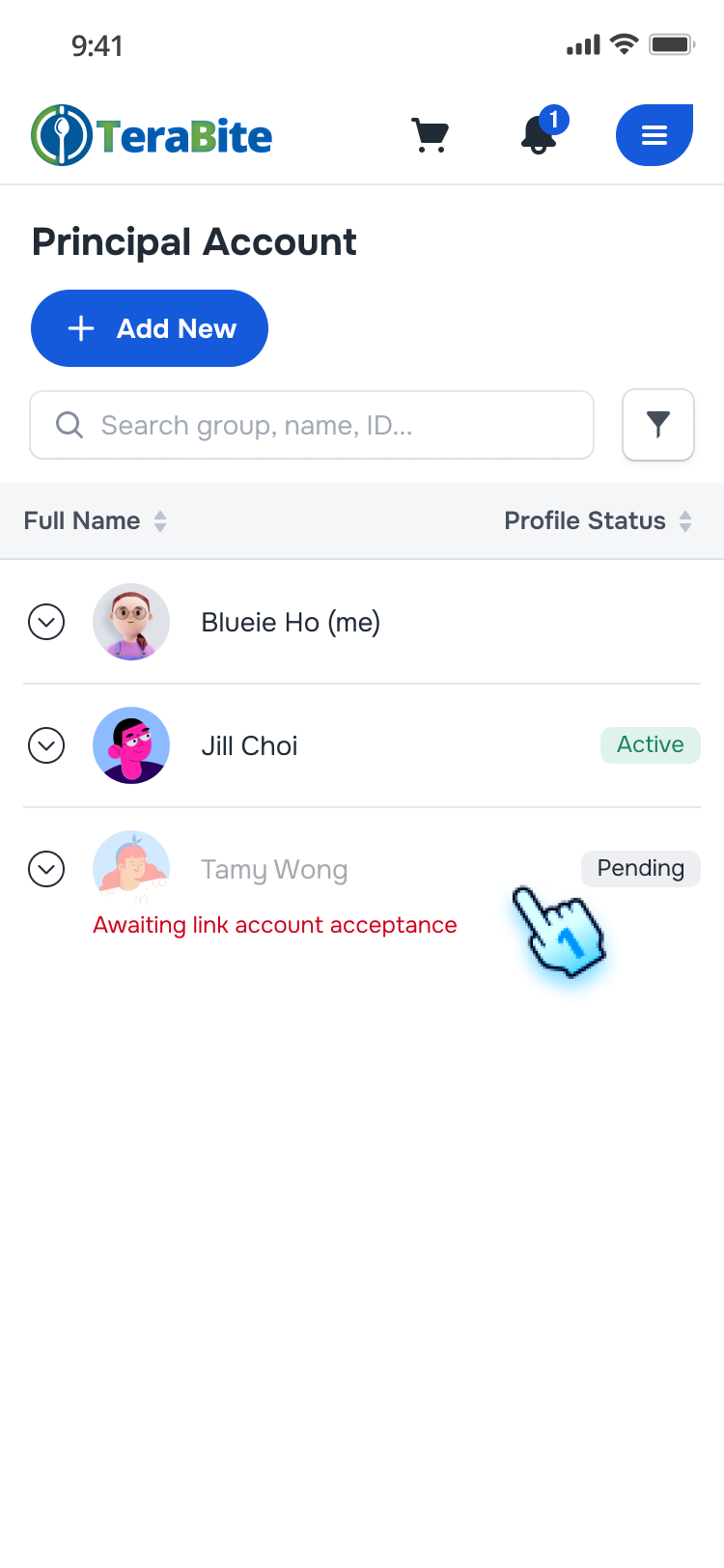
- Member Appears in List with Pending Status
- Checks the list of linked accounts in Principal Account, the invited member appears with a Pending status.
Link Invitation Notifications
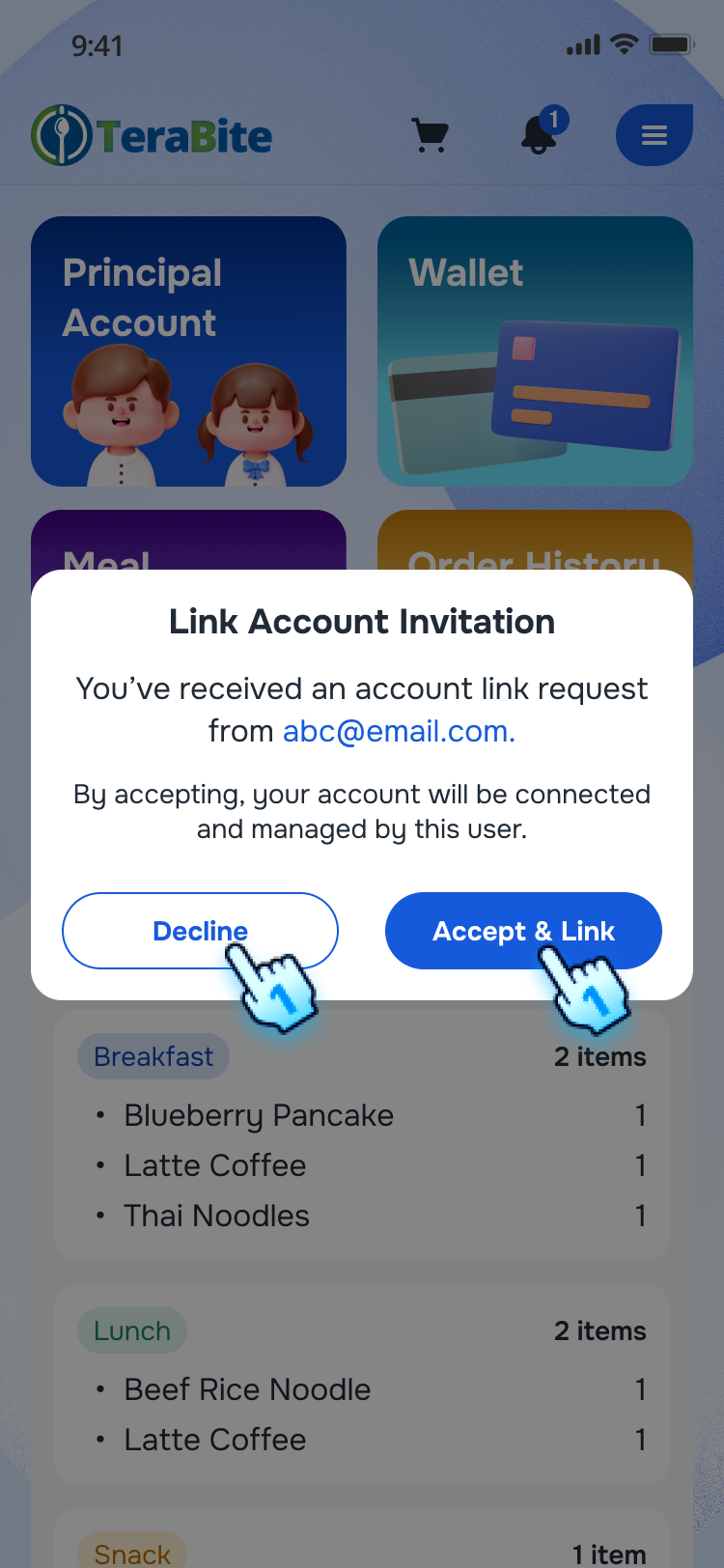
- Display Link Invitation Popup in Invited Member Account
- User has sent a link invitation, and when the invited member checks their notifications, a link invitation popup is displayed.
- Accept the Link Invitation in Invited Member Account
- The invited member receives a link invitation and accepts it. The account is linked successfully.
- Decline the Link Invitation in Invited Member Account
The invited member receives a link invitation and declines it. The account remains unlinked, and an appropriate message is shown. Note:
Invited account has acted on a link invitation (either accepted or declined), and when the user checks for new invitations again, the "Link Account Invitation" popup does not appear again.
Conclusion
This document provides a structured approach for inviting and managing member links within the application, ensuring proper handling of invitations, status updates, and restrictions related to linking accounts.
Screen flow
Inviting Members to Link Accounts
Link Invitation Notifications