Settings
Description
This document outlines the procedures for managing notifications within the Customer Portal.
Settings Management
- Navigate to the Setting
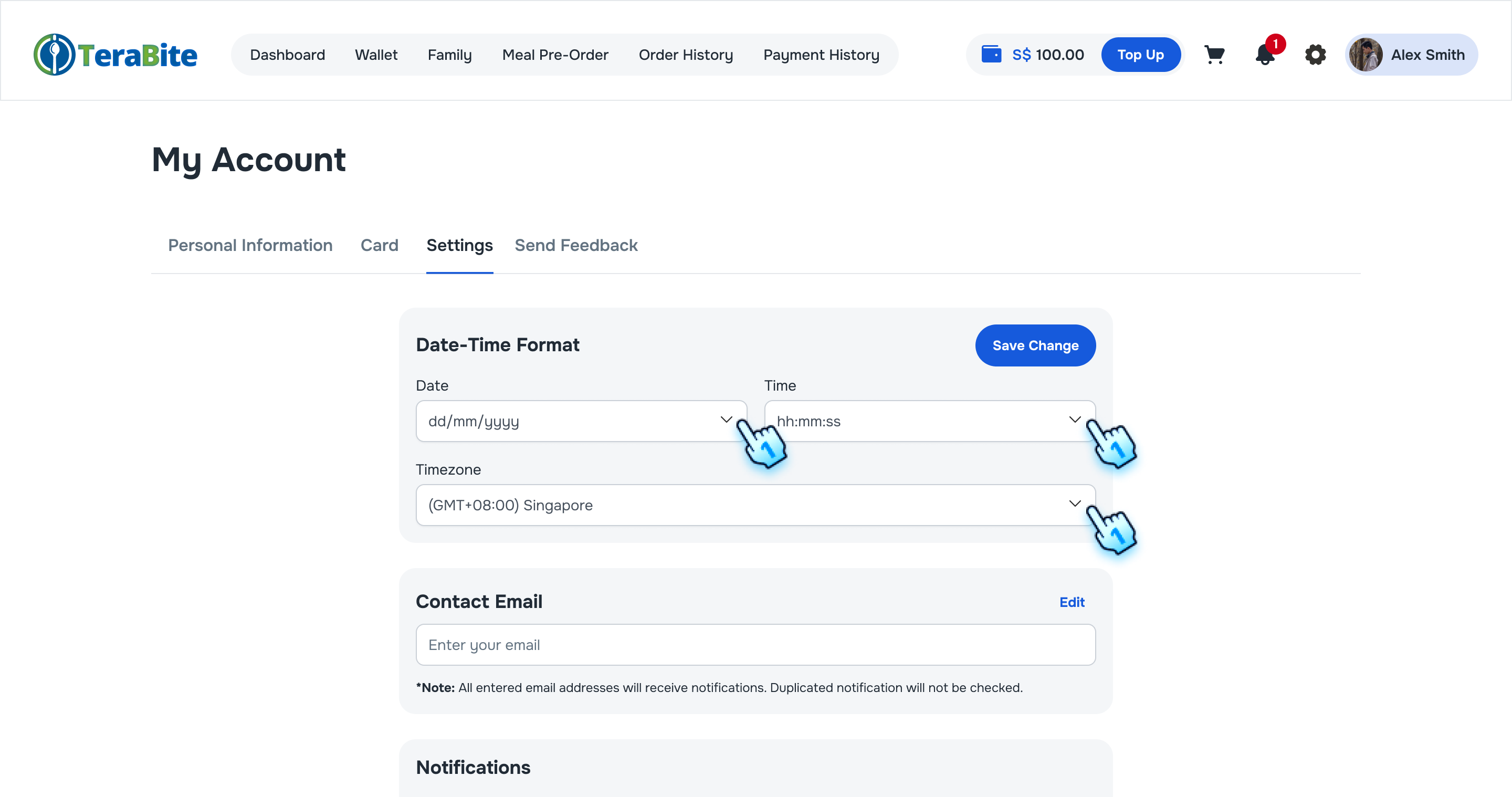
- Navigate to Settings tab by tapping on Gear button from the top navigation bar.

- Date Time format
- Select Date and Time format in the drop-down list
- Tap "Save Change" to complete the adjustment
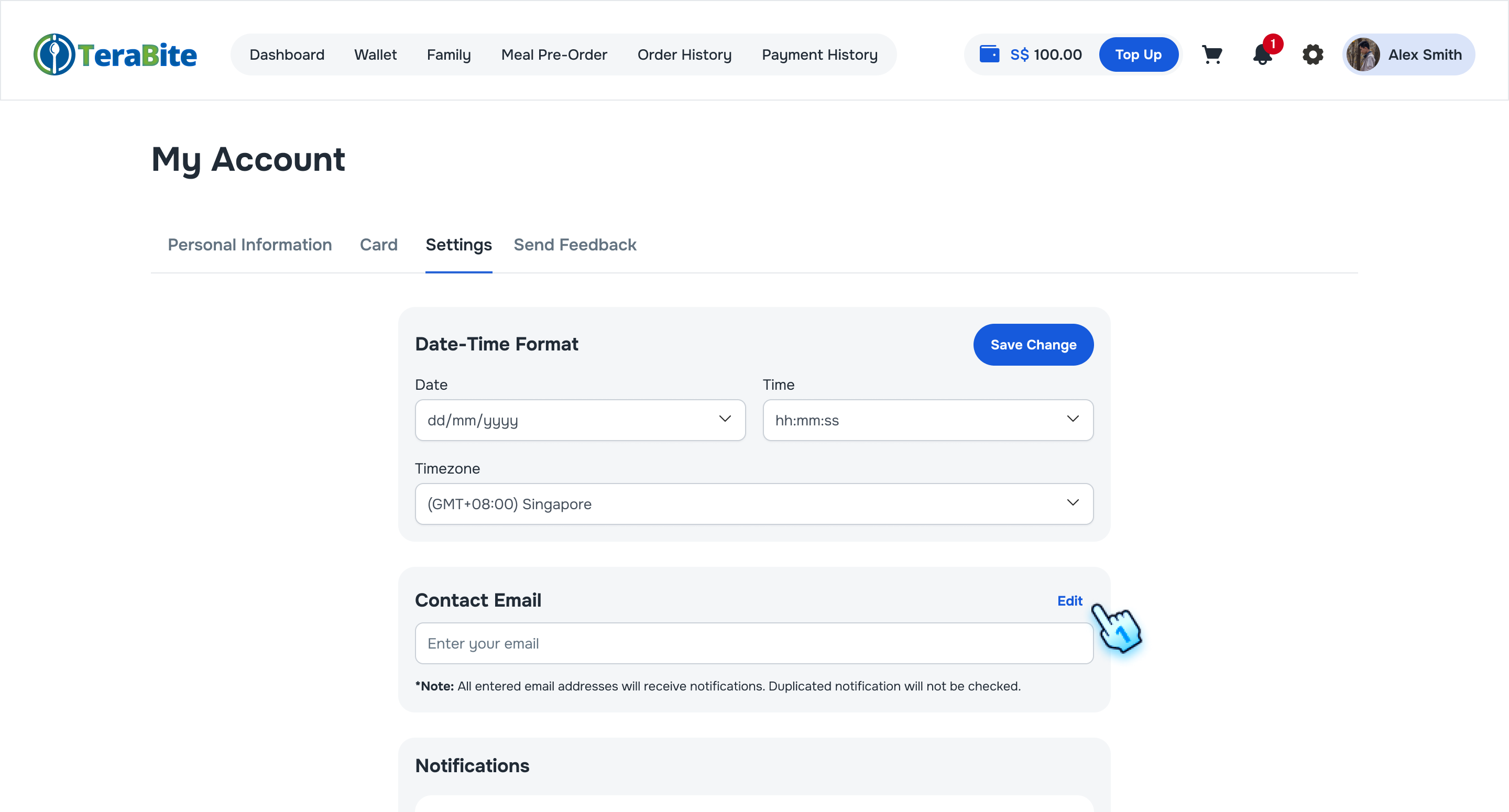
- Contact Email
- Tap "Edit" button to have a change
- Enter desired emails to receive notifications based on the notification settings below.
- Tap "Save" button to complete the action.
Note: All entered email addresses will receive notifications. Duplicated notification will not be checked.
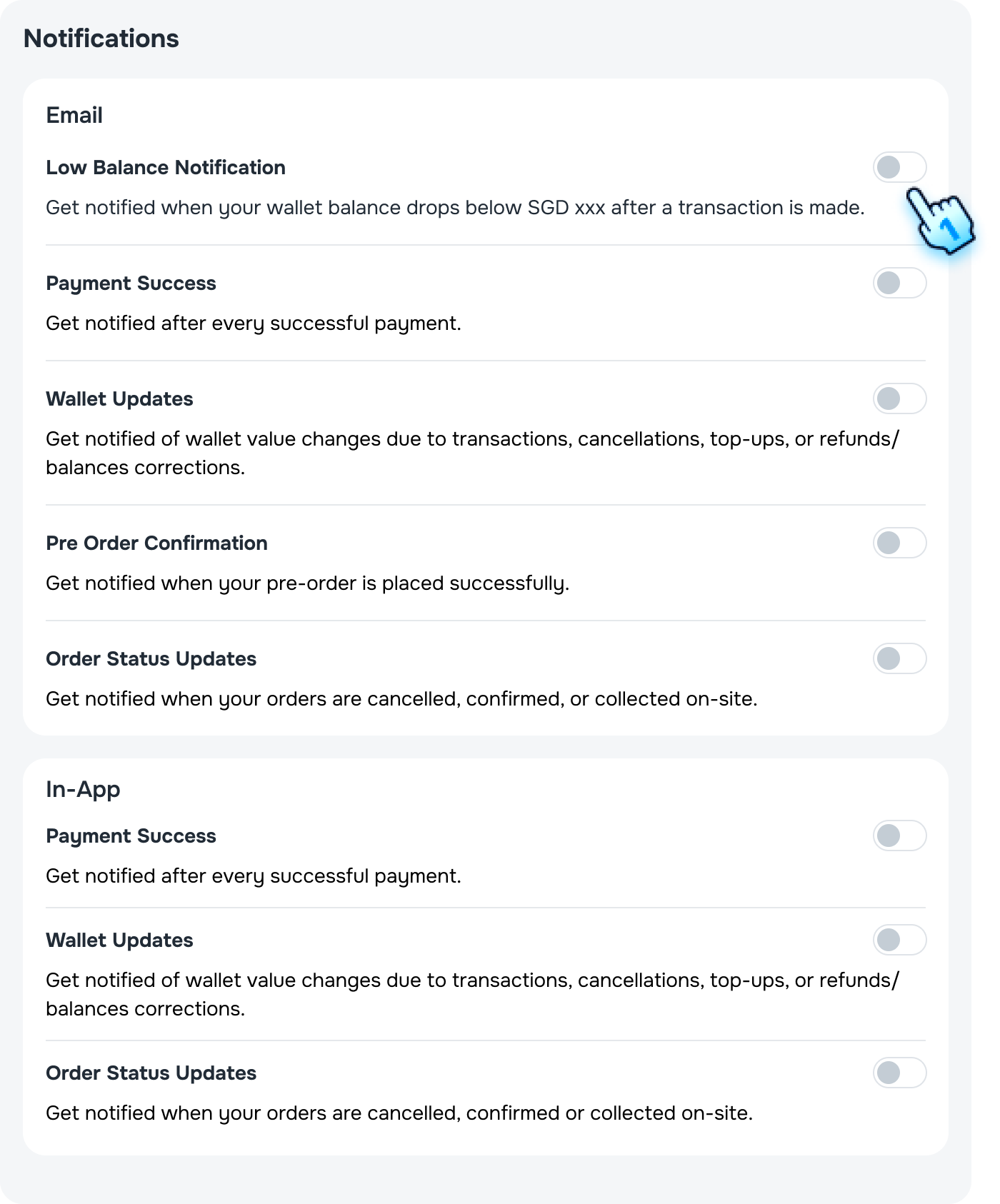
- Notification settings
- Toggle each Email and/or In-app notification type to enable the notifications
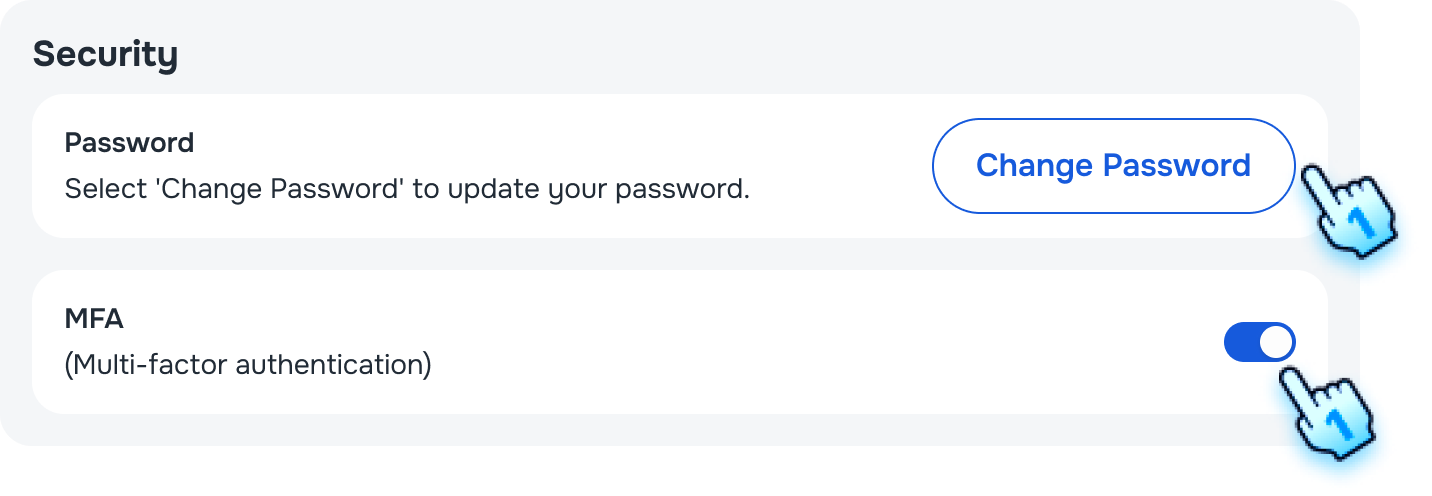
- Security settings
- Tap "Change password" and follow the similar steps as in Startup Activation section to change your password
- Toggle ON for MFA to enable MFA function.
Notification Viewing and Interaction
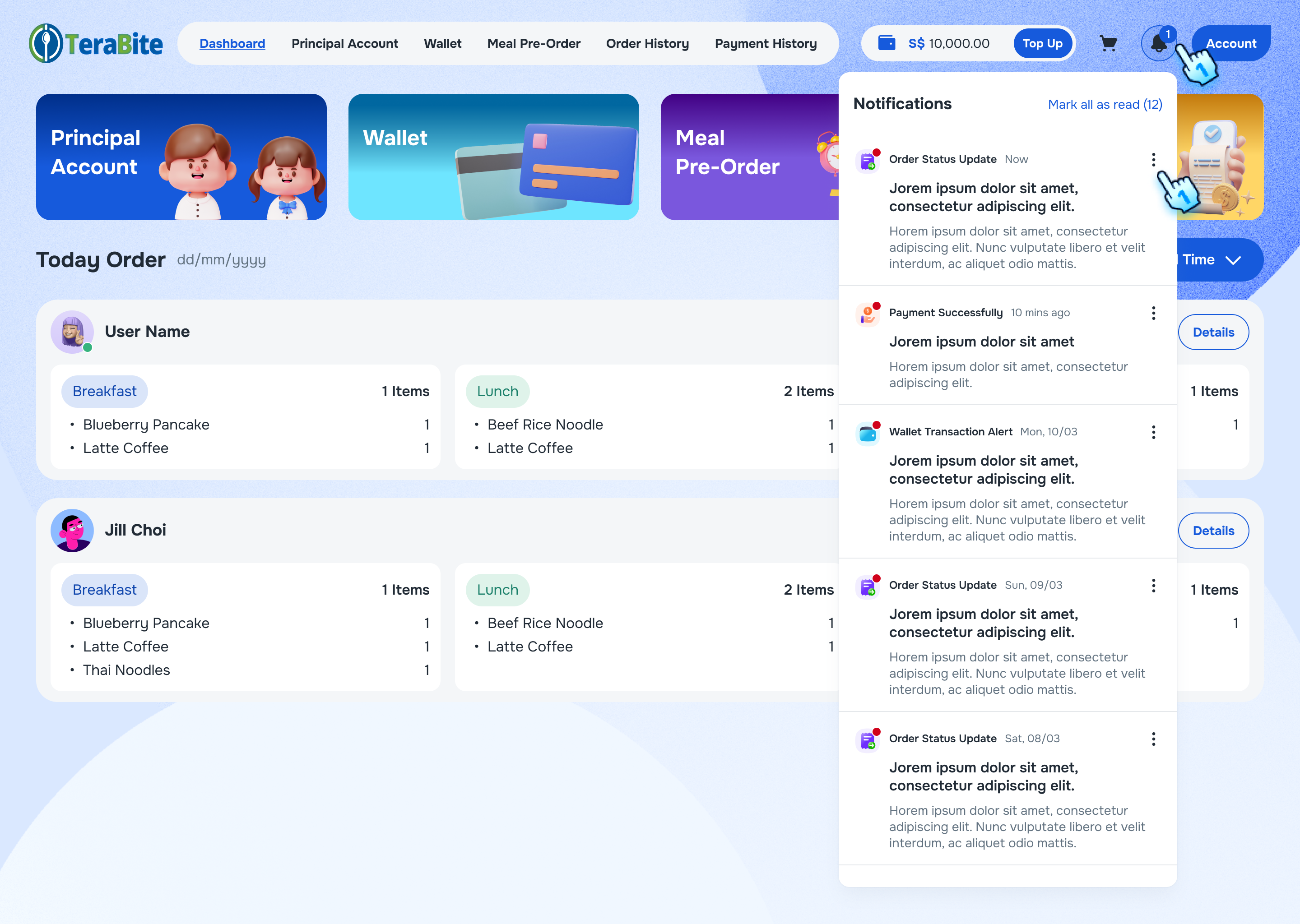
- Check Title and Content of Notification Include Timestamp
- User receives a notification and Tap on bell icon to views it.
- The title, content, and timestamp are displayed correctly.
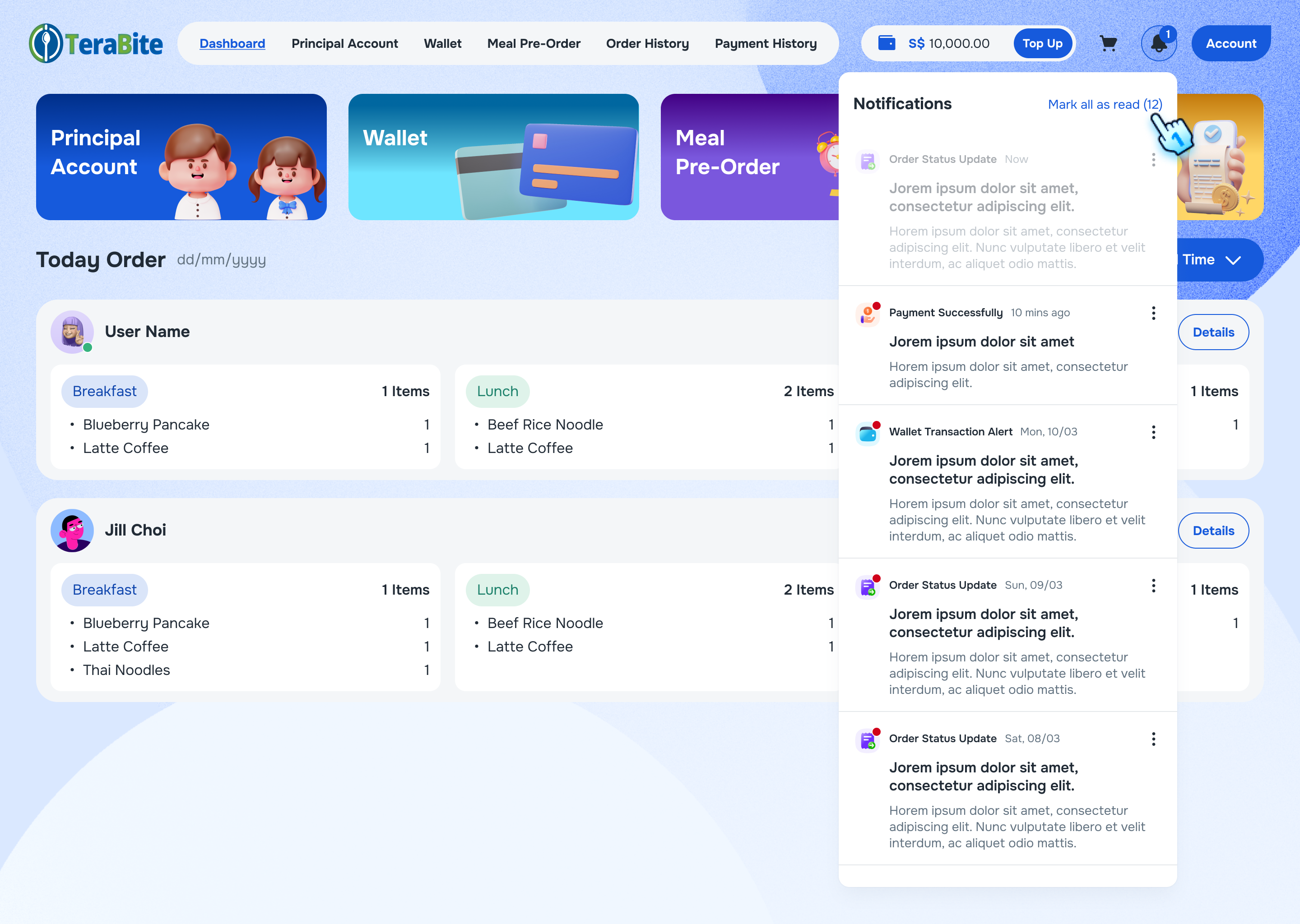
- Mark All as Read
- User has unread notifications and selects "Mark All as Read."
- All notifications are marked as read.
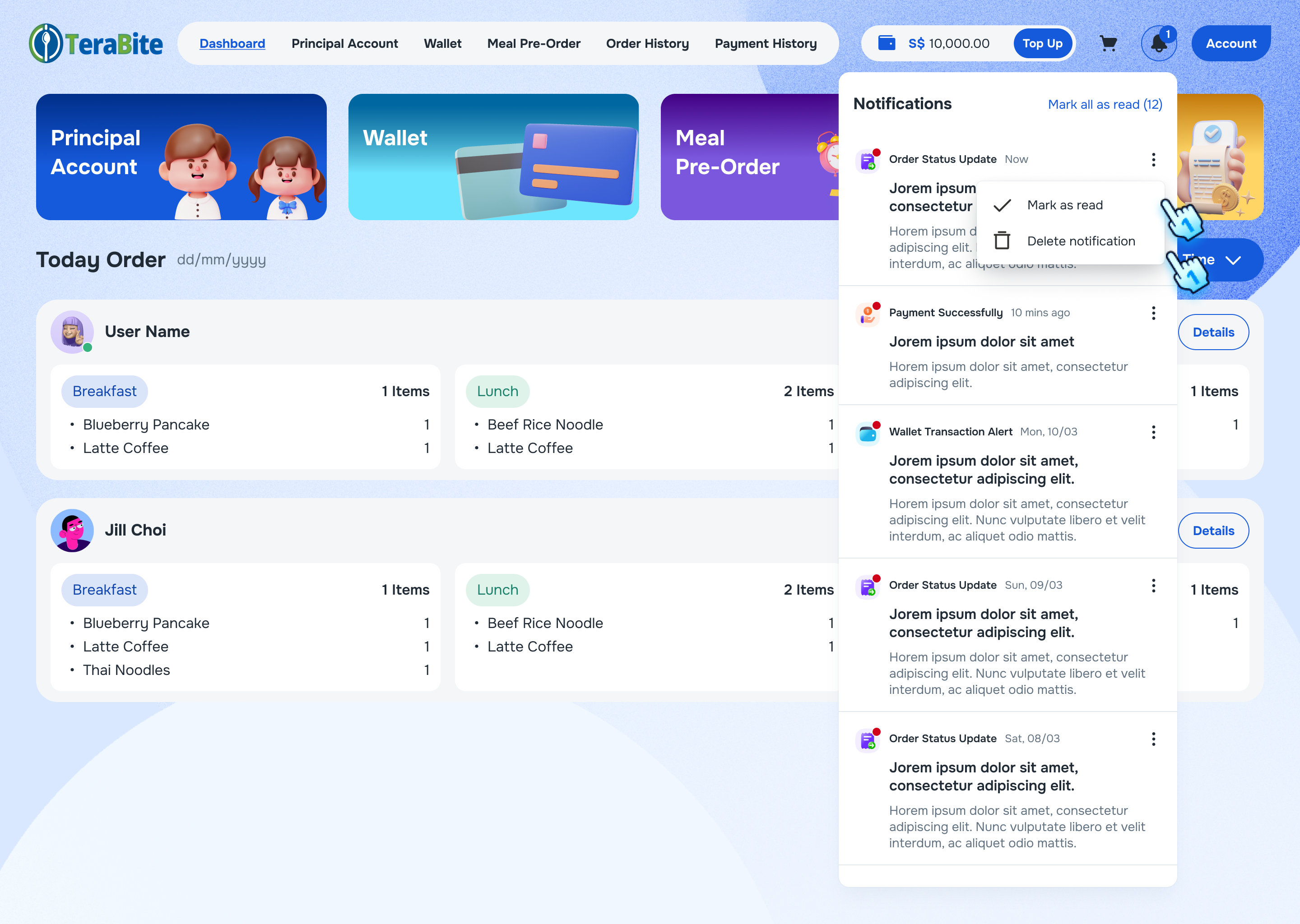
- Mark a Single Notification as Read
- User has unread notifications
- Tap on three dot menu at a single notification
- Select mark as read.
- The specific notification is marked as read.
- Delete a Notification
- Tap on three dot menu at a single notification
- Select Delete button
- The notification is removed from the list.
Conclusion
This document provides a structured approach for managing notifications within the Customer Portal, ensuring users can view, interact with, and organize their notifications effectively.