Allergen Payment Restrictions Management
Description
This document outlines the procedures for setting allergen payment restrictions for items in the POS and C-Portal.
Set Allergen Payment Restrictions
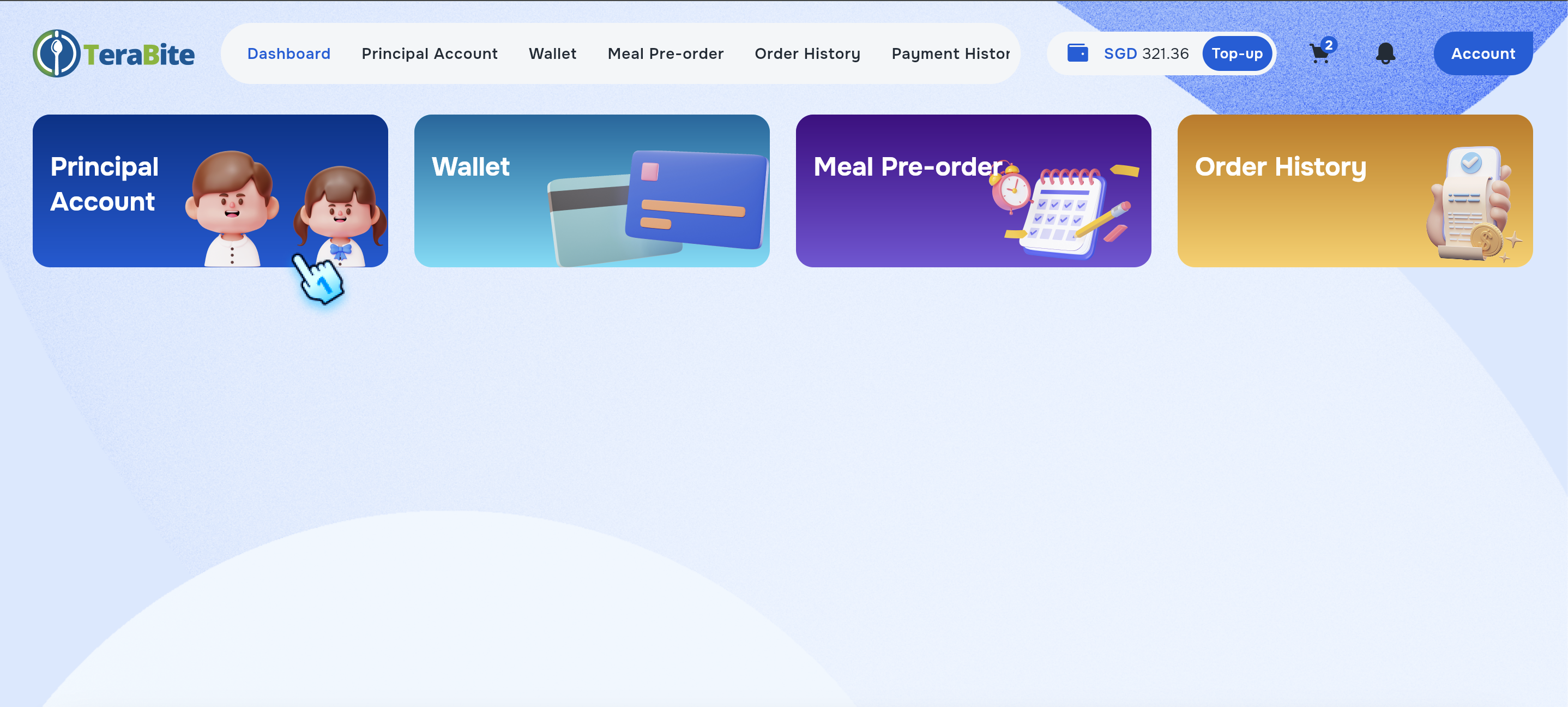
- Navigate to Allergen setup
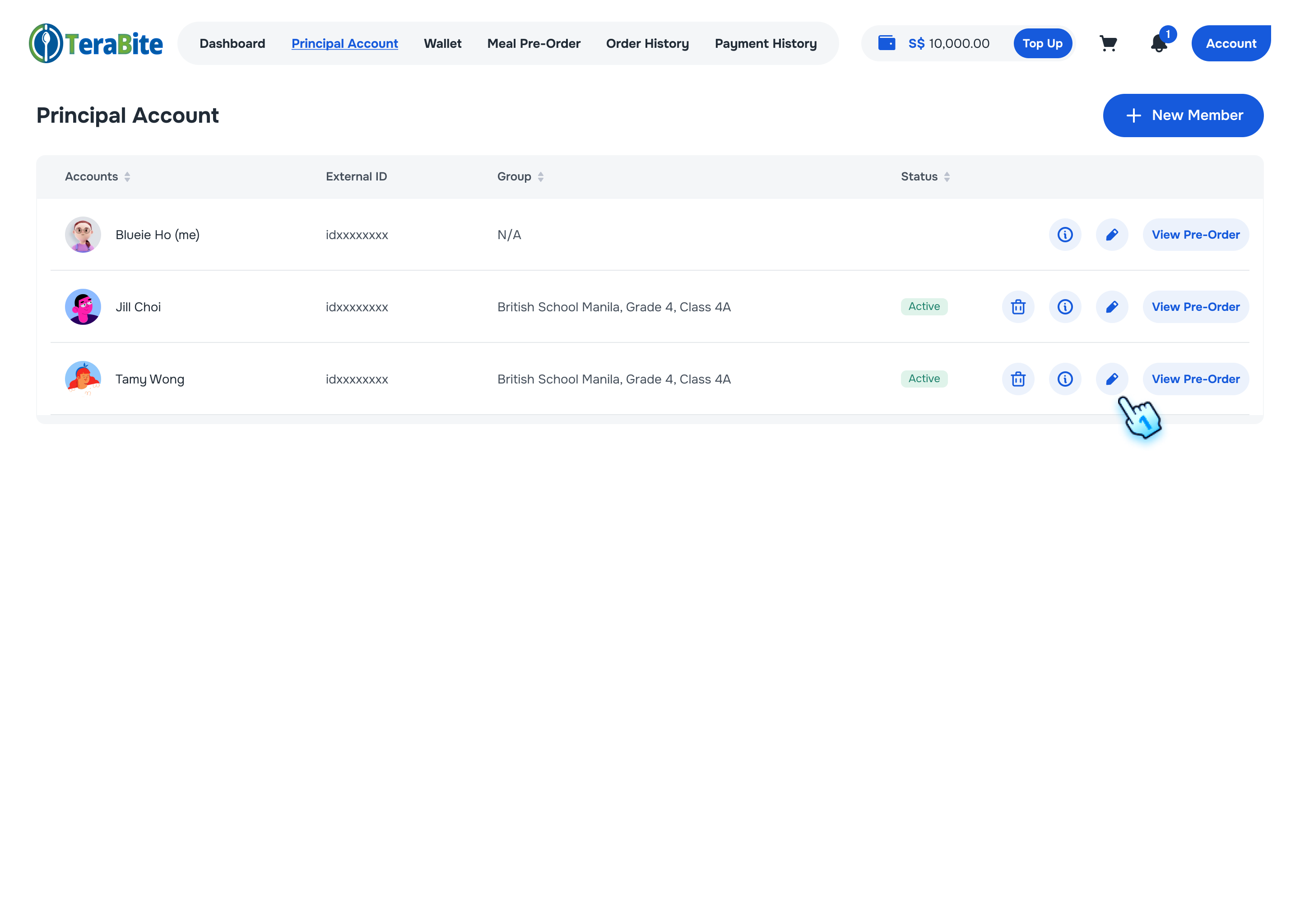
- Go to Customer List in Principal Account
- Tap on Edit Account
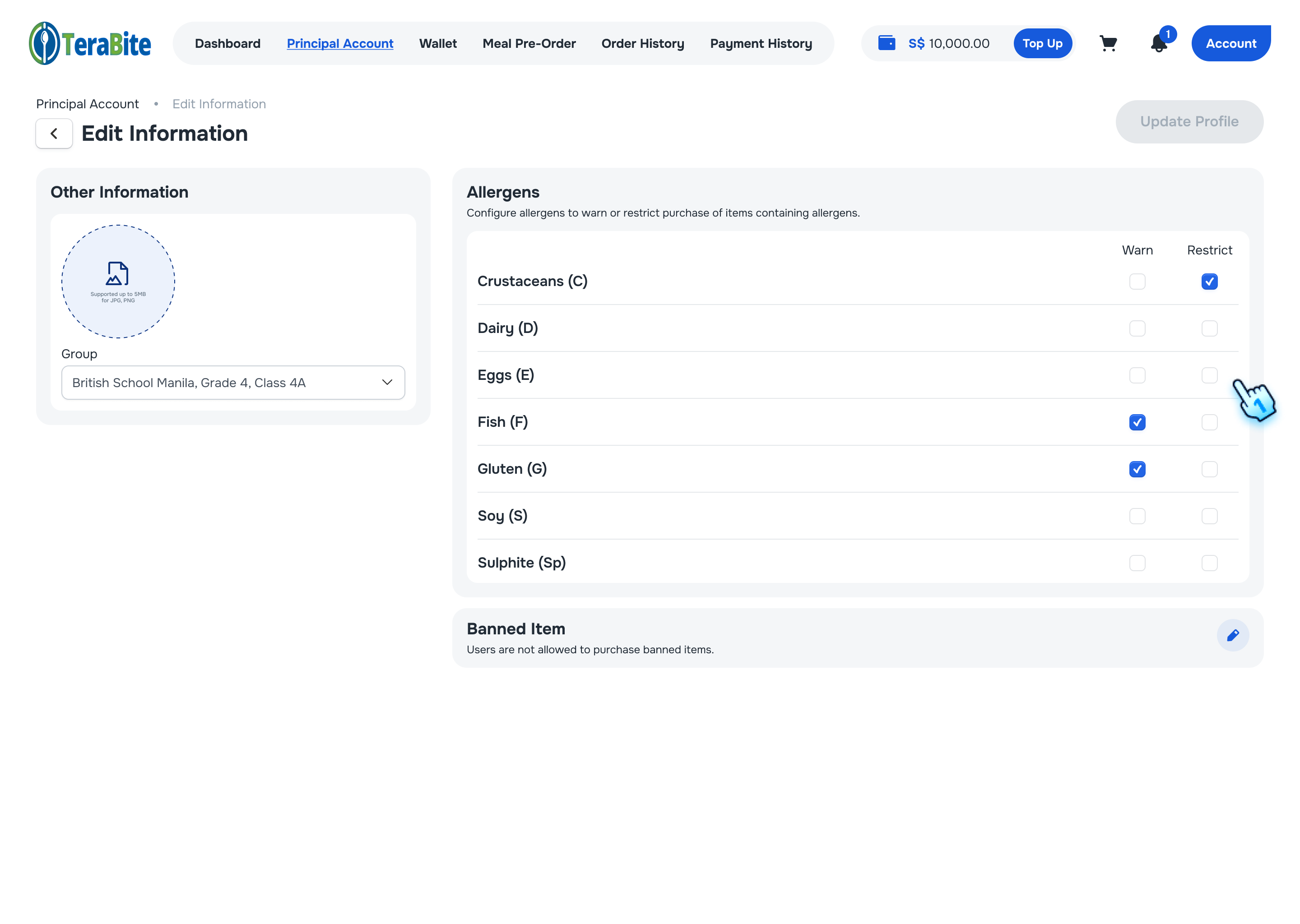
- Manage Allergen Restrictions
- Uncheck the item indicating allergen status is "None".
- Purchase on POS: No Allergen Block when processing payment.
- Purchase on C-Portal: No Allergen Block when processing payment.
- Tap "Update Profile" to save the changes.
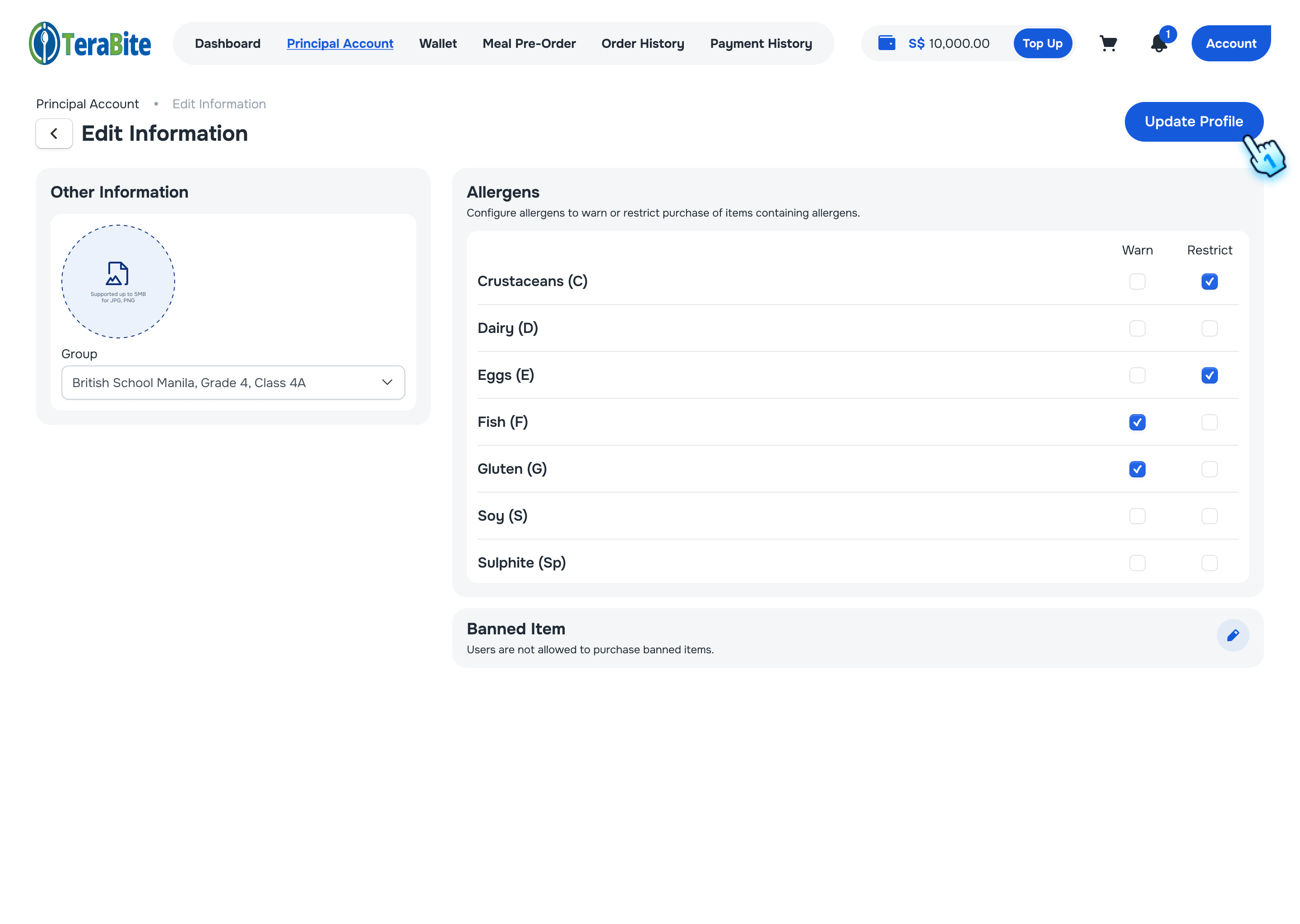
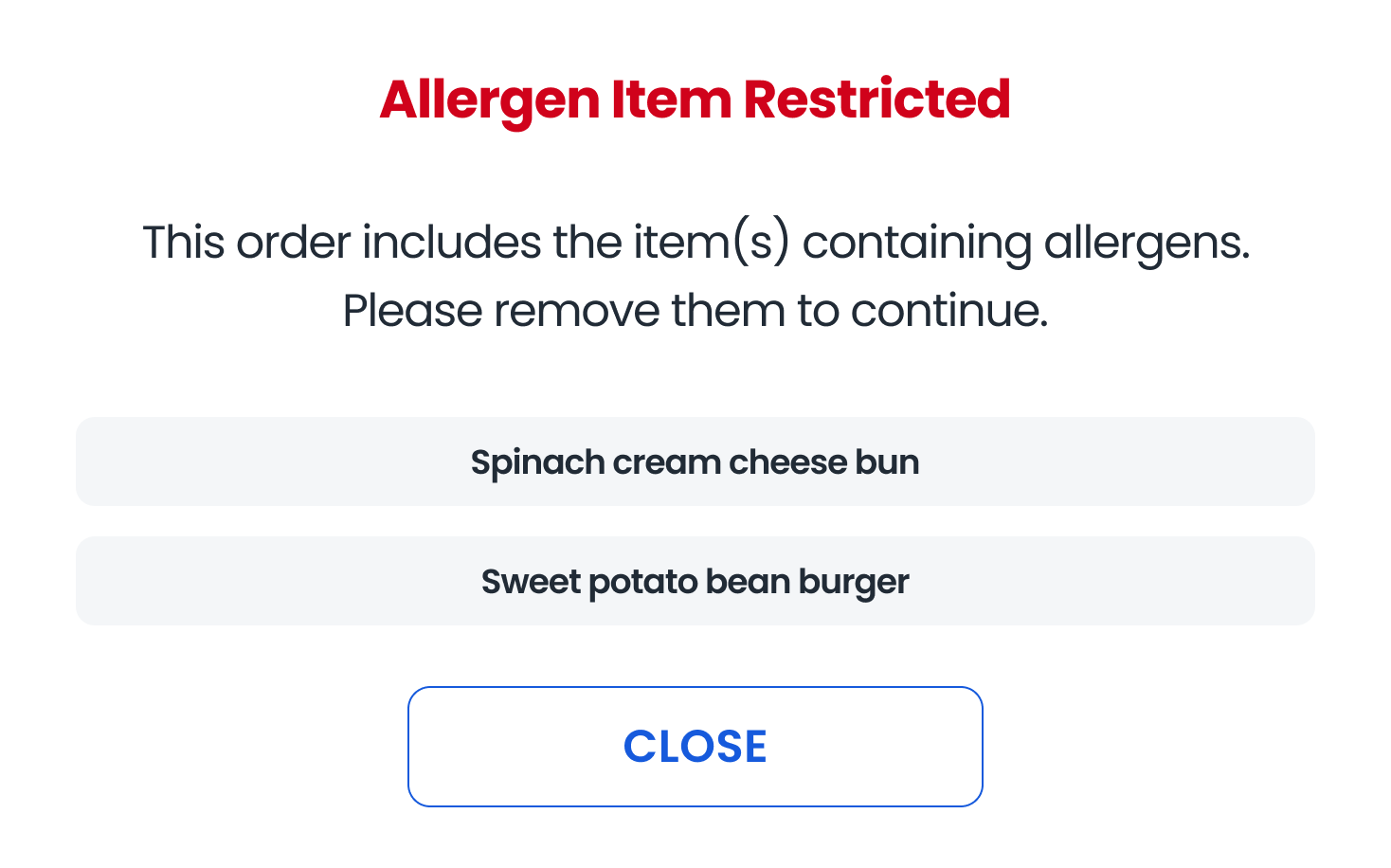
- Set Allergen to "Restricted"
- Check the item with allergen status to "Restricted".
- Purchase on POS: Allergen Block when processing payment
- Purchase on C-Portal: Allergen Block when processing payment
- Set Allergen to "Warn"
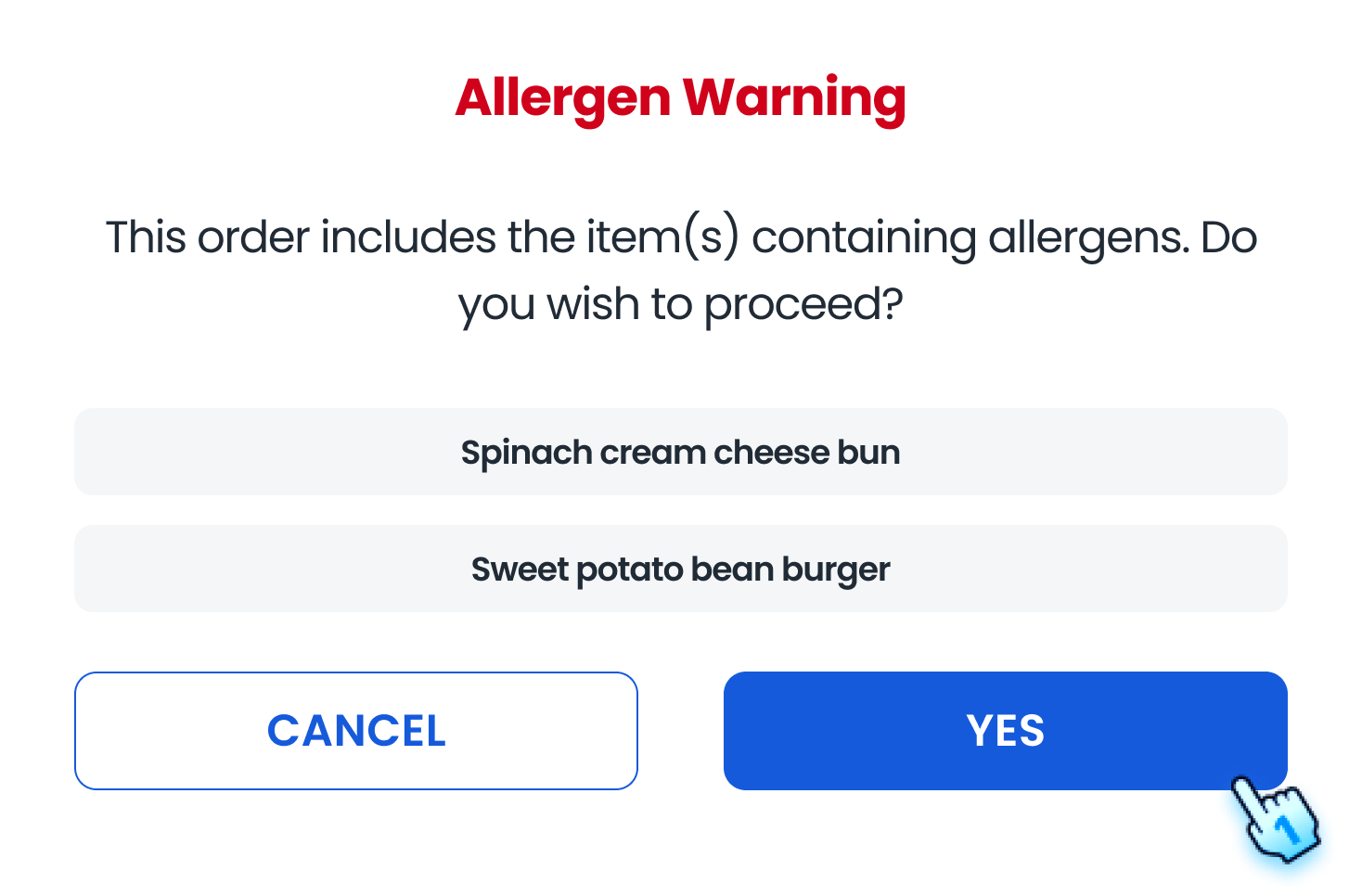
- Check the item with allergen status to "Warn".
- Purchase on POS: Allergen Warning when tapping card to process payment.
- Tap "Yes": Process Payment
- Tap "Cancel": Return to Menu
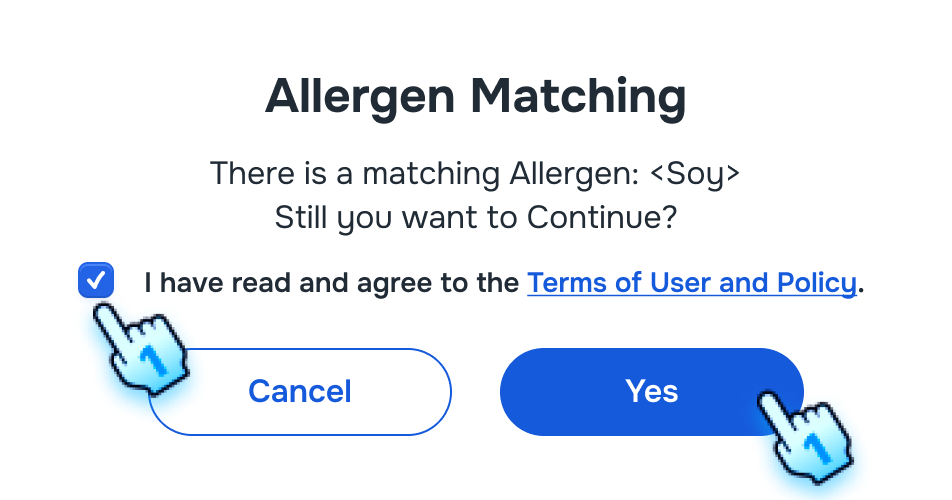
- Purchase on C-Portal: Allergen Warning when adding to cart.
- Check box to confirm Terms of user and Policy and Click "Yes" to Add to Cart
- Click "Cancel": An item is not added to cart
Conclusion
This document provides a structured approach for managing allergen payment restrictions within the POS and C-Portal, ensuring compliance and safety in item management.