Topup
Description
This section provides guidelines for managing the wallet, including topping up the main account and sub-accounts, setting spending limits, and viewing transaction history.
Top-Up Main Account
- Initiate Top-Up
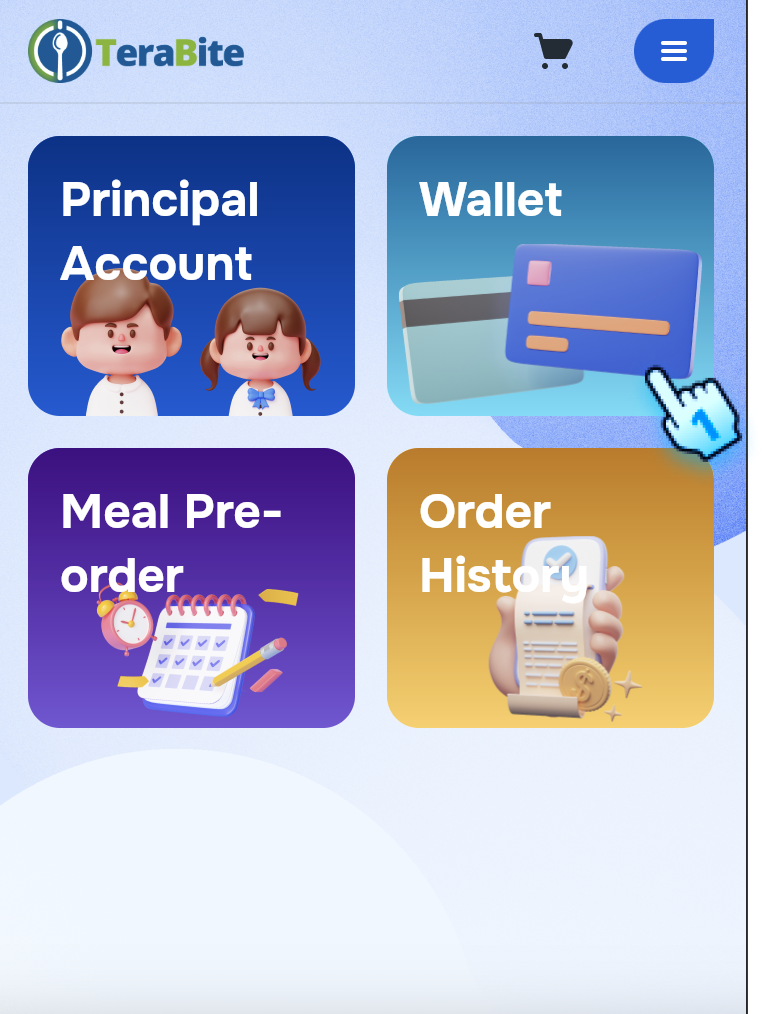
- Log in to the C-Portal.
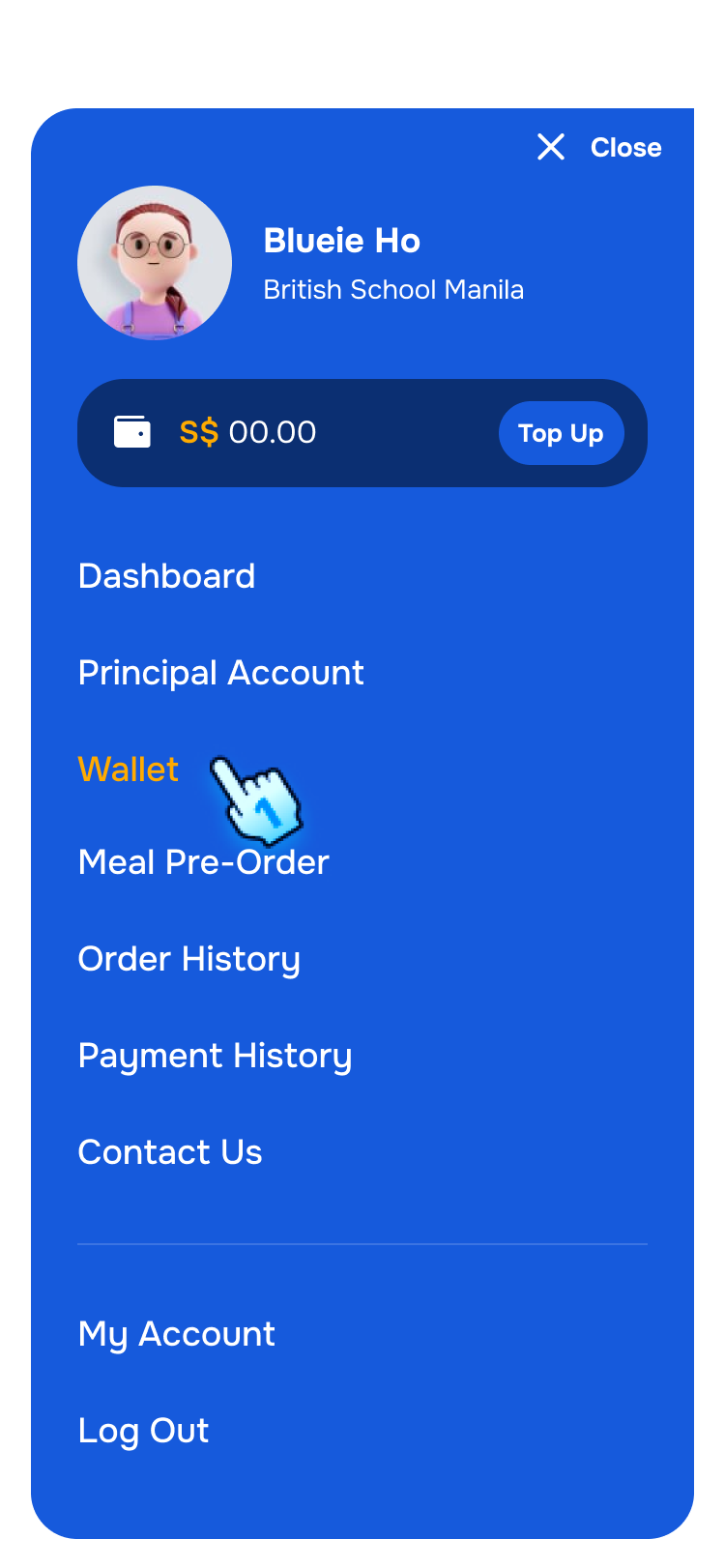
- Navigate to the Wallet Management section from dashboard or menu.
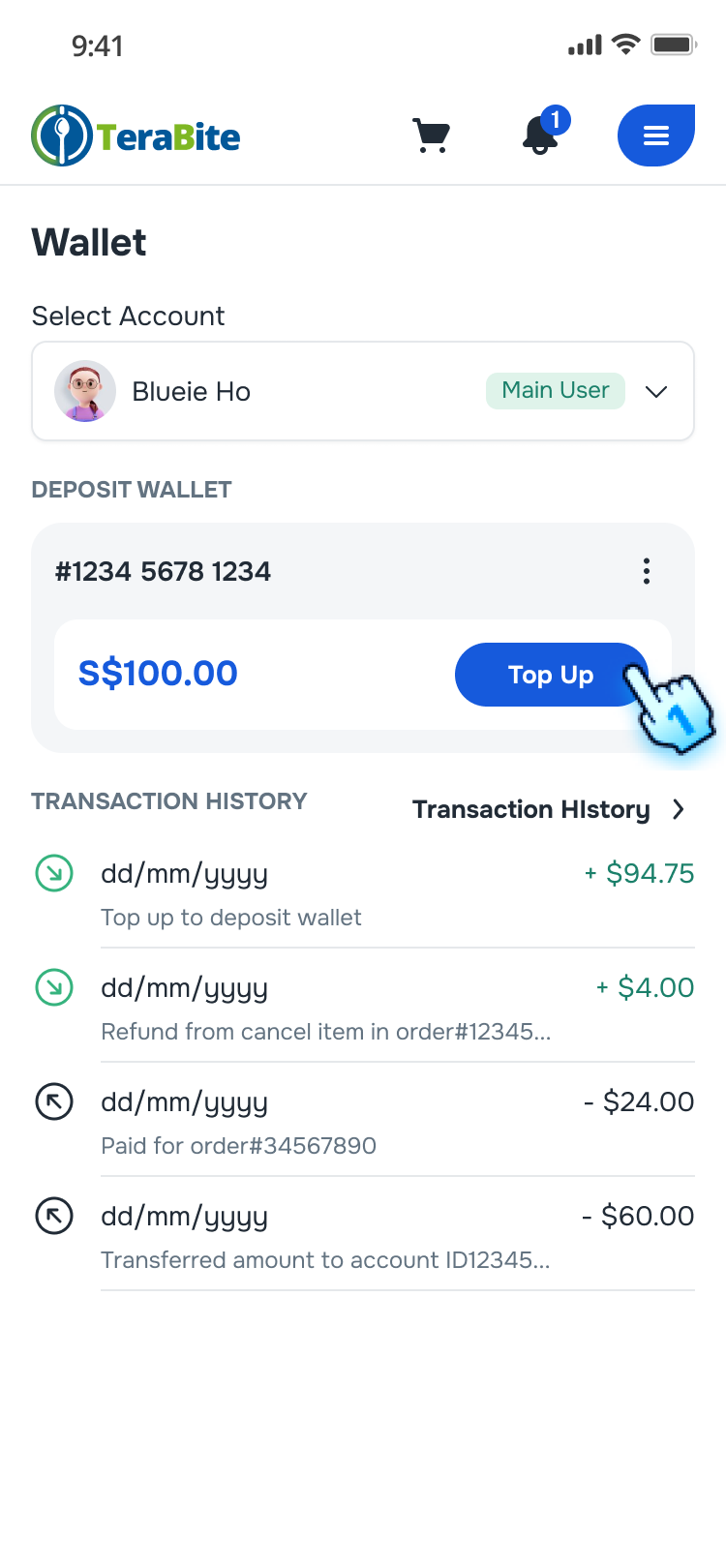
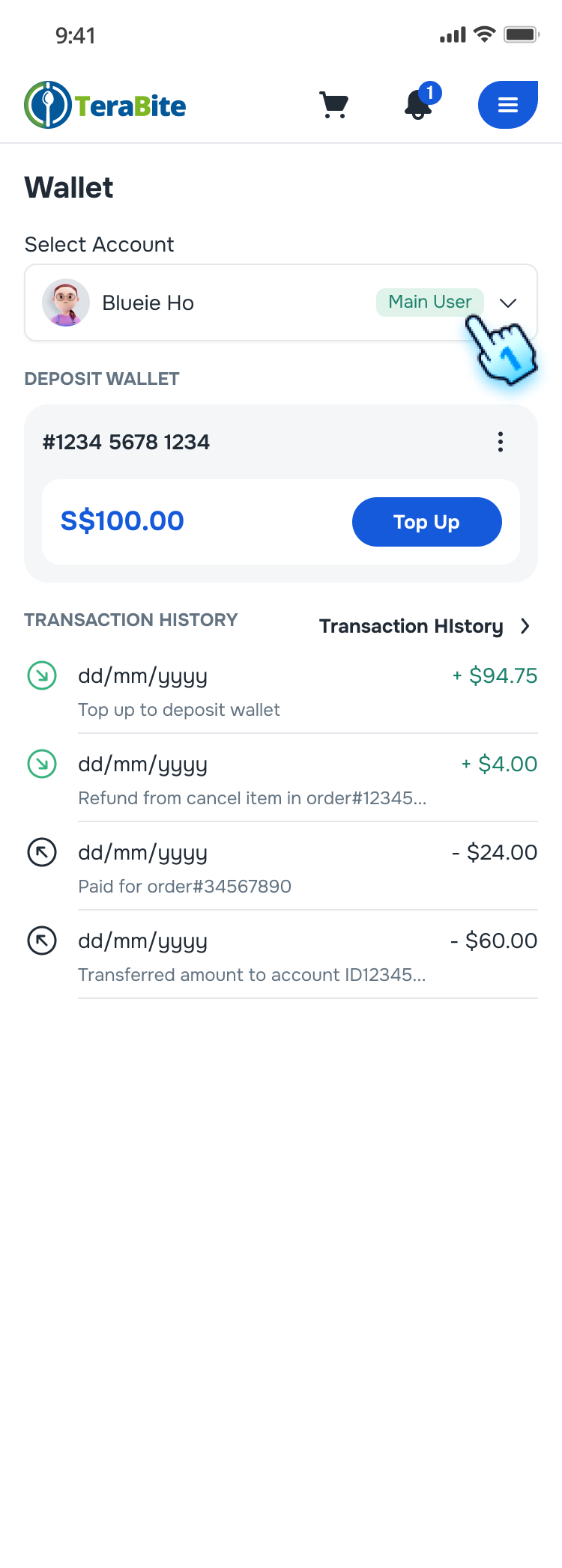
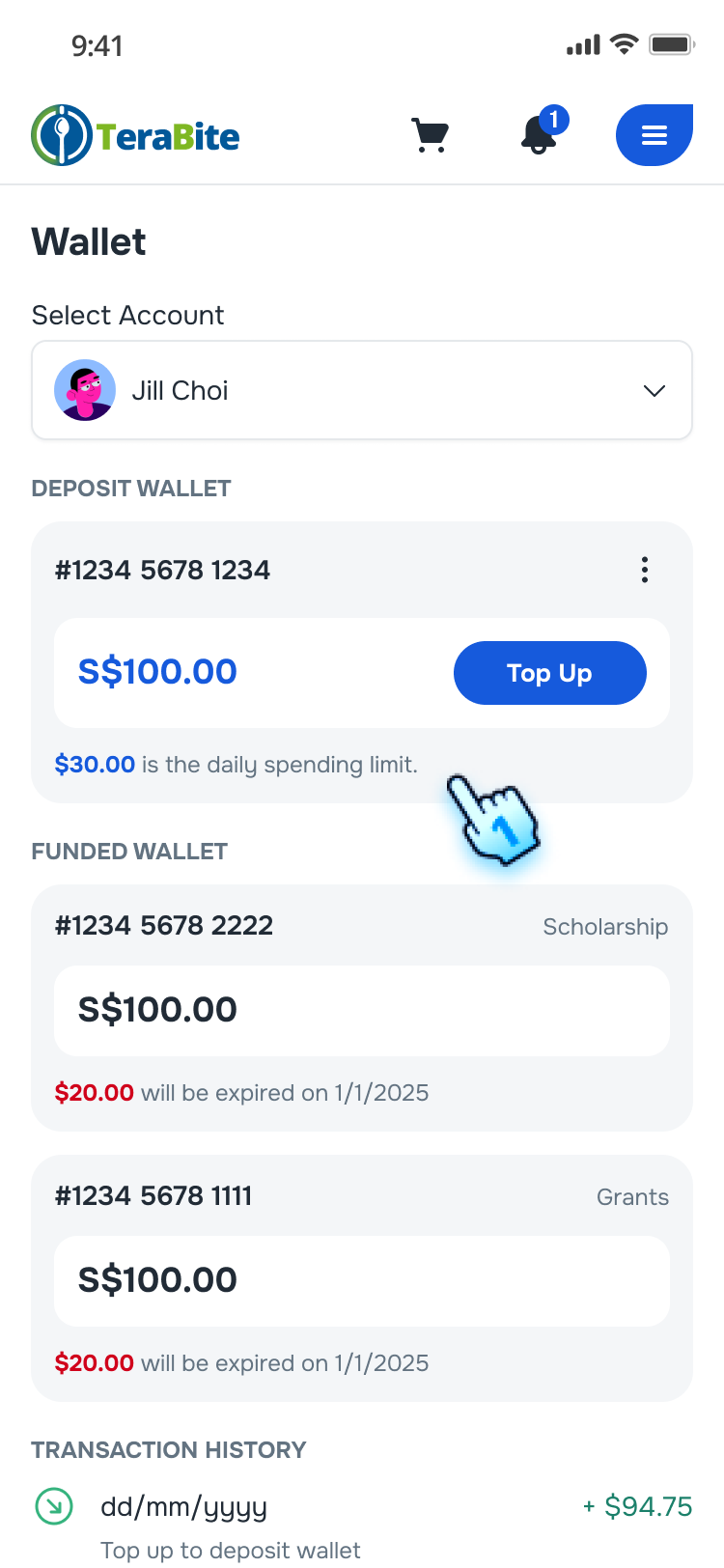
- Select the main account and click the "Top-Up" button.
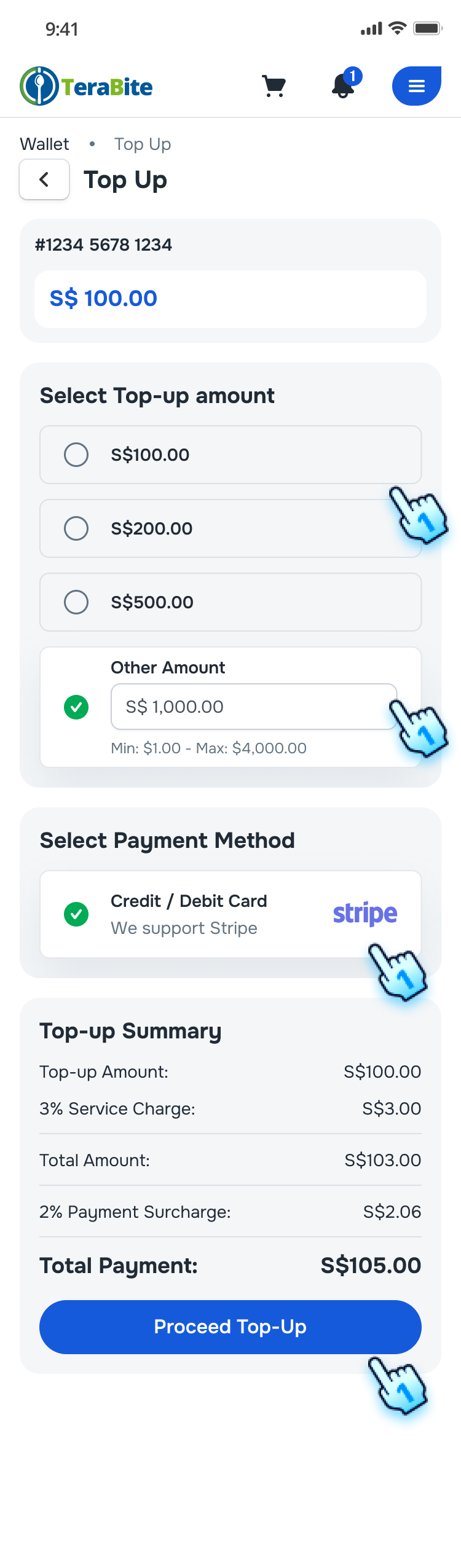
- The top-up options will be displayed.
- Select Amount
- Choose a set amount or enter a custom amount.
- The selected amount will be highlighted.
- The top-up summary will display the top-up amount, total amount, transaction fees, and total payment.
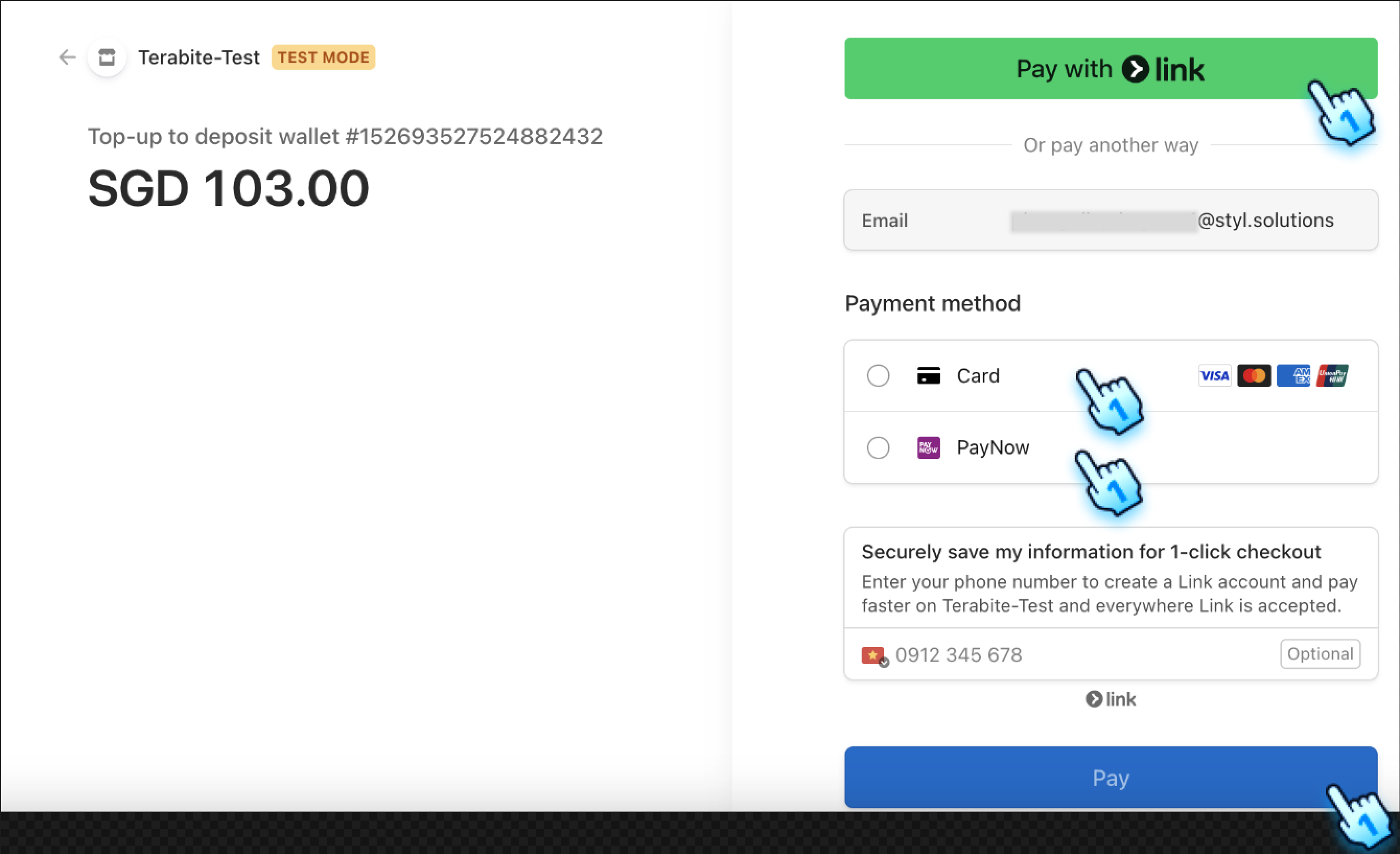
- Select Payment Method
- Choose a payment method (e.g., credit/debit card).
- Proceed Top-Up
- Click the "Proceed Top-Up" button.
- Follow the instructions for the selected payment method.
- A confirmation message will indicate that the top-up was successful.
Top-Up Sub-Account
- Initiate Top-Up
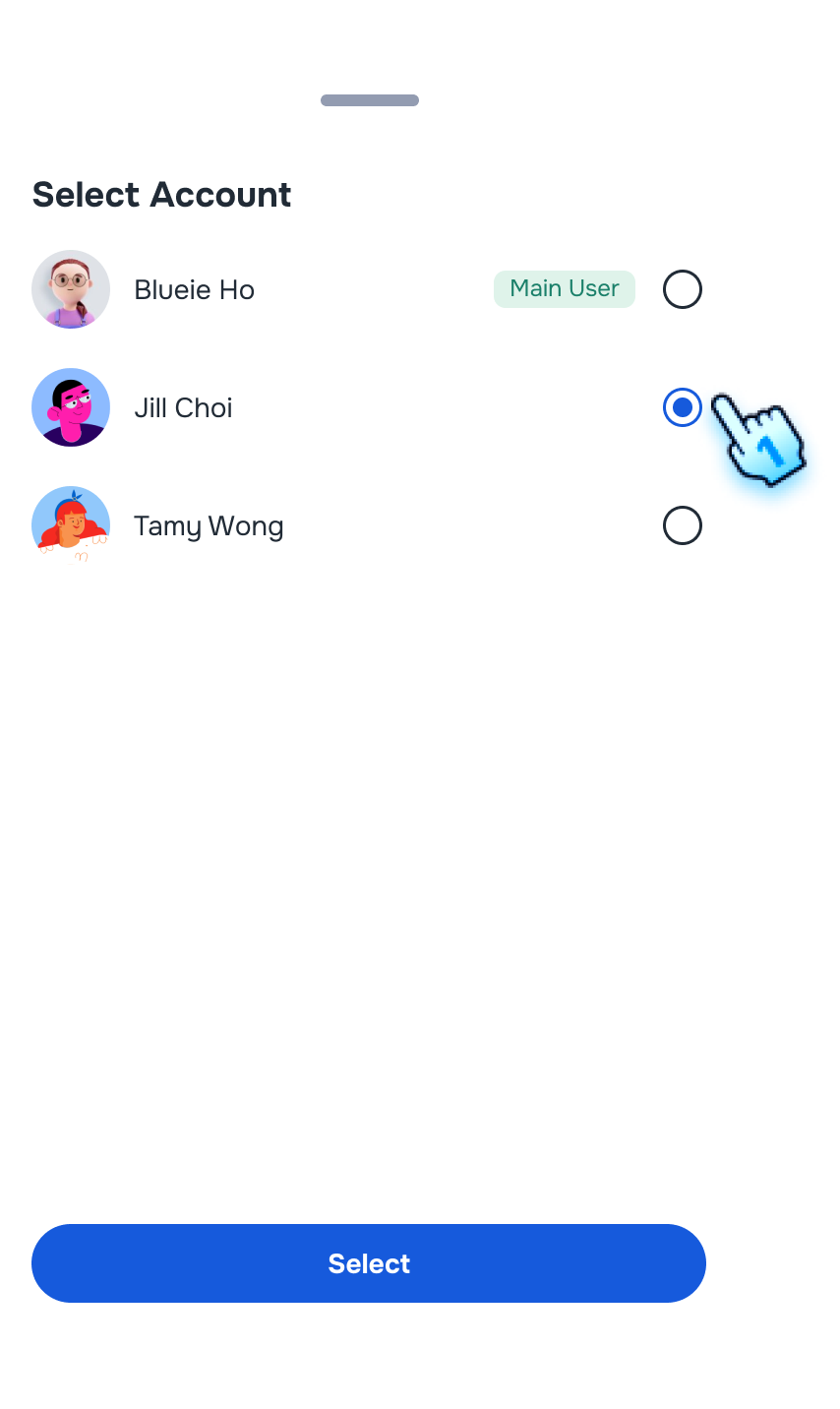
- Select the sub-account from the Wallet Management section.
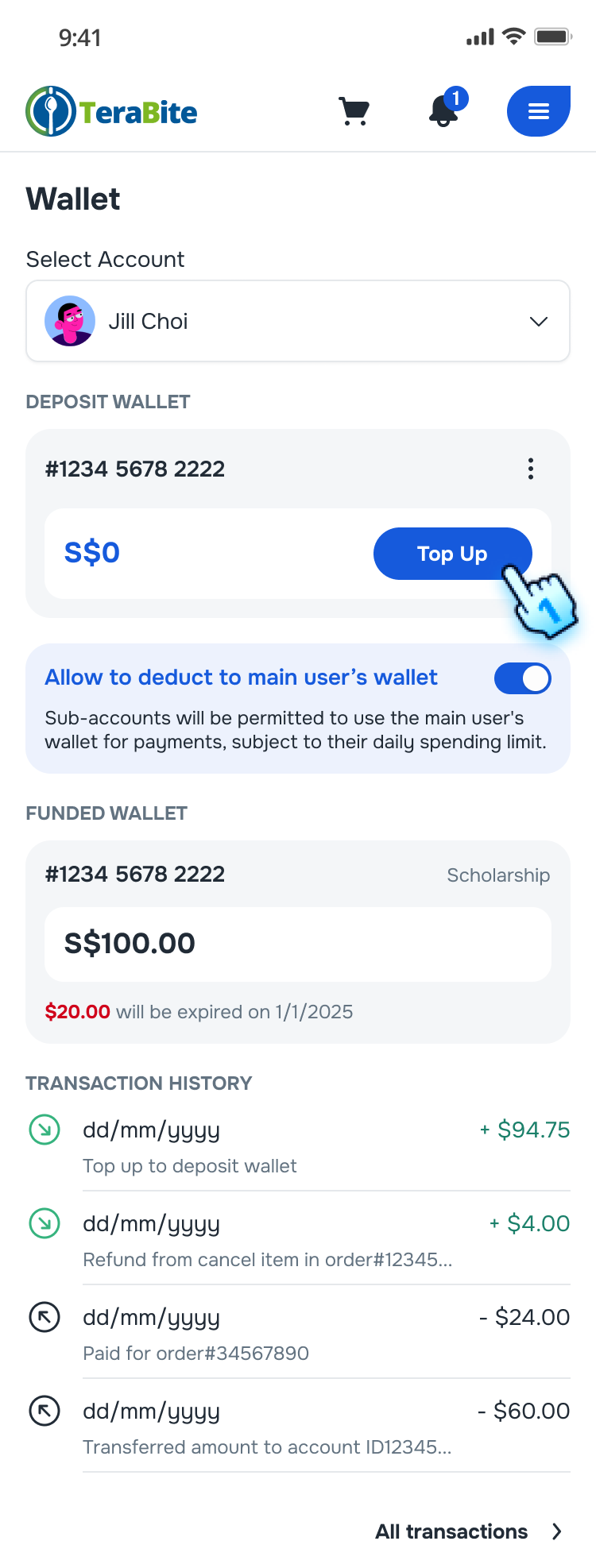
- Click the "Top-Up" button.
- The top-up options will be displayed.
- Select Amount
- Choose a set amount or enter a custom amount.
- The selected amount will be highlighted.
- The top-up summary will display the top-up amount, total amount, transaction fees, and total payment.
- Select Payment Method
- Choose a payment method (e.g., credit/debit card).
- Complete Top-Up
- Click the "Proceed Top-Up" button.
- Follow the instructions for the selected payment method.
- A confirmation message will indicate that the top-up was successful.
- Allow Sub-Account to Deduct from Main Account
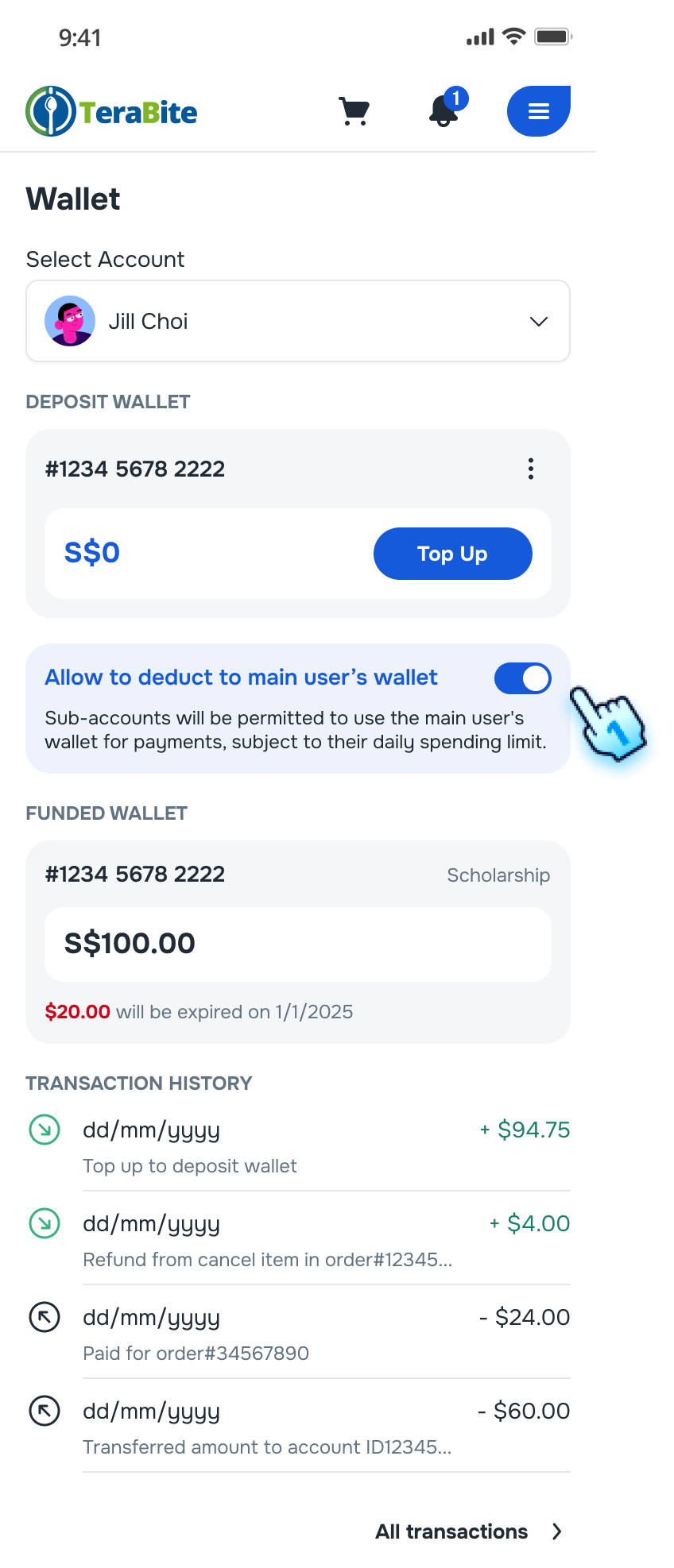
- After select Sub-Account, Enable the "Allow to deduct to main user's wallet" toggle.
- The change will be saved automatically.
- Sub-Account can deduct to main user when their Wallet empty
Set Spending Limits
- Access to the Account/ Sub-Account
- Navigate to the Wallet page.
- Select the Account/ Sub-Account
- Access Spending Limits settings
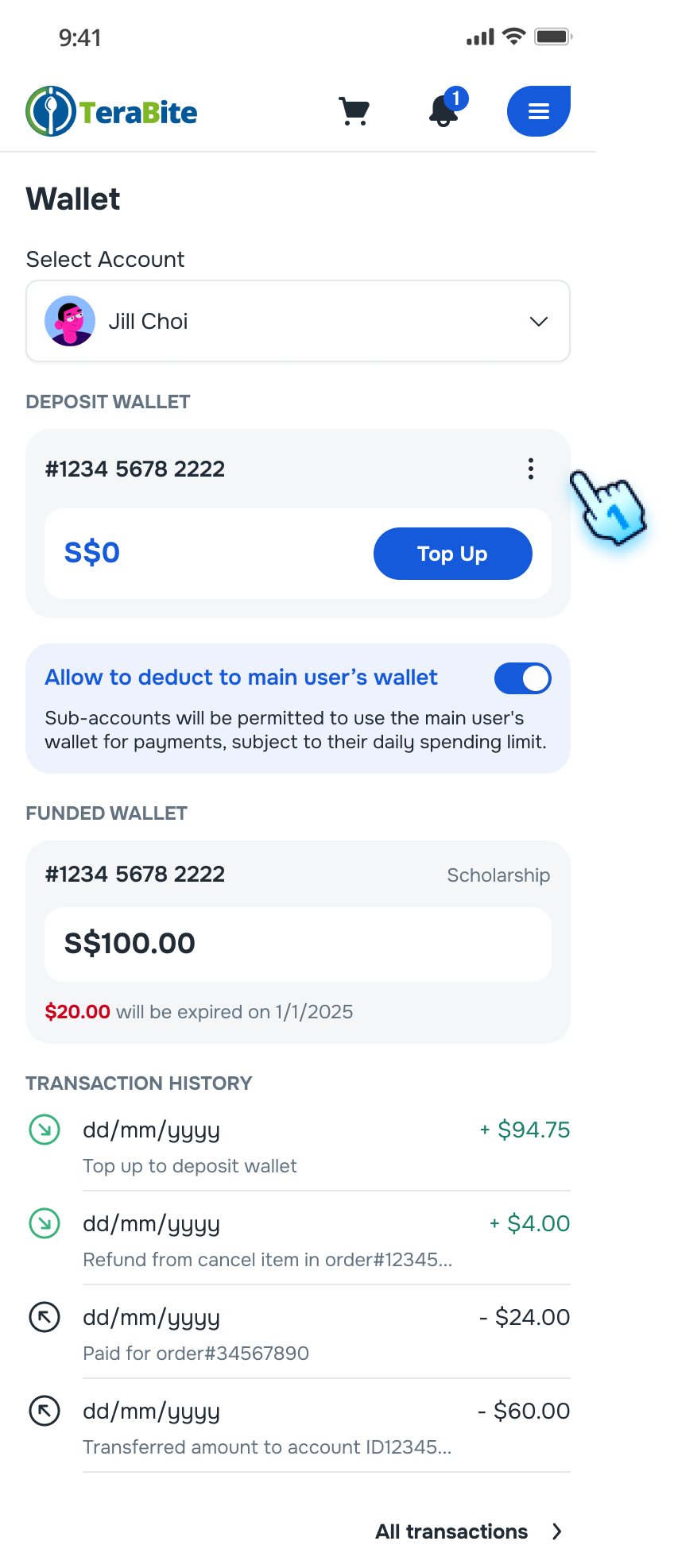
- Click the three-dot menu.
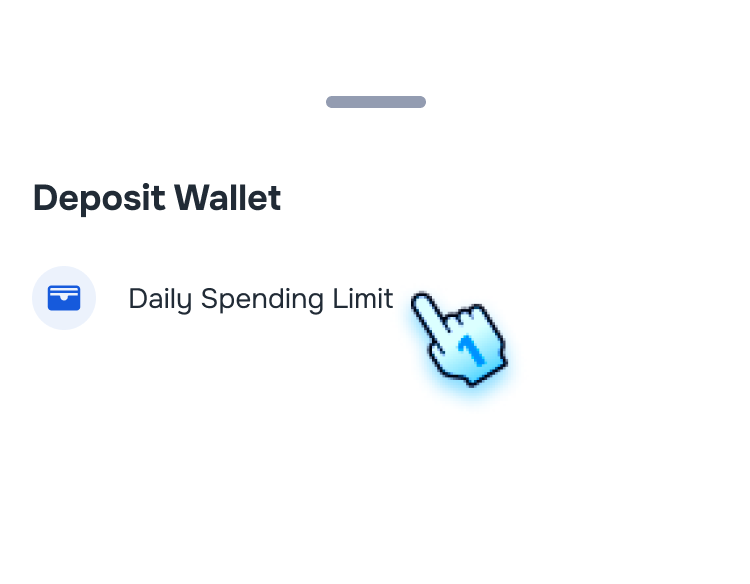
- Choose "Set Daily Spending Limit."
- Set Spending Limits
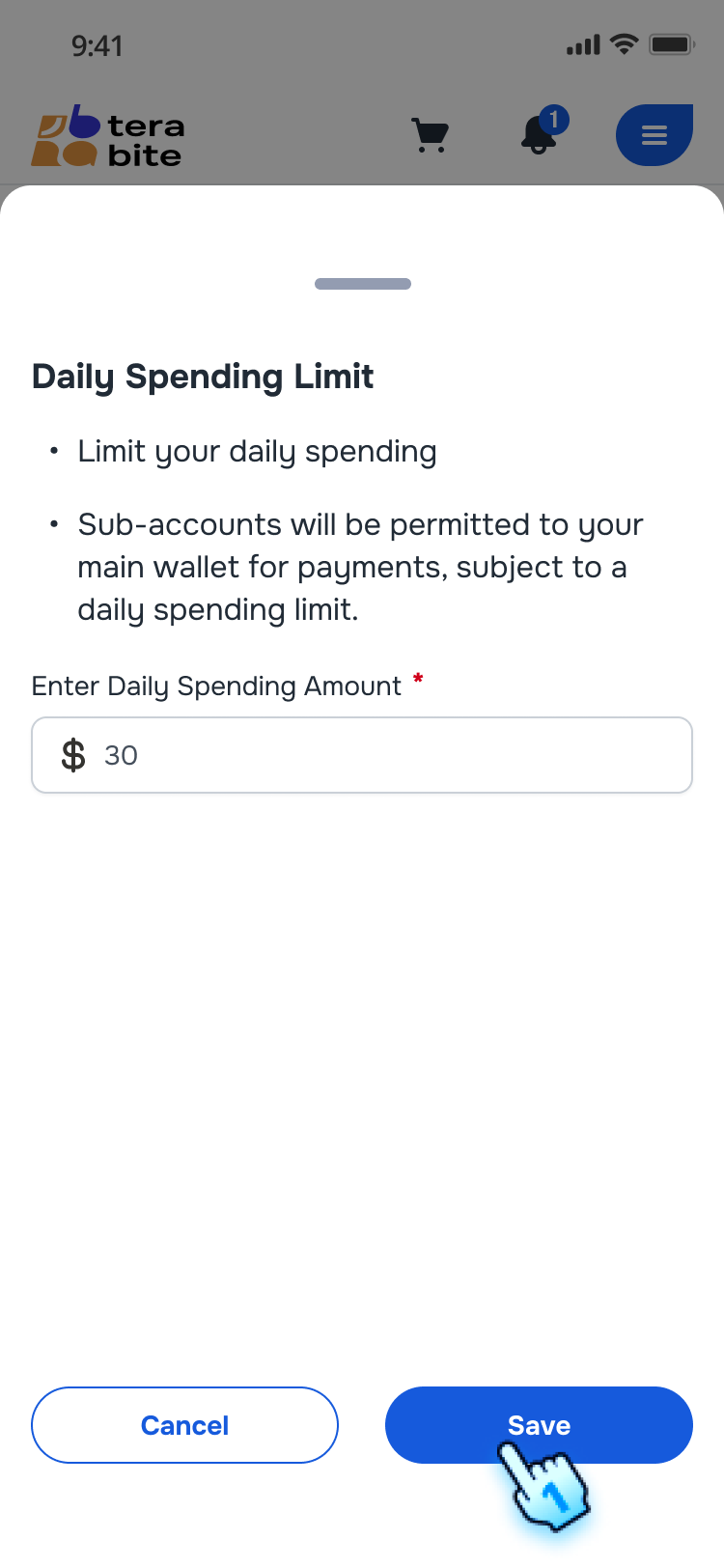
- Enter the limit amount and click "Save."
- A confirmation message will indicate that the limit has been saved.
View Transaction History
- Access Transaction History
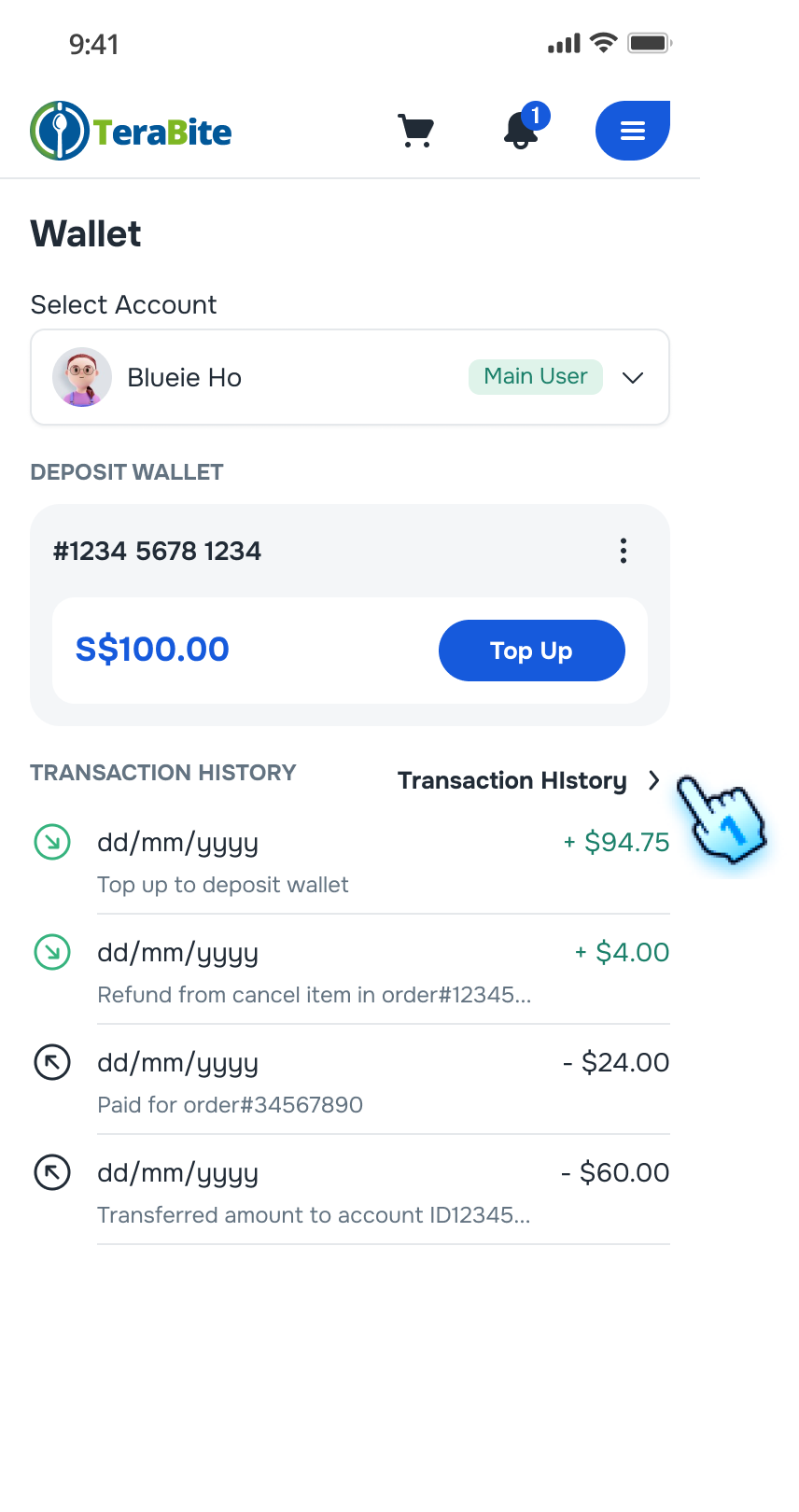
- Navigate to the Wallet section.
- Select an account or sub-account.
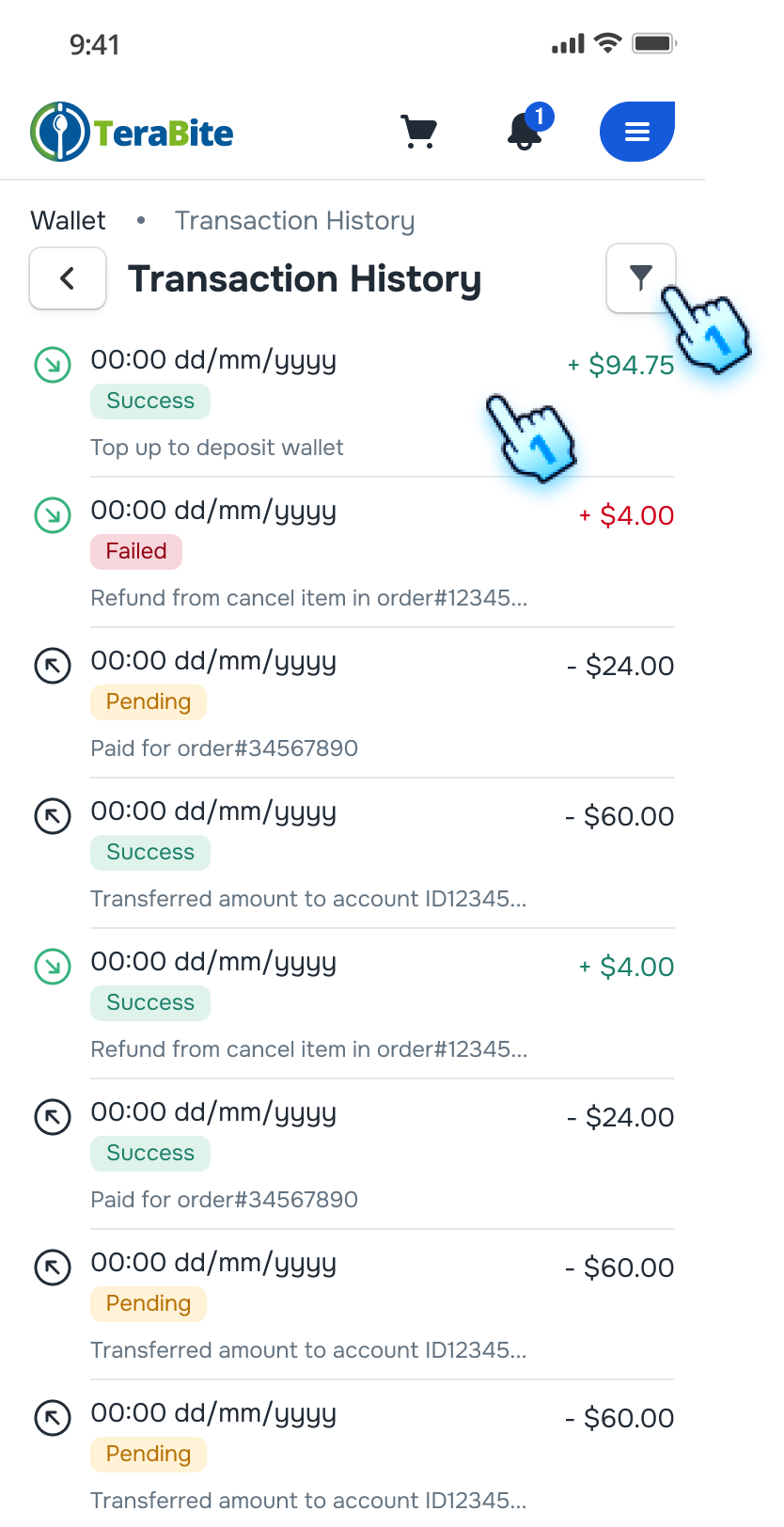
- Click on "Transaction History."
- A list of transactions will be displayed, including details such as date, amount, and payment method.
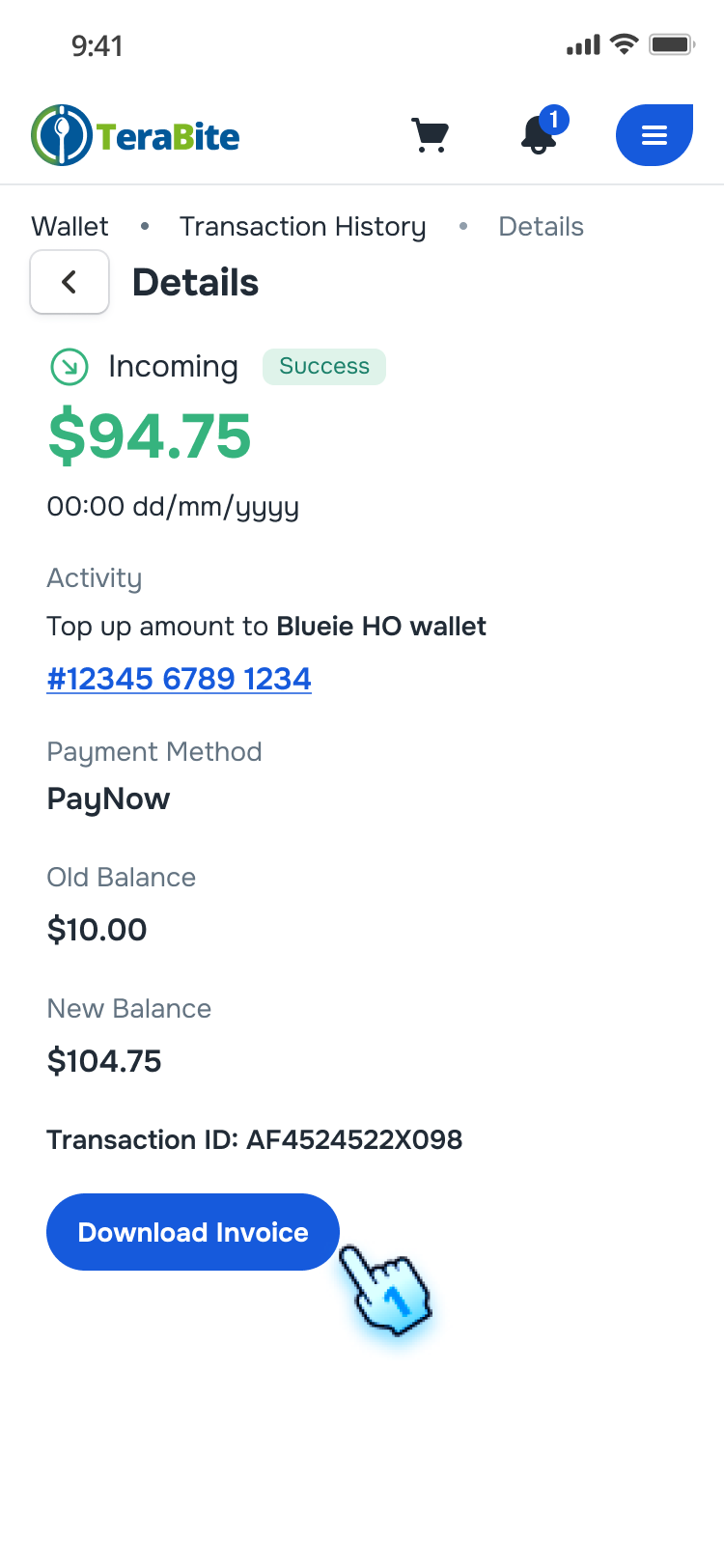
- View transaction details
- Click on each transaction
- Transaction Detail is displayed
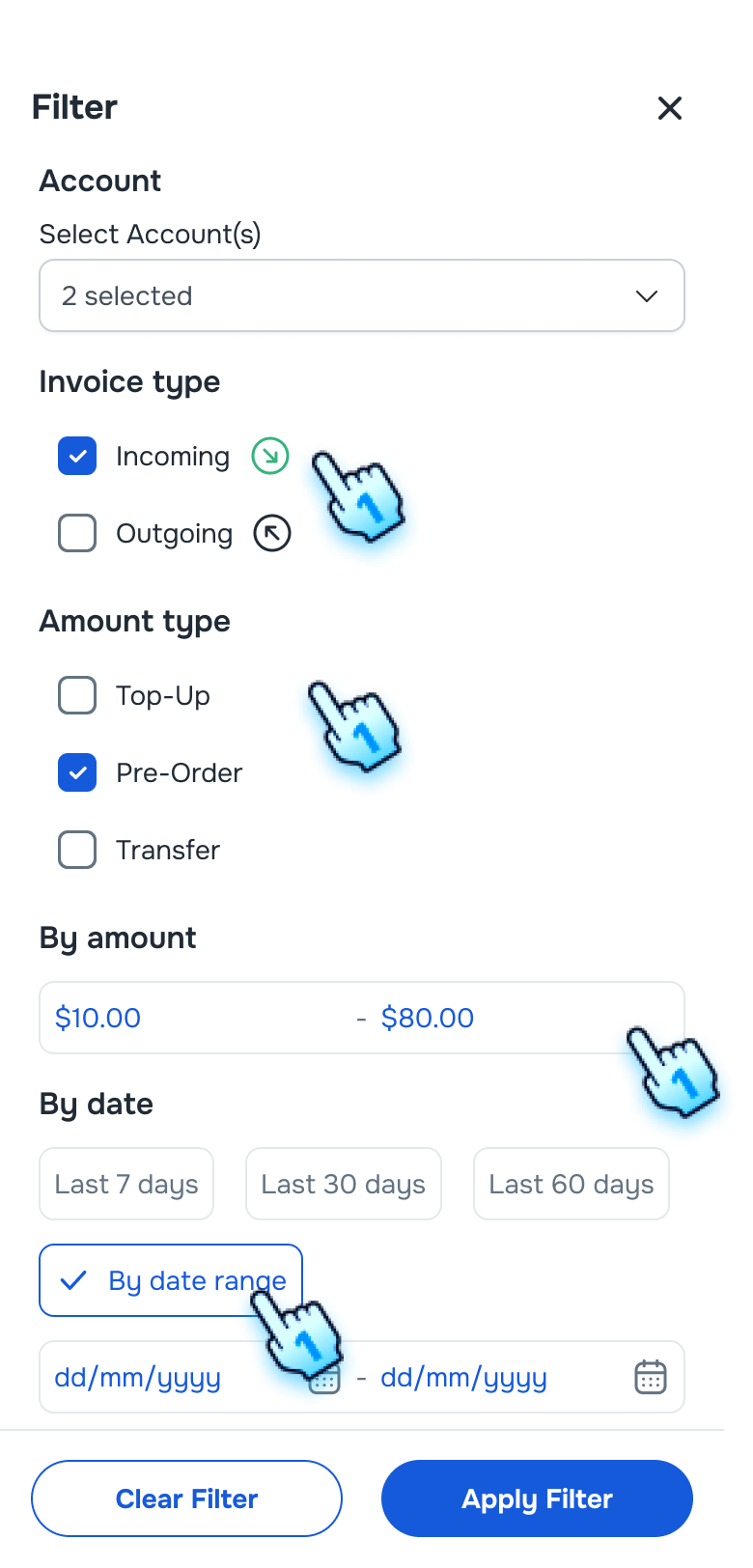
- Filter Transaction History
- Tap on Filter icon
- Select filter criteria including Transaction Type, Transaction Category, By Amount and By Date
- Tap "Apply Filter" to process
Conclusion
The Wallet section provides a detailed guide for managing wallet transactions, including topping up accounts, setting spending limits, and viewing transaction history. By following these steps, users can effectively manage their funds and ensure smooth financial transactions within the Customer Portal.
Screen flow
Top-Up Main Account
Top-Up Sub-Account
Set Spending Limits
View Transaction History