Start up process
Description
This section provides guidelines for account activation, login, and password recovery processes for customers using the C-Portal system.
Account Activation
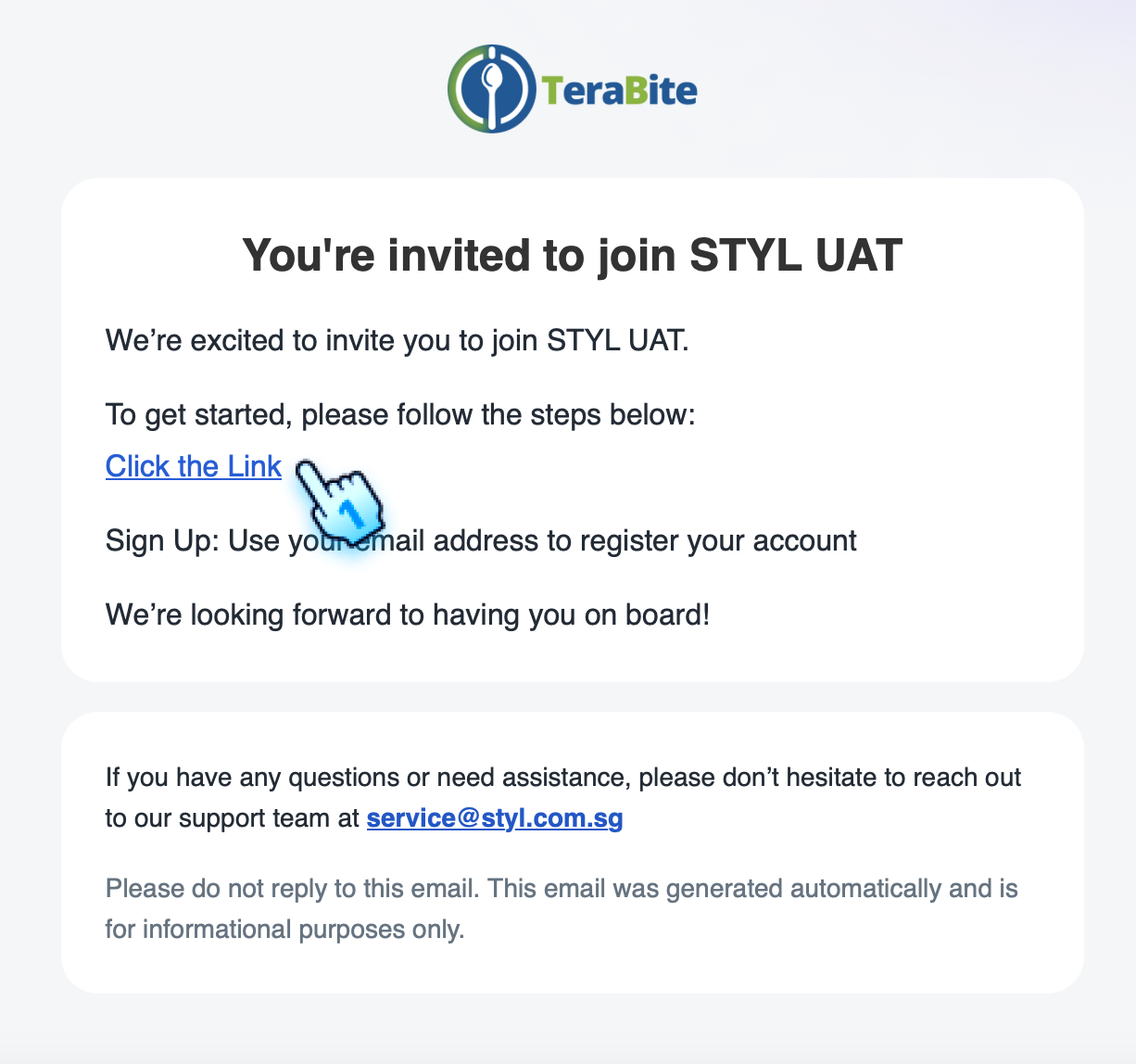
- Access Invitation Link
- Receive an invitation email from the admin.
- Tap on the invitation link in the email.
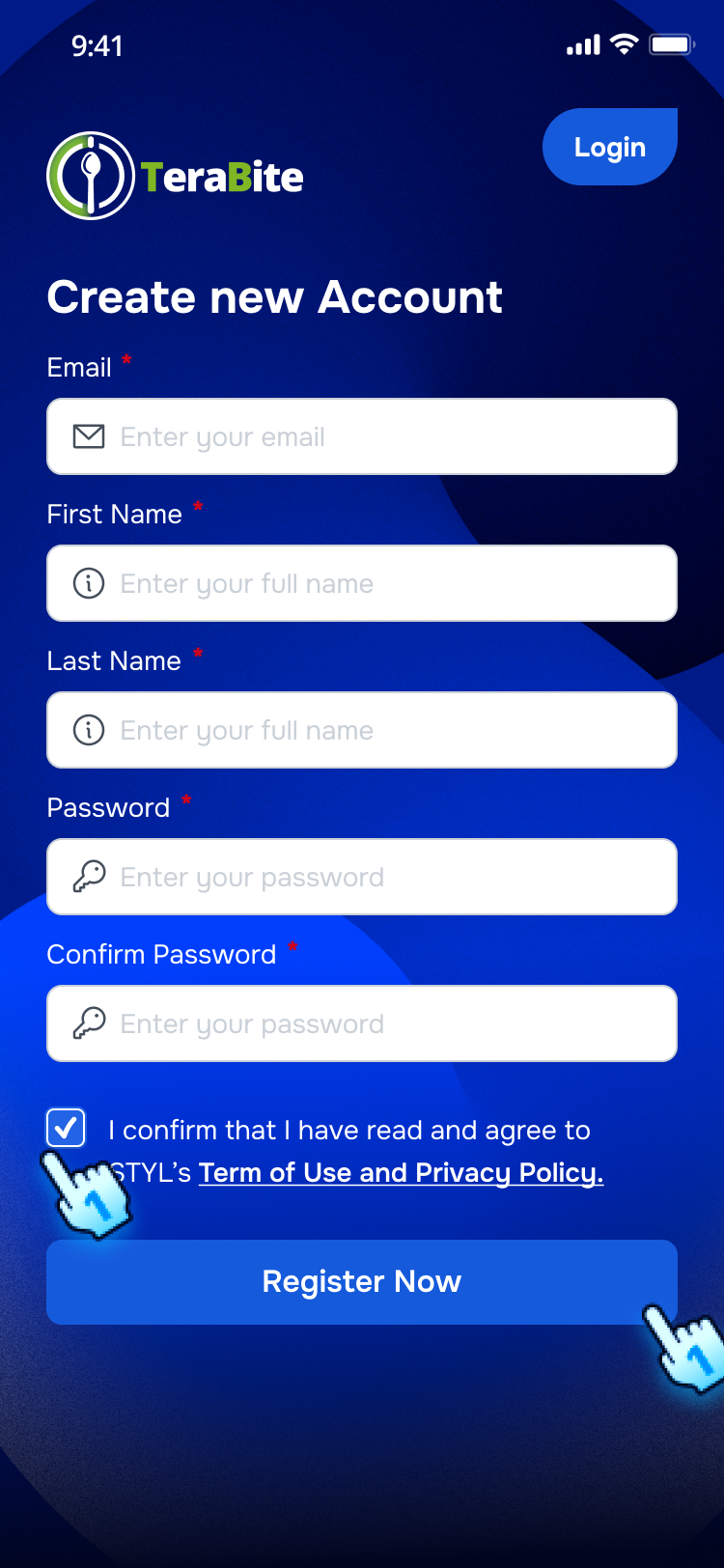
- Enter required information
- The account activation page will be displayed.
- Set a password and fill in other required information.
- Click the "Activate Account" button.
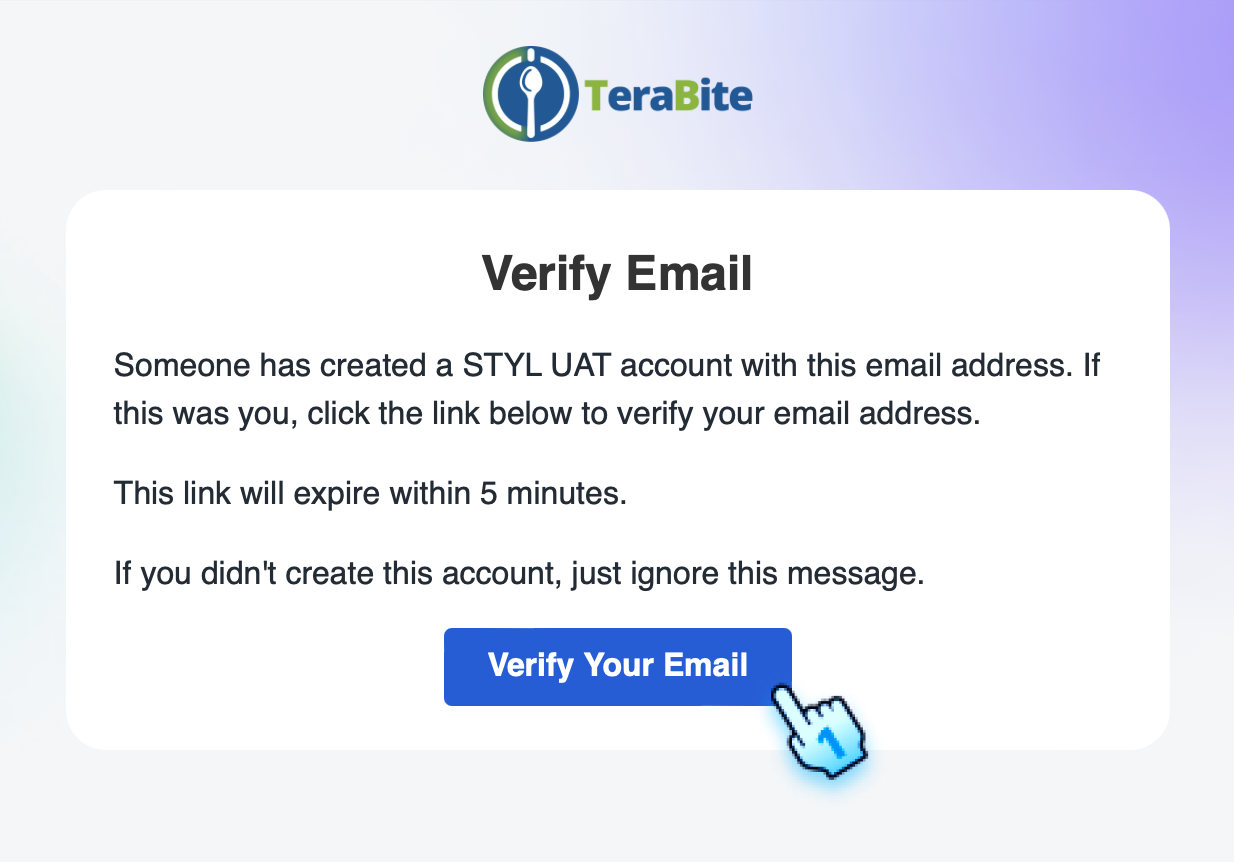
- Account verification
- Verify the account via the email link sent after activation.
User Registration
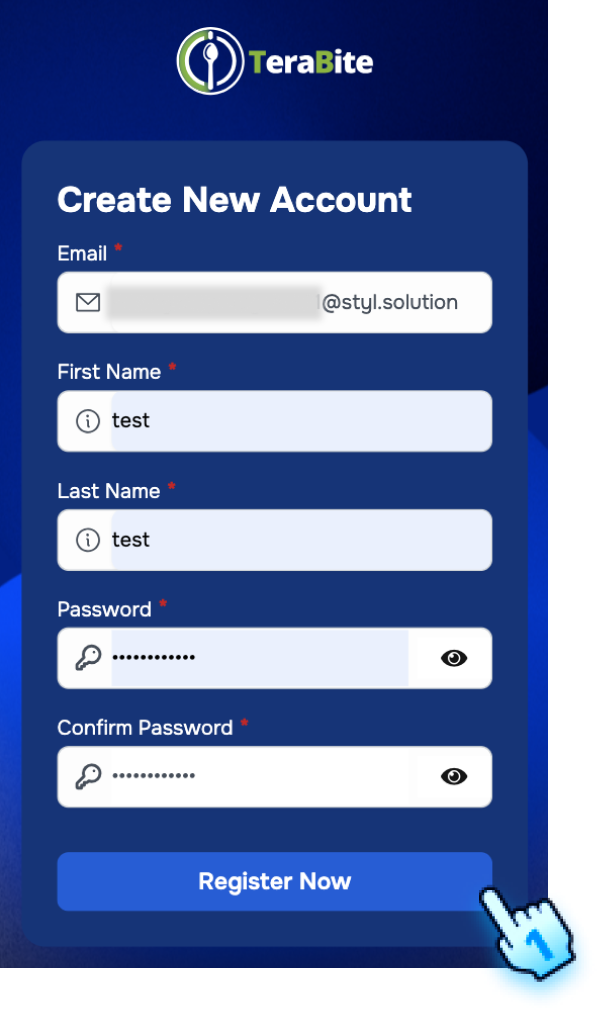
- Successful Registration with Valid Data
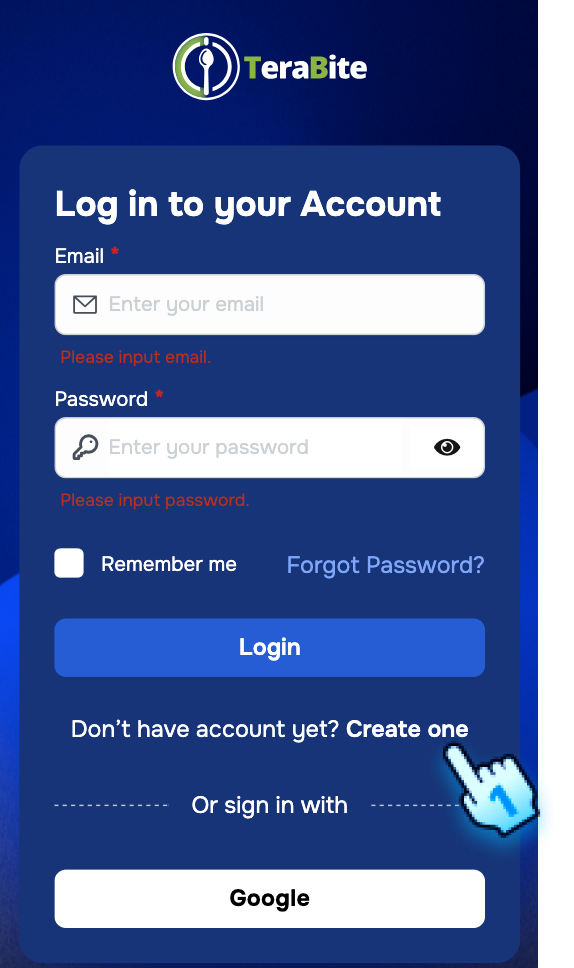
- Tap on Create One button to open Create New Account form
- Complete registration using valid user data.
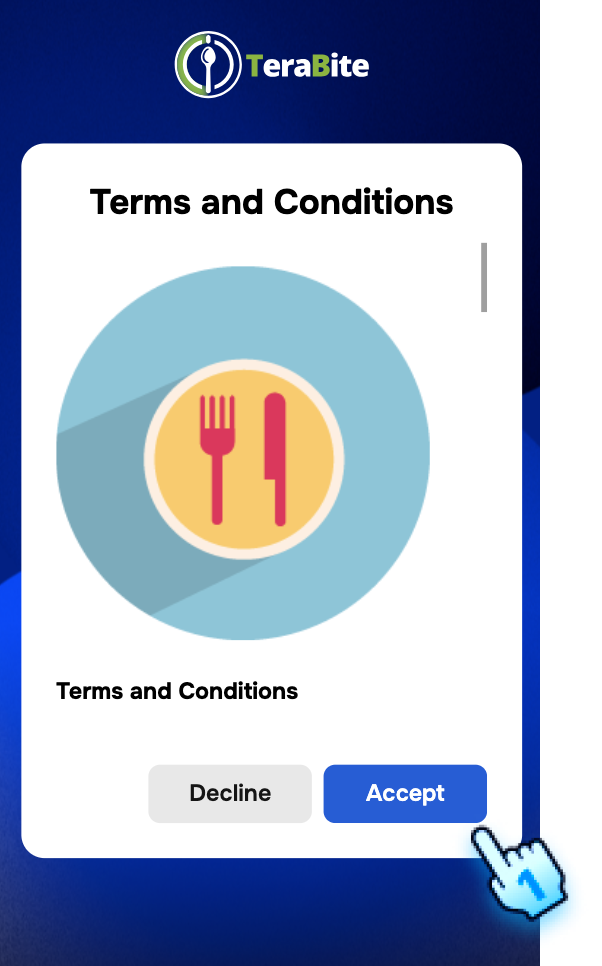
- Terms and Conditions Popup
- After registration, a Terms and Conditions popup appears.
- "Accept" to agree to the terms and conditions, and continue next steps
- "Decline" to reject the terms and conditions, and return to login page
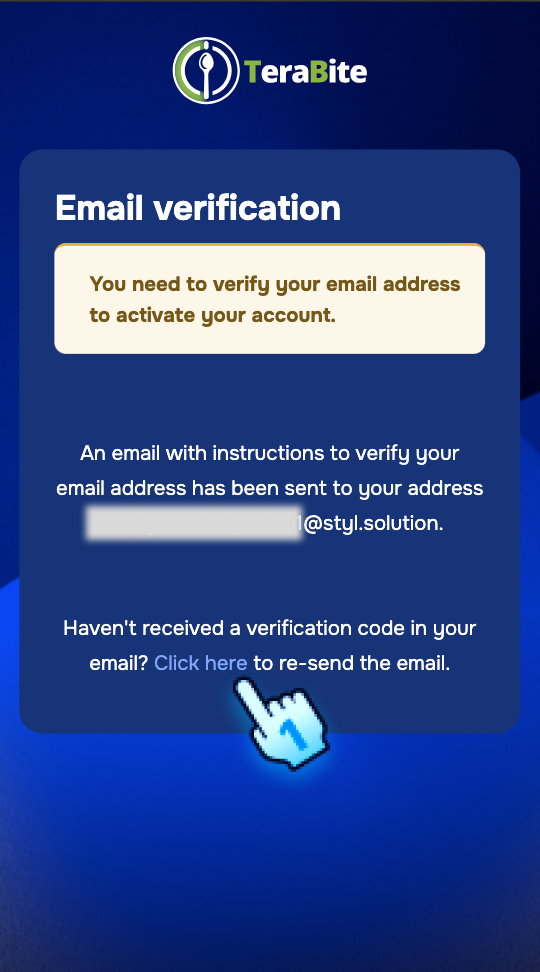
- Email Verification
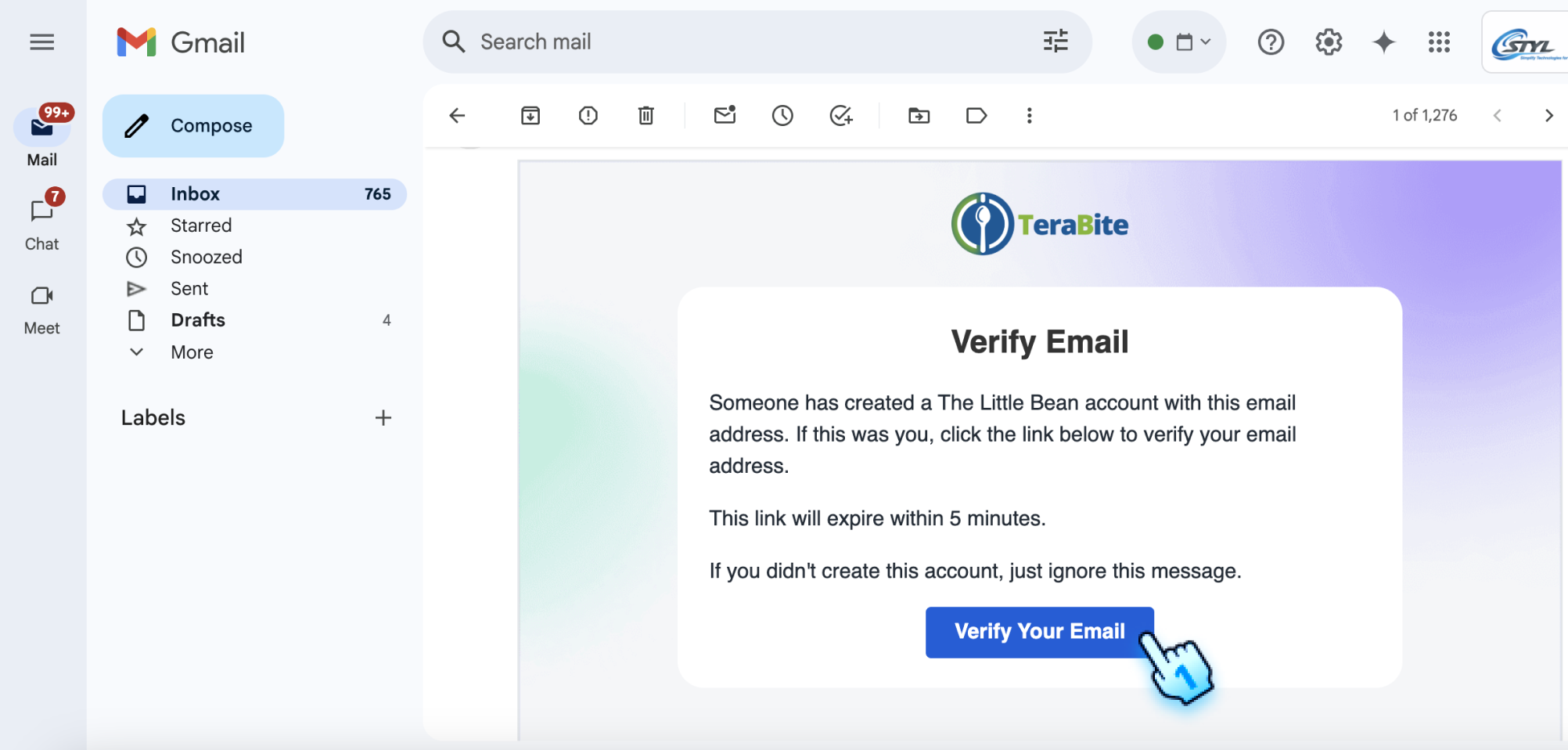
- An email verification link is sent to the registered email address.
- Click the email verification link to activate the account.
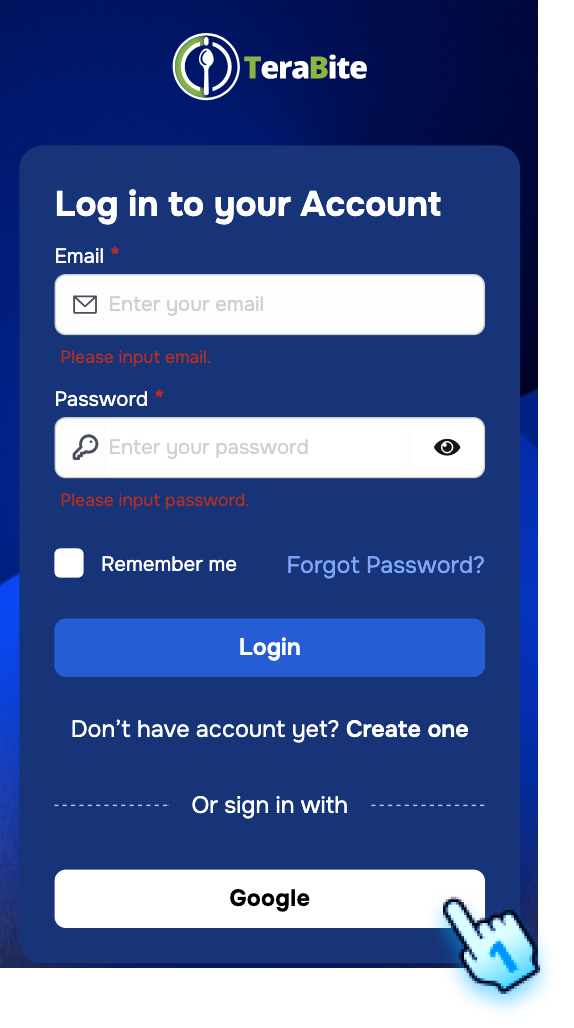
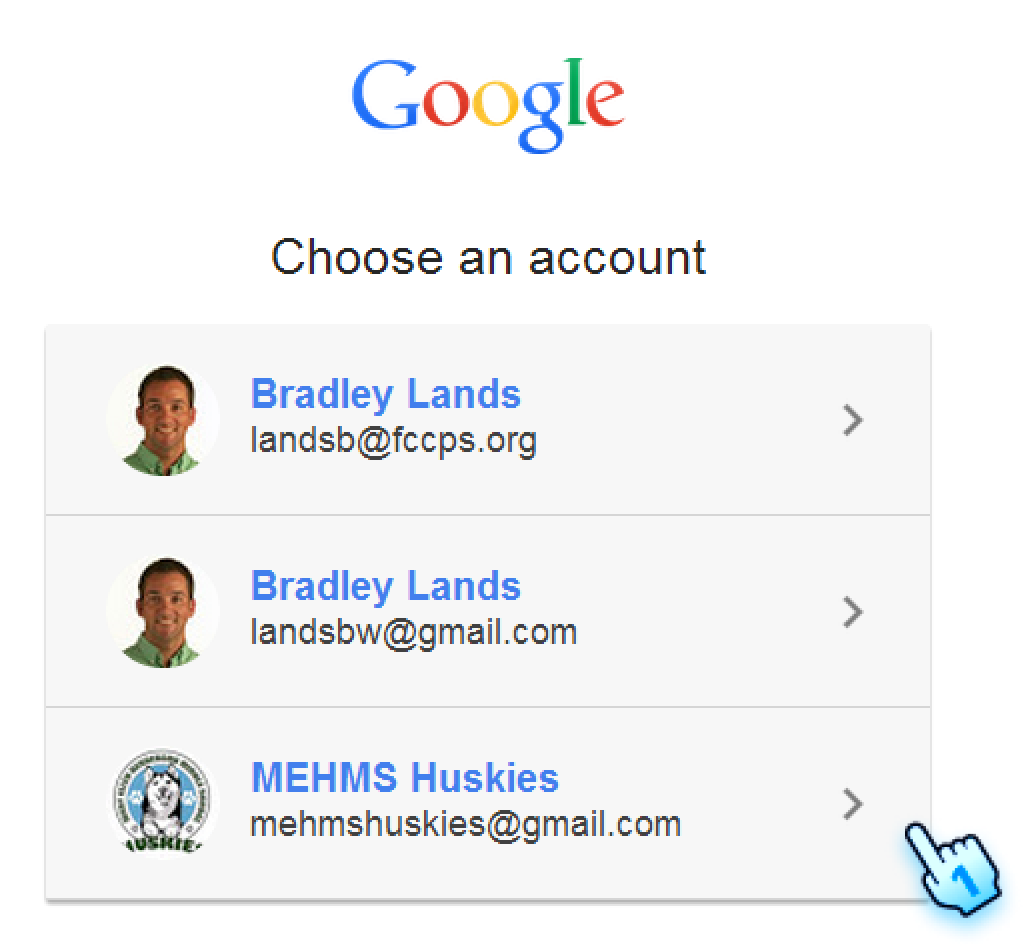
Google Account Login
- Login with Valid Google Account
- Use a valid Google account to log in.
- Terms and Conditions Popup After Google Login
- After logging in with Google, the Terms and Conditions popup appears.
- "Accept" to agree to the terms and conditions, and login to system successfully
- "Decline" to reject the terms and conditions, and return to login page
Login
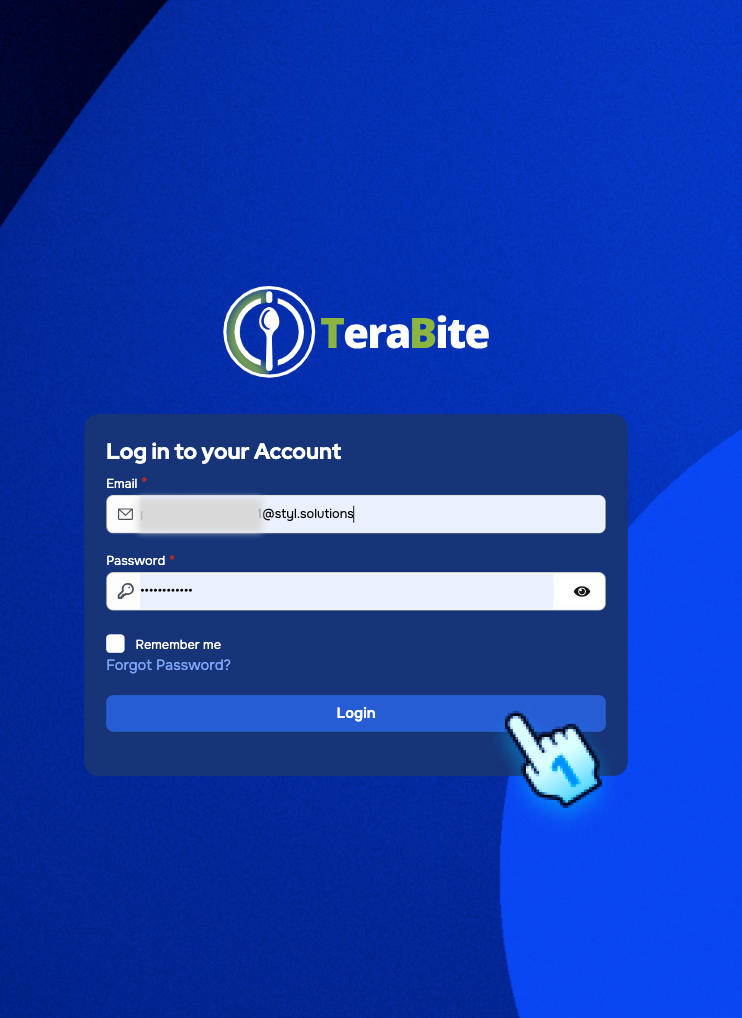
- Access Login Page
- Open the C-Portal login page.
- Enter the registered email and password.
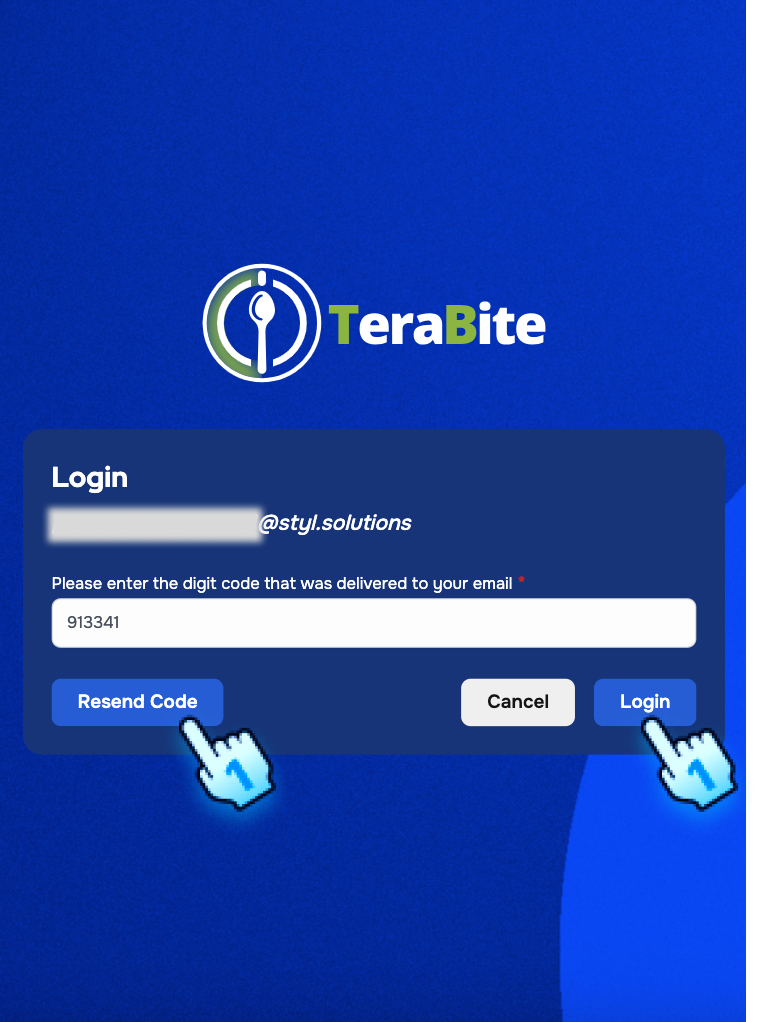
- 2FA verification
- Enter OTP code received from email
- Click the "Login" button.
- The user will be redirected to the dashboard with four sections: Principal Account, Wallet, Meal Pre-Order, and Order History.
Password Recovery
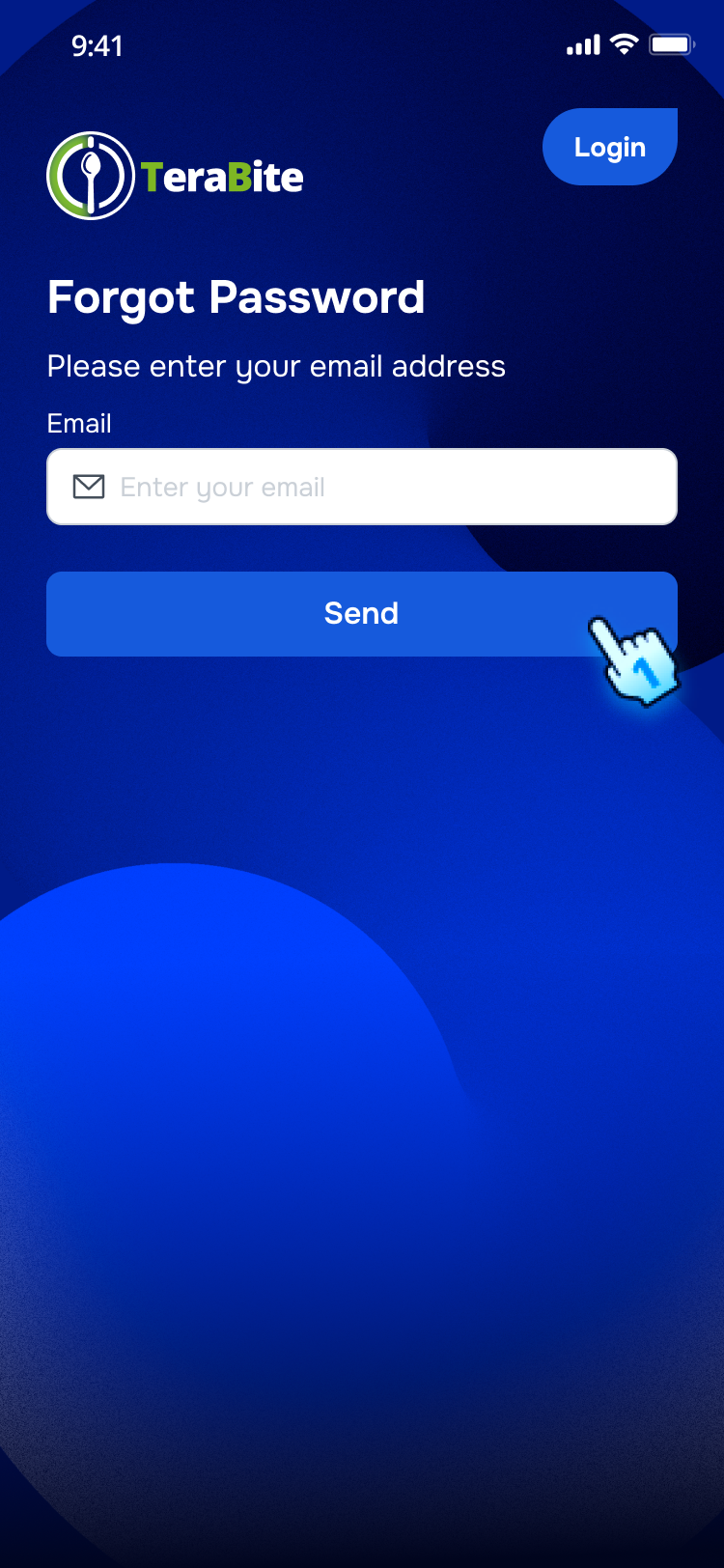
- Initiate Password Reset
- On the login page, click the "Forgot Password?" link.
- The password recovery page will be displayed.
- Enter Email
- Enter the registered email.
- Click the "Submit" button.
- A confirmation message will indicate that a password reset email has been sent.
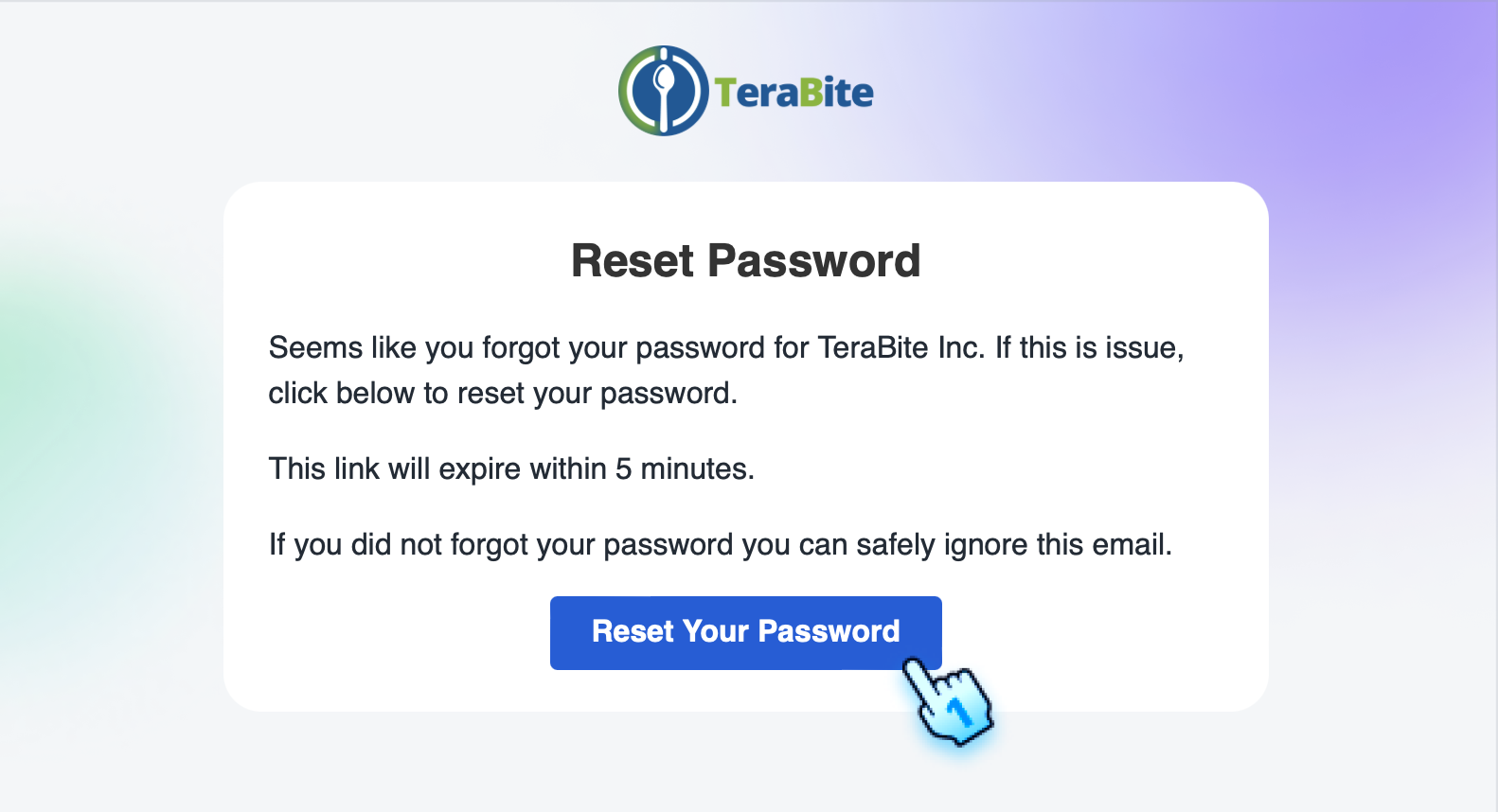
- Reset Password
- Open the password reset email.
- Click on the password reset link in the email.
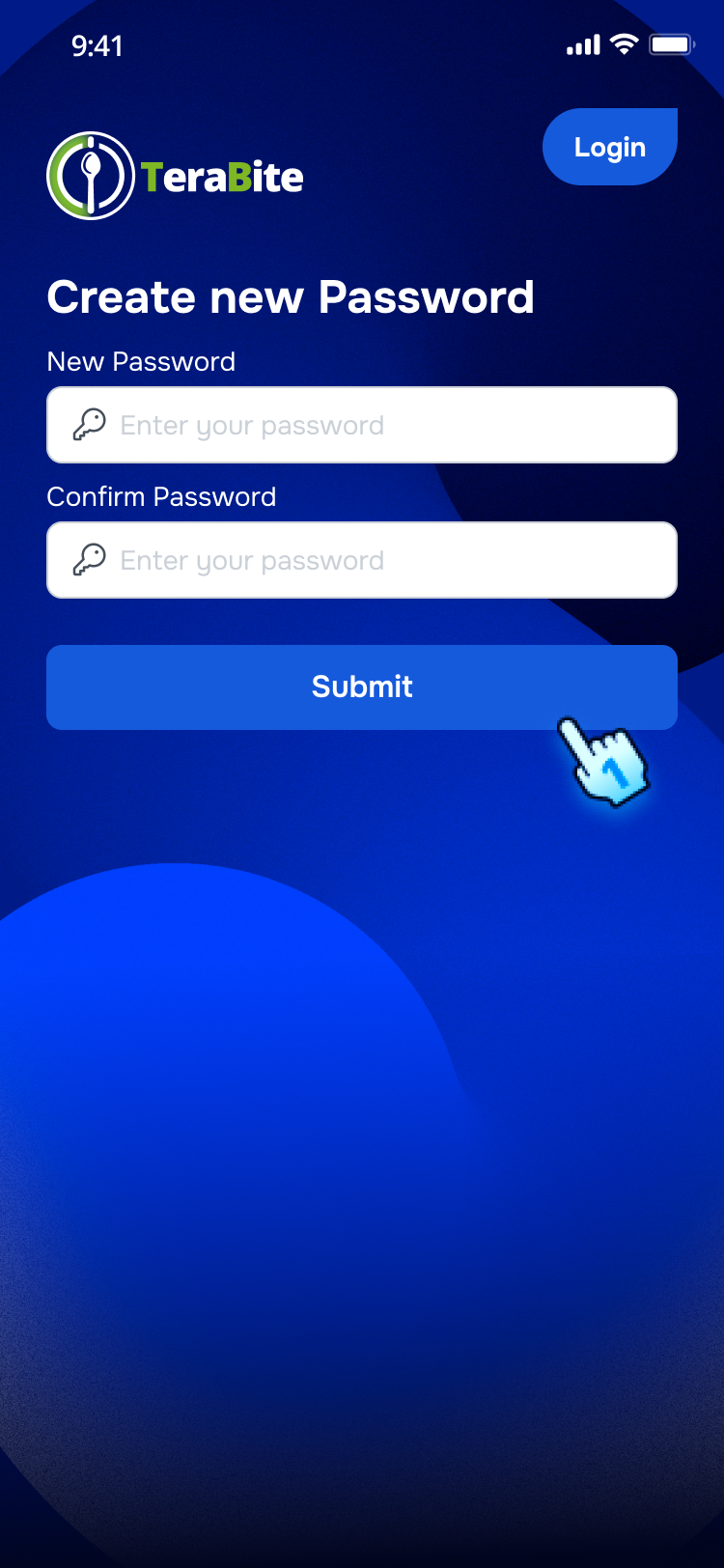
- The password reset page will be displayed.
- Set New Password
- Enter a new password and re-enter it for confirmation.
- Click the "Reset Password" button.
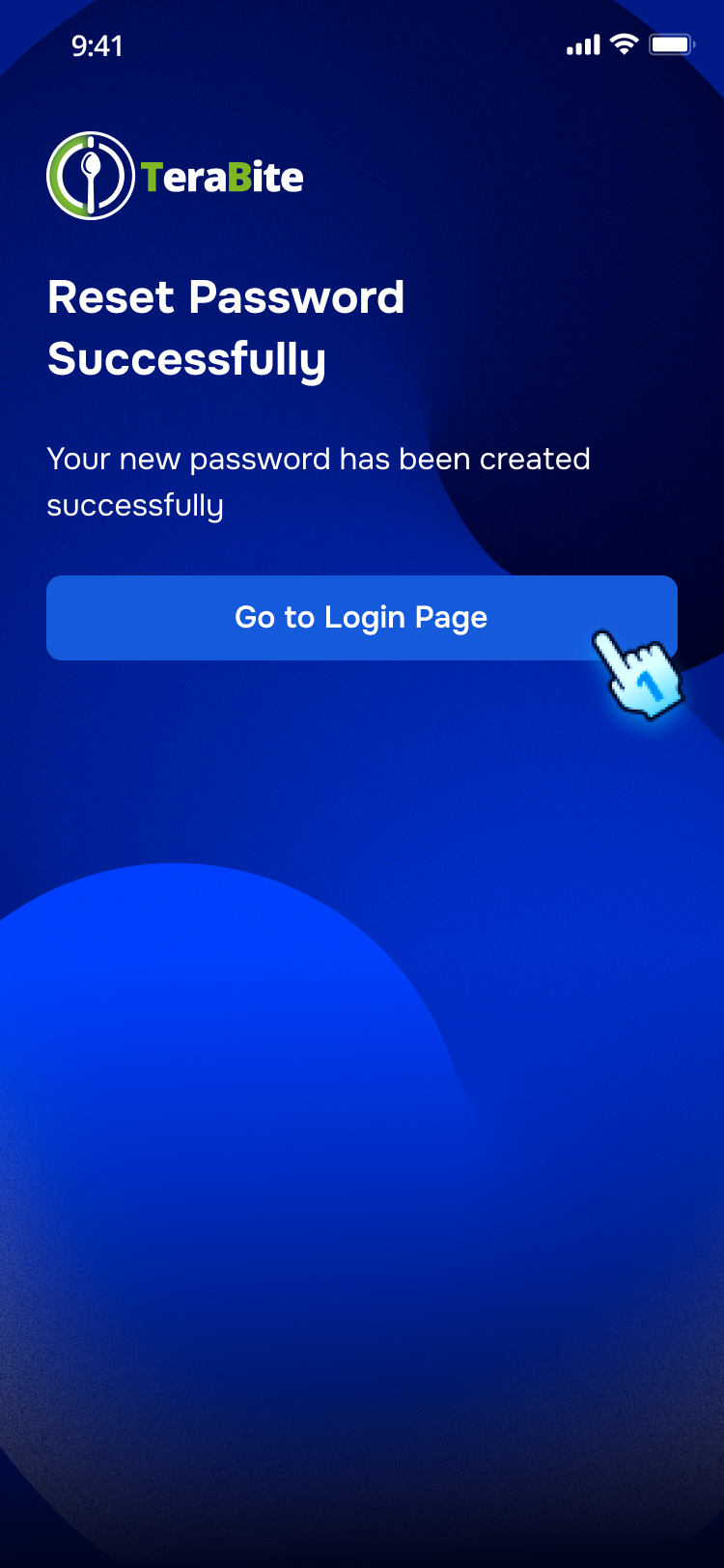
- A confirmation message will indicate that the password has been reset successfully.
Conclusion
The Start Up section provides a clear and structured guide for activating accounts, logging in, and recovering passwords. By following these steps, users can ensure secure access to the C-Portal and manage their accounts effectively.
Screen flow
Account Activation
User Registration
Google Account Login
Login
Password Recovery