Order History
Description
This section outlines the procedures for viewing and managing order history, including filtering orders and canceling orders.
View Order History
- Access Order History
- Log in to the C-Portal.
- Navigate to the Order History section.
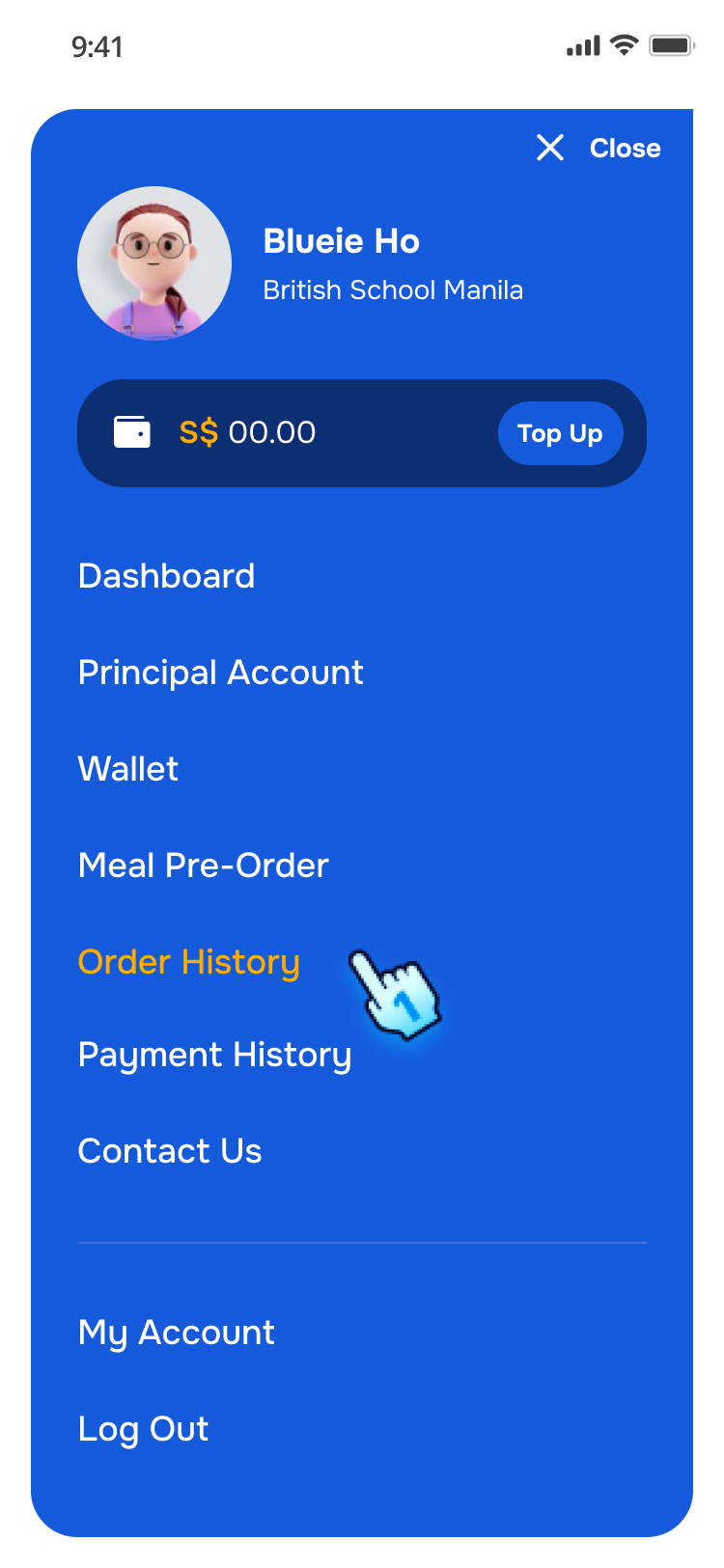
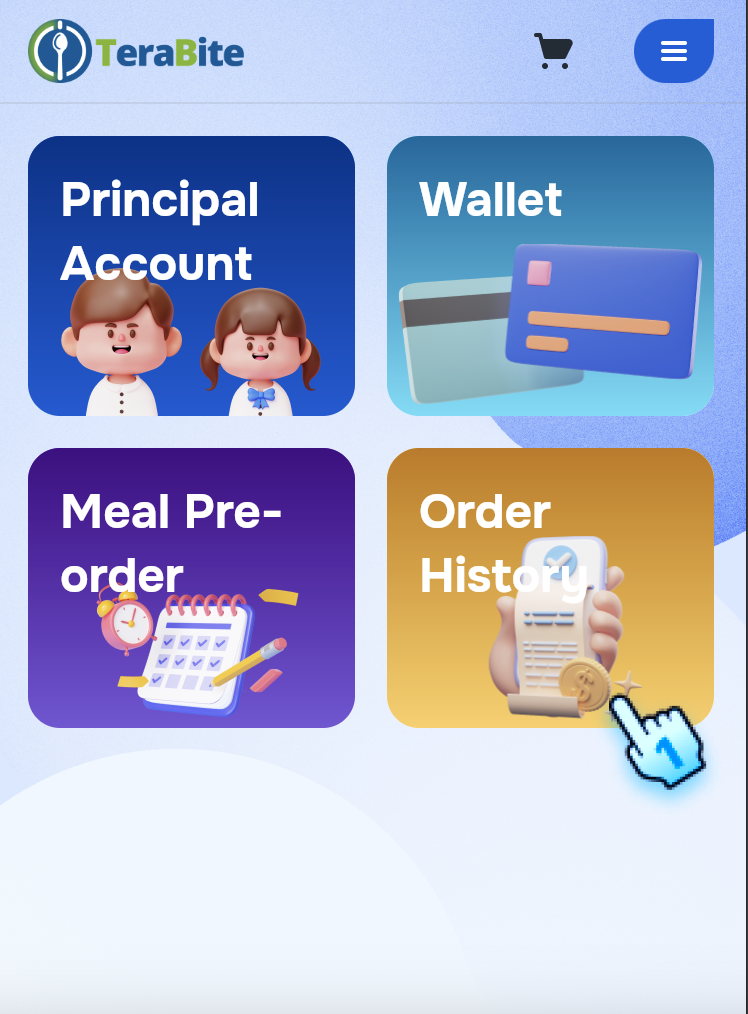
- Navigate to Order History from Menu or Dashboard
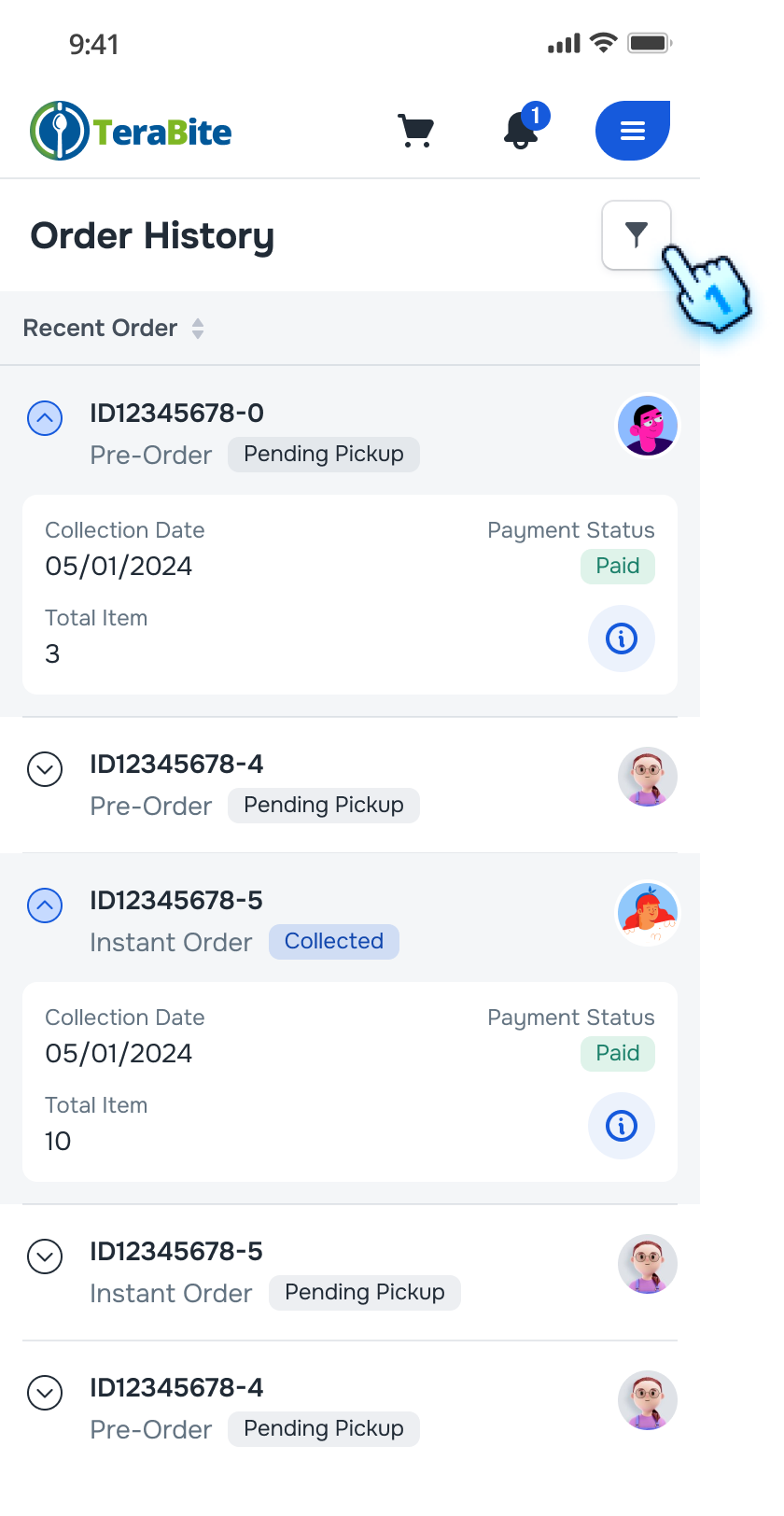
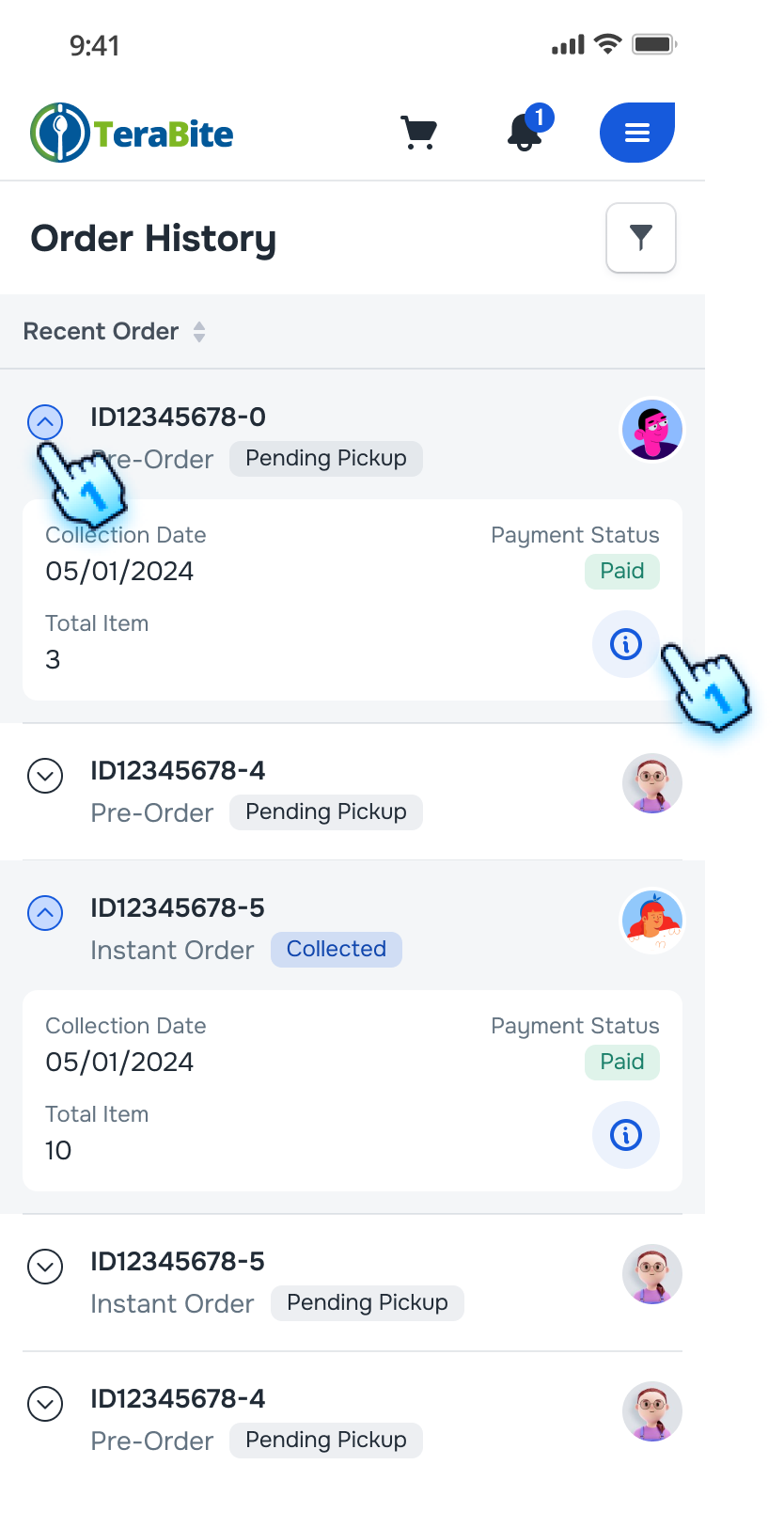
- A list of orders will be displayed, including order ID, status, collection day, total items, and payment status.
- View Order Details
- Click the "i" button next to an order.
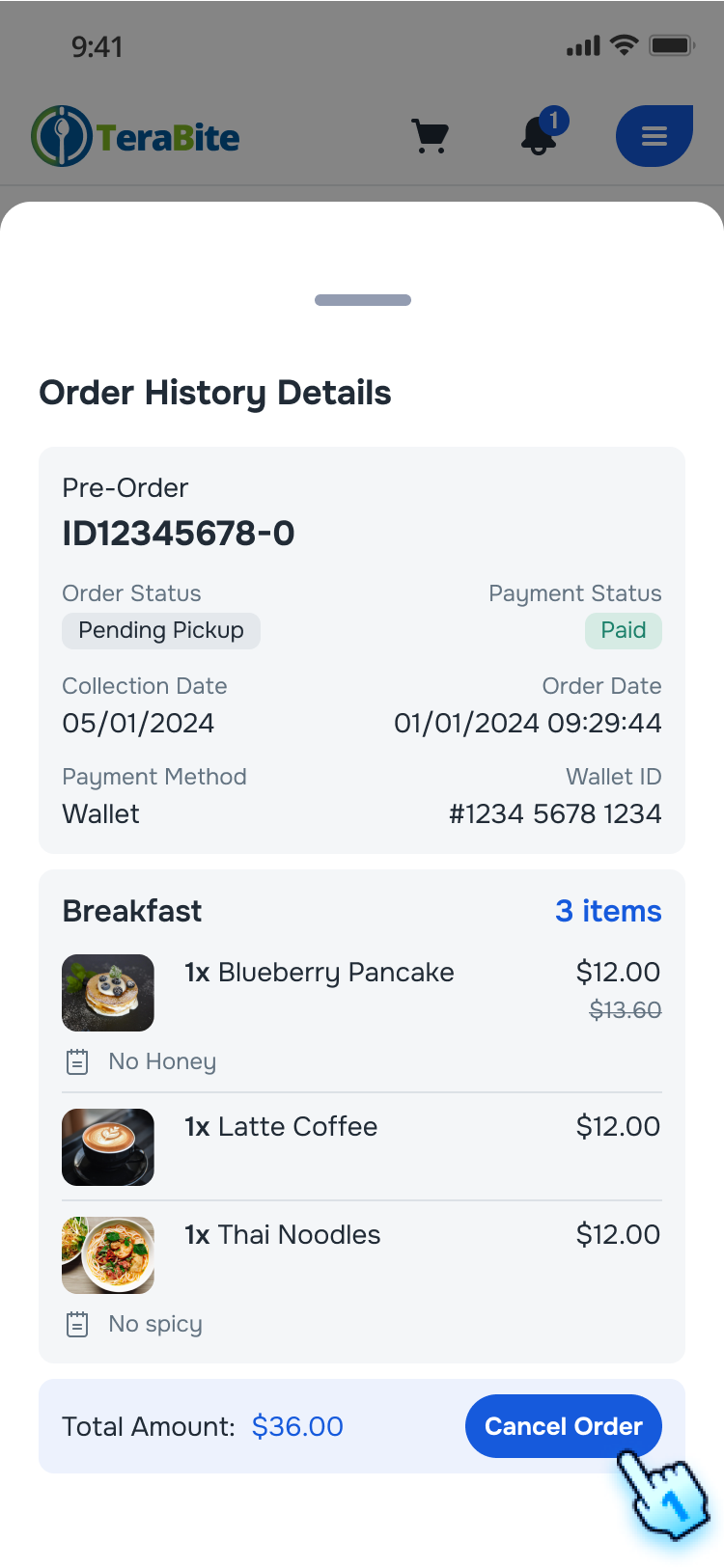
- The order details page will be displayed, showing itemized information.
Cancel Orders
- Cancel Order Before Cut-Off Time
- On the order details page, click the "Cancel Order" button.
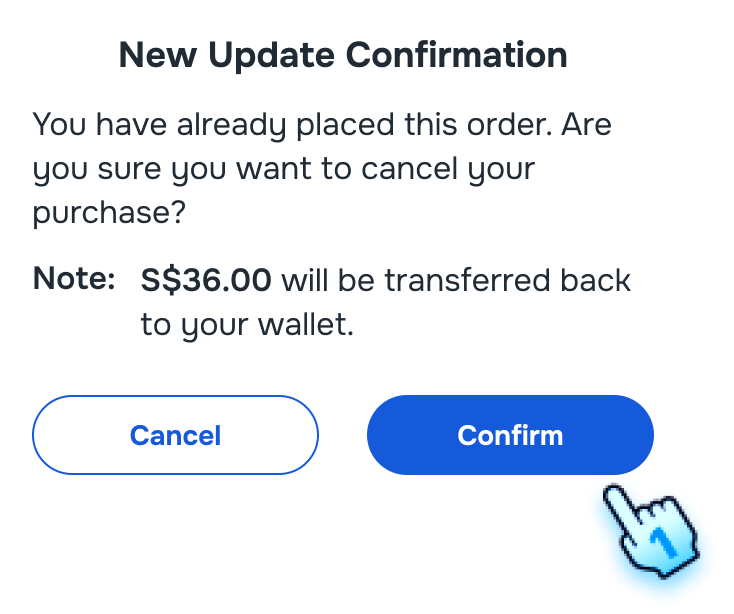
- A confirmation dialog will appear.
- Confirm the cancellation by clicking "Cancel."
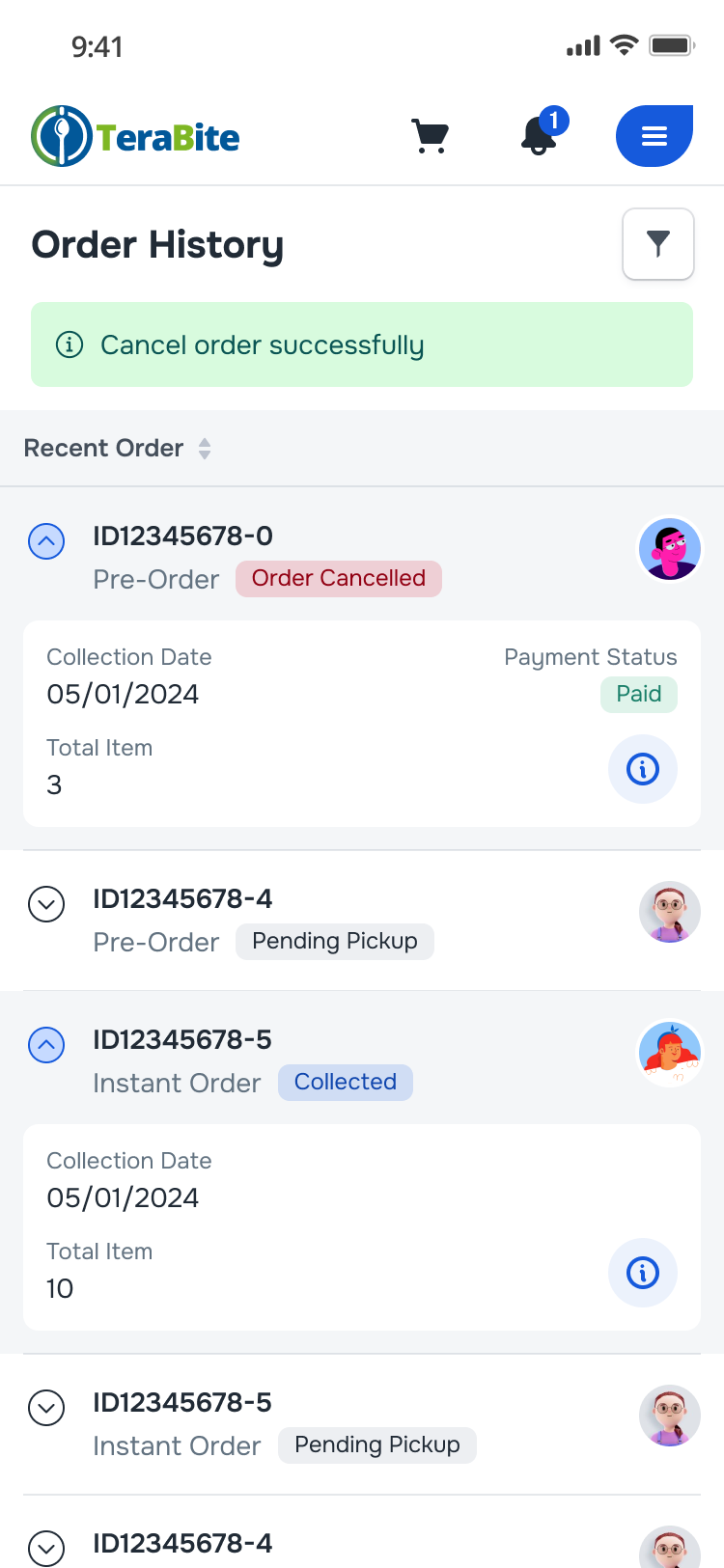
- A confirmation message will indicate that the order has been canceled successfully.
- Attempt to Cancel Order After Cut-Off Time
- If the order is past the cut-off time, the "Cancel Order" button will be hidden.
- The user will not be able to cancel the order.
Filter Orders
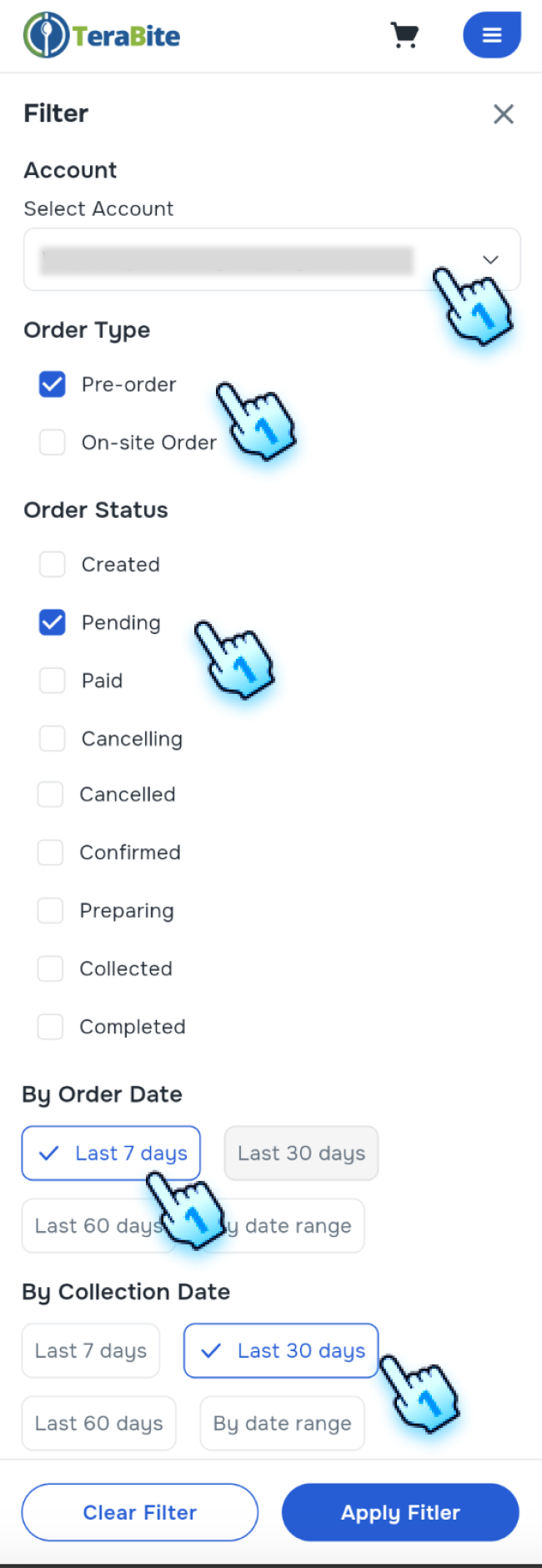
- Access to Filter setting
- Click the filter button on the Order History page.
- Select Filter Criteria
- Select Account/ Sub-Account
- Select Order Type (Pre-Order, Instant Order)
- Select a status filter (e.g., Created, Preparing,Completed, Pending, etc.).
- Select By Order Date
- Select By Collection Date *Note: Criteria can be single selected or multiple selected
- Apply filter
- Click "Apply Filter."
- The order list will update to show orders according to the filter crieria.
Conclusion
The Order History section provides a clear guide for viewing and managing past orders, including filtering and canceling orders. These steps enable users to track their orders and make necessary adjustments within the allowed time frame.
Screen flow
View Order History
Cancel Orders
Filter Orders