Order History
Description
This section outlines role-based order history behavior in Family Concept, including Buyer and Consumer visibility.
View Order History
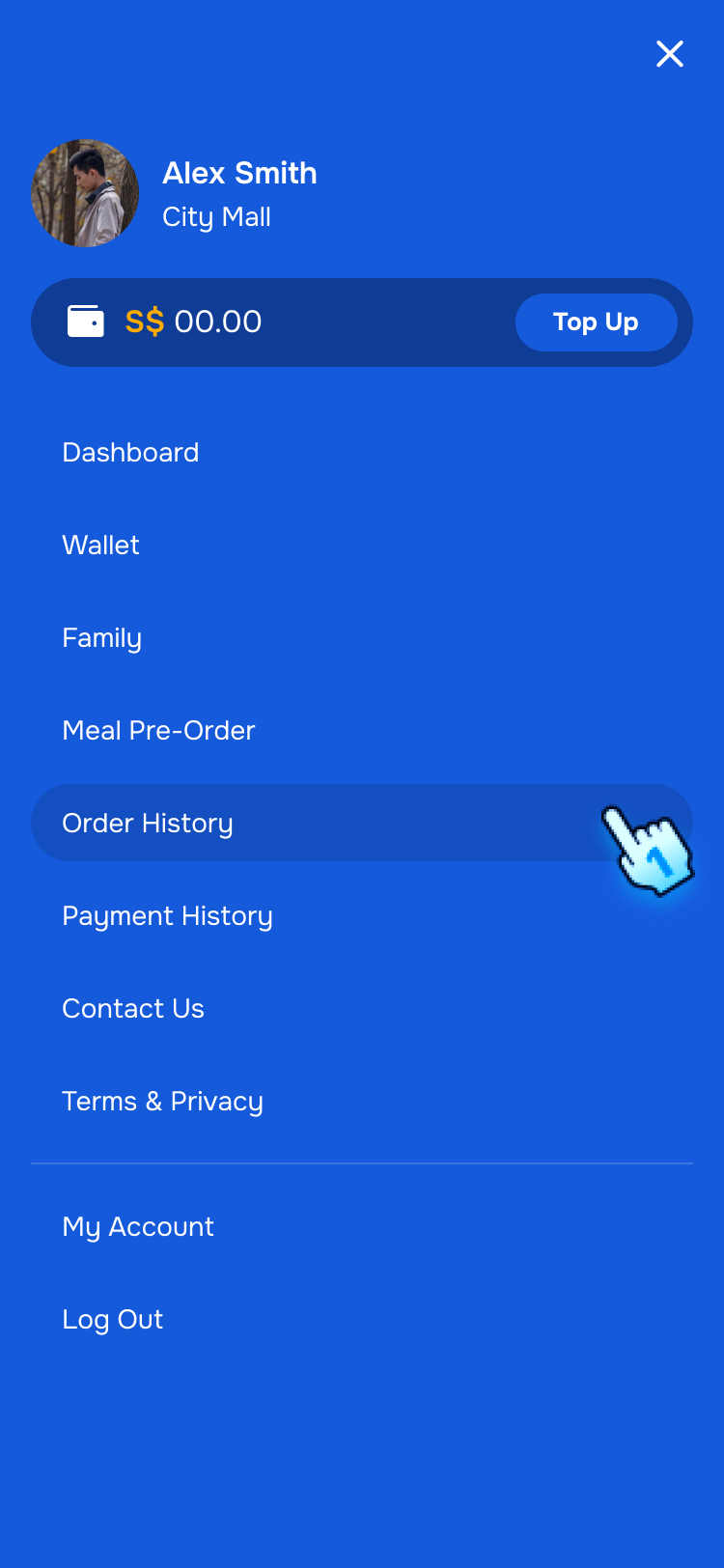
- Access Order History
- Log in to the C-Portal.
- Navigate to Order History from Menu.
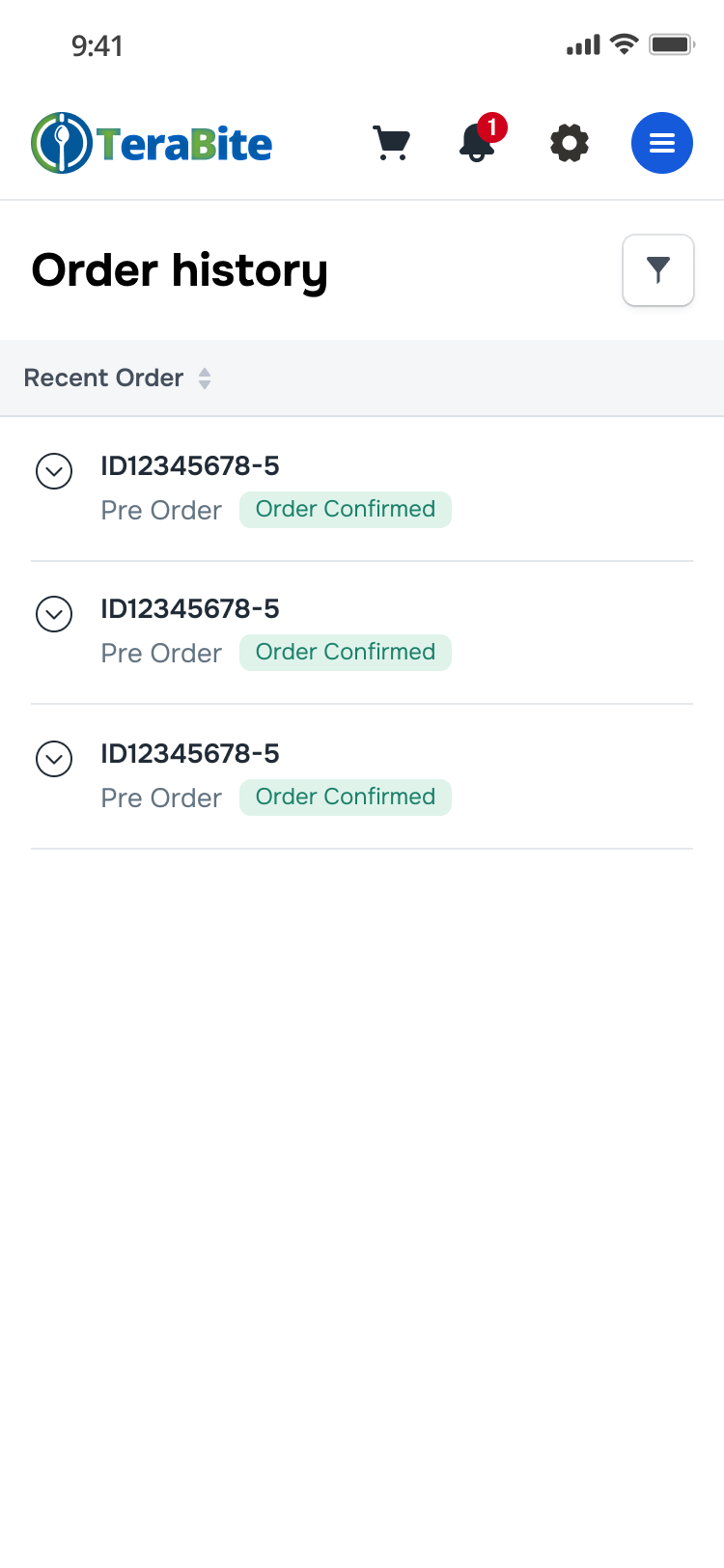
- Navigate to the Order History section.
- A list of orders is displayed with role-based visibility:
- Parent can view meal records for all family members.
- Member can view meal records intended for self only.
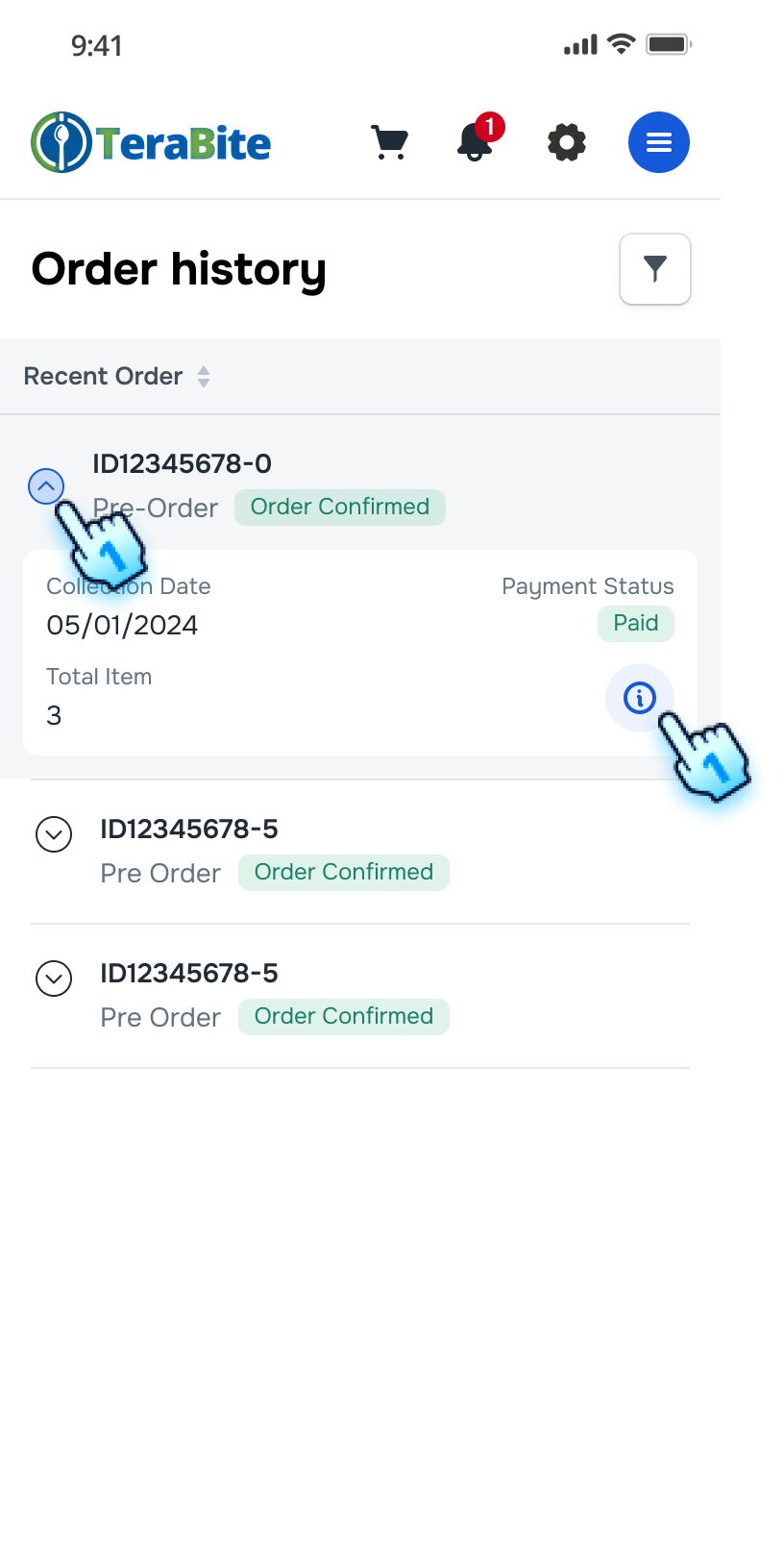
- View Order Details
- Click expand/collapse button to view more order information
- Click the "i" button next to an order to view the Order History Details
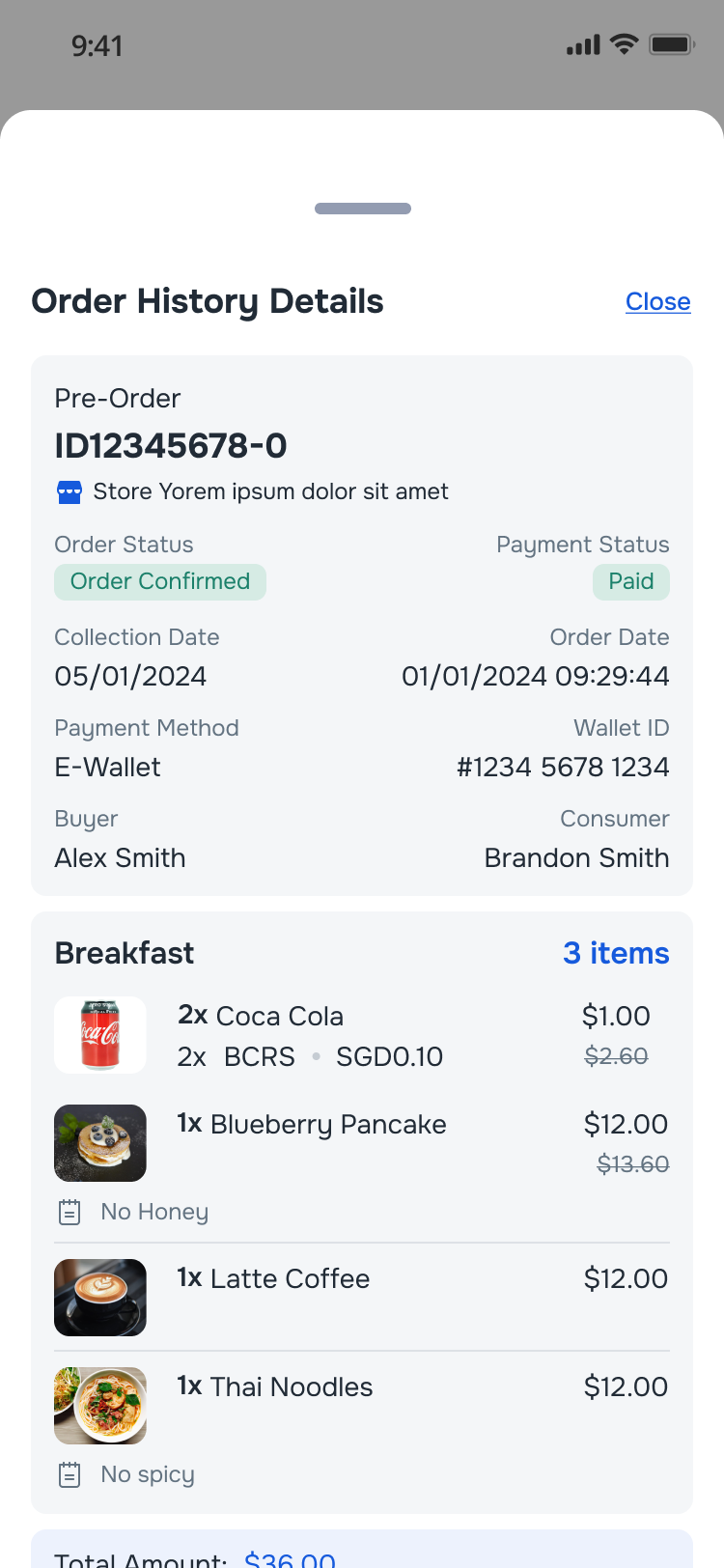
- Order History Details
- The Order History Details page will be displayed, showing itemized information
- BCRS-flagged items are labeled.
- Buyer (who paid) and Consumer (who receives meal) are displayed on each order detail.
Cancel Orders
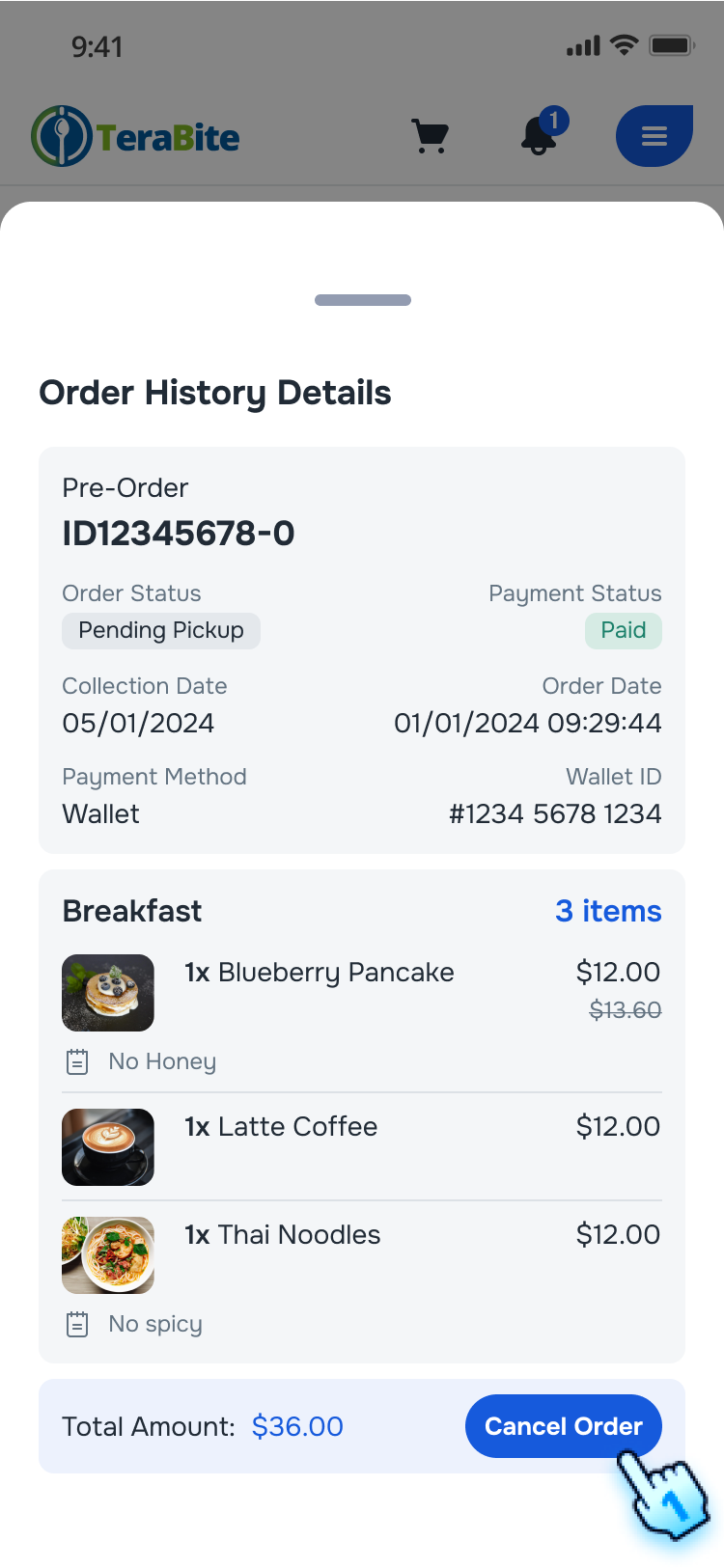
- Cancel Order Before Cut-Off Time
- On the order details page, click the "Cancel Order" button.
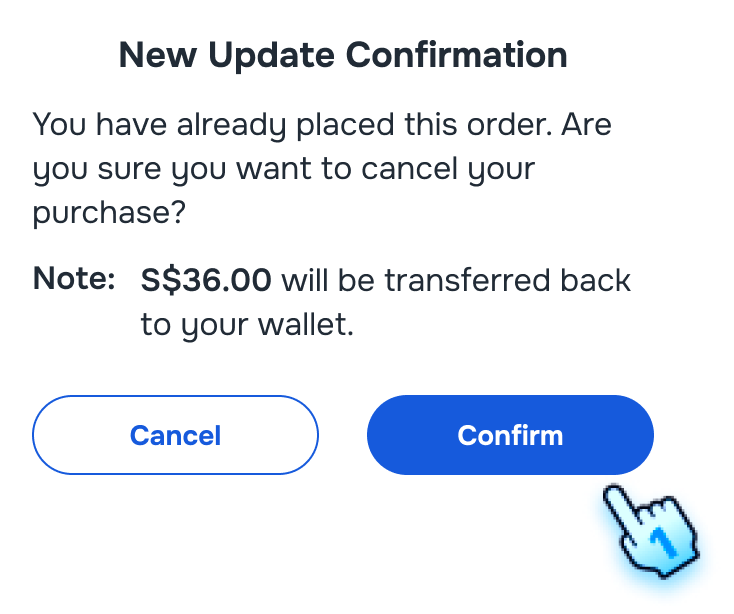
- A confirmation dialog will appear.
- Confirm the cancellation by clicking "Cancel."
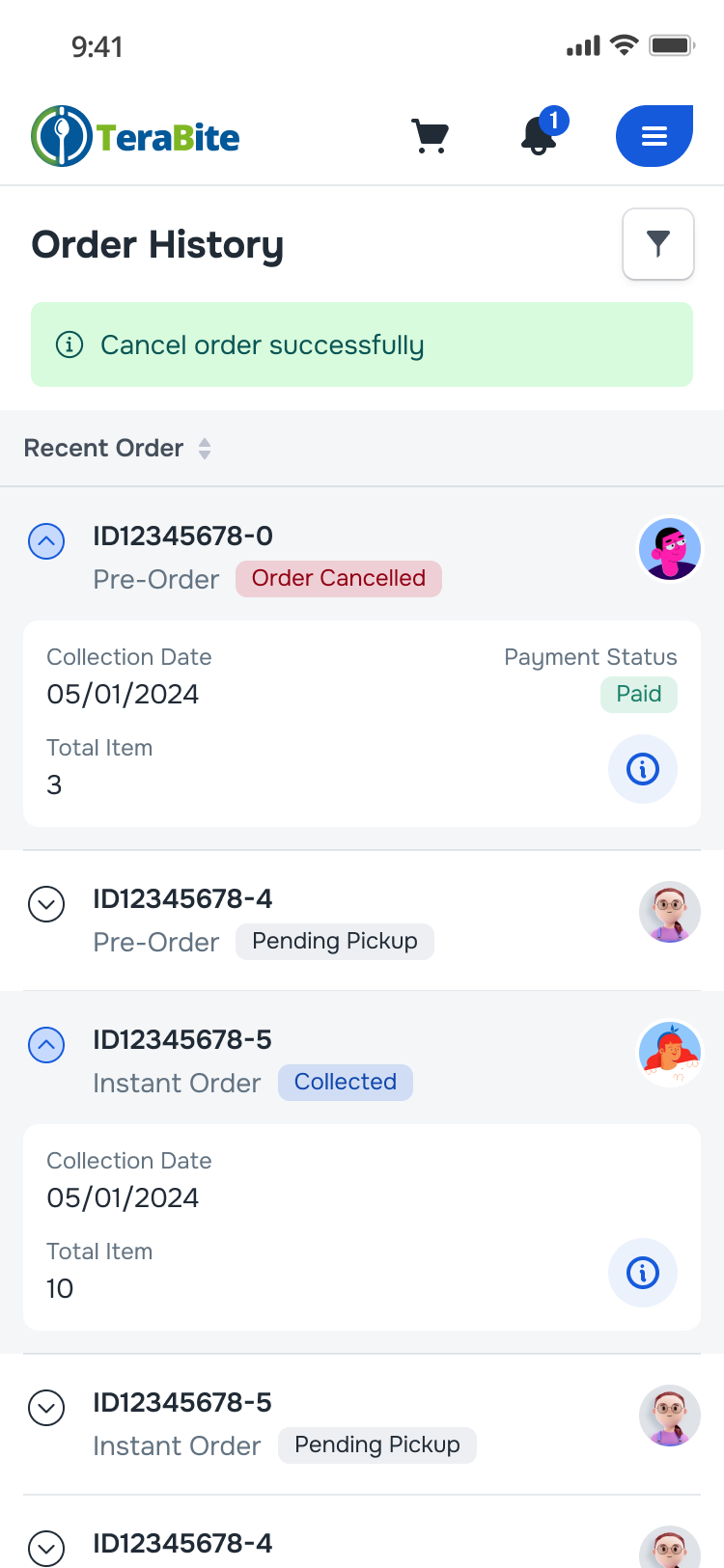
- A confirmation message will indicate that the order has been canceled successfully.
- Attempt to Cancel Order After Cut-Off Time
- If the order is past the cut-off time, the "Cancel Order" button will be hidden.
- The user will not be able to cancel the order.
- Exception handling (Data sync issue only)
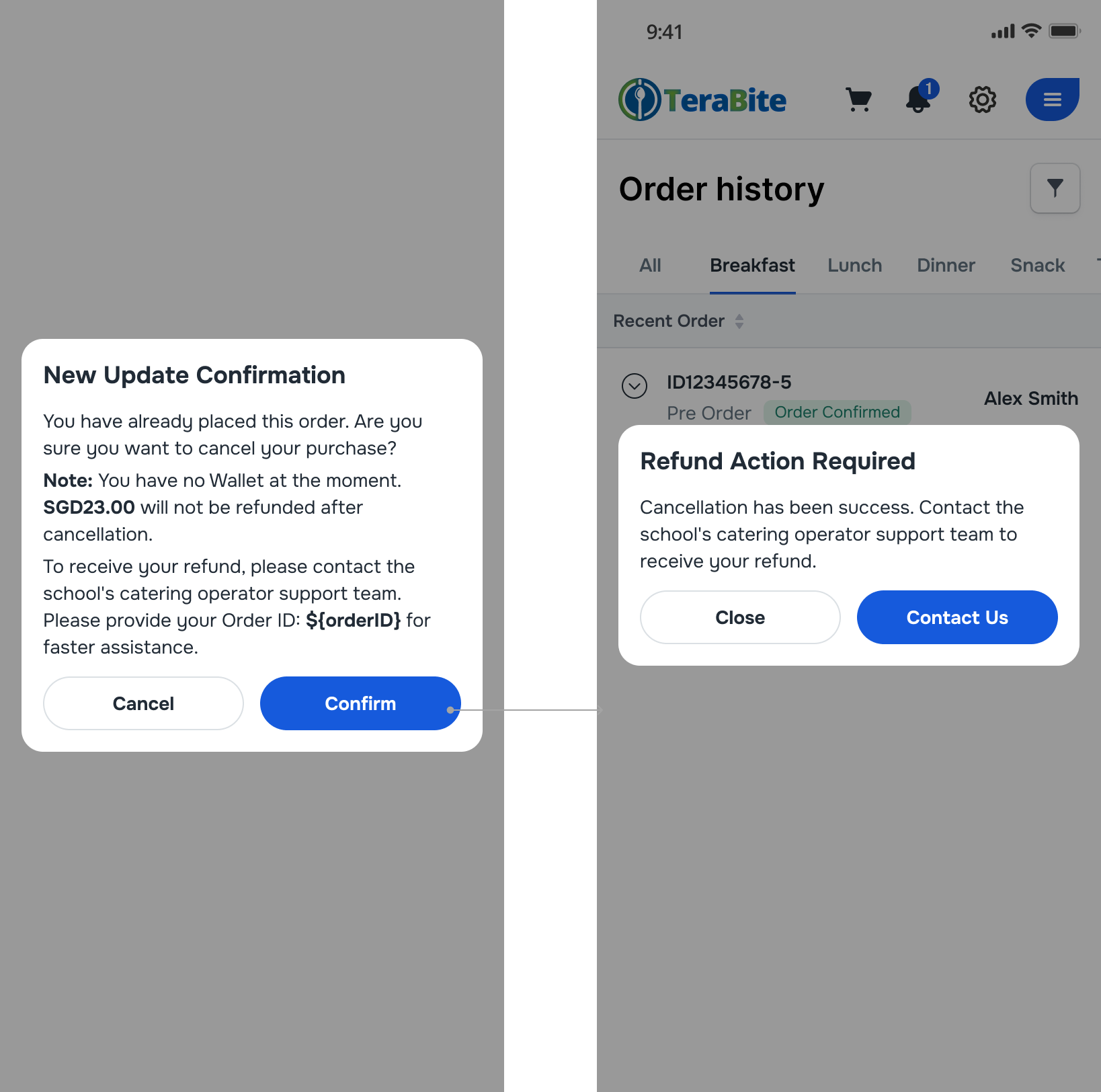
After Data sync process, there will be a case that the Family Code is removed from an user. The below exceptional cases will occur when user cancel the previous pre-order before data sync.
Pay with Deposit Wallet:
- Refund will be transferred back to the original Family Wallet.
- If the original wallet is inactive Deposit Wallet, the user need to contact the school's catering operator support team to handle.
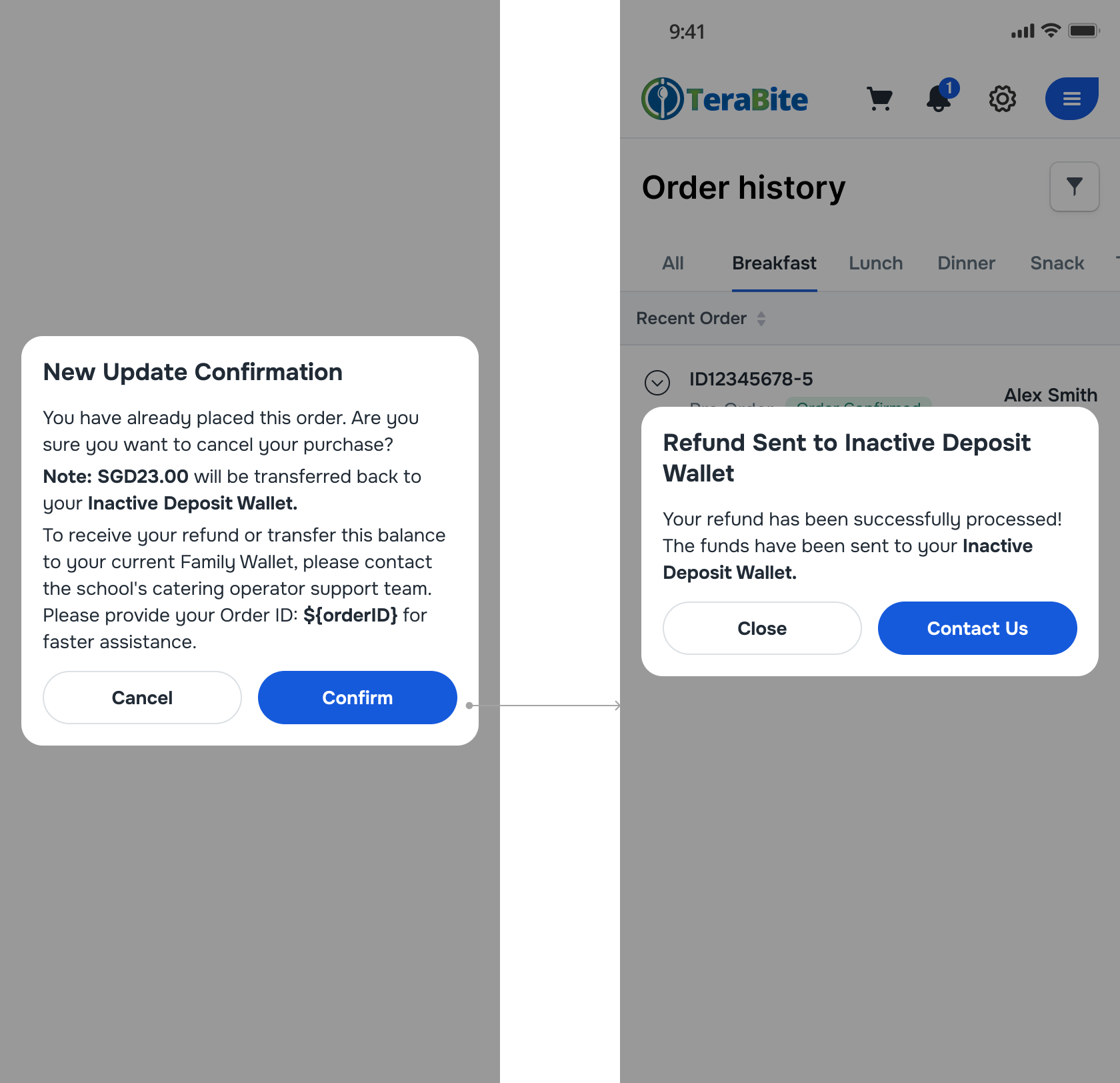
- Cancellation with No Wallet:
- Refund will not be proceed.
- The user need to contact the school's catering operator support team to receive the refund.
Pay with Stripe:
- Refund will be transferred back to the current Family Wallet.
-
If only Inactive Deposit Wallet Remaining:
- Refund will be transferred back to the Inactive Deposit Wallet.
- The user need to contact the school's catering operator support team for a solution.
-
- Cancellation with No Wallet:
- Refund will not be proceed.
- The user need to contact the school's catering operator support team to receive the refund.
Filter Orders
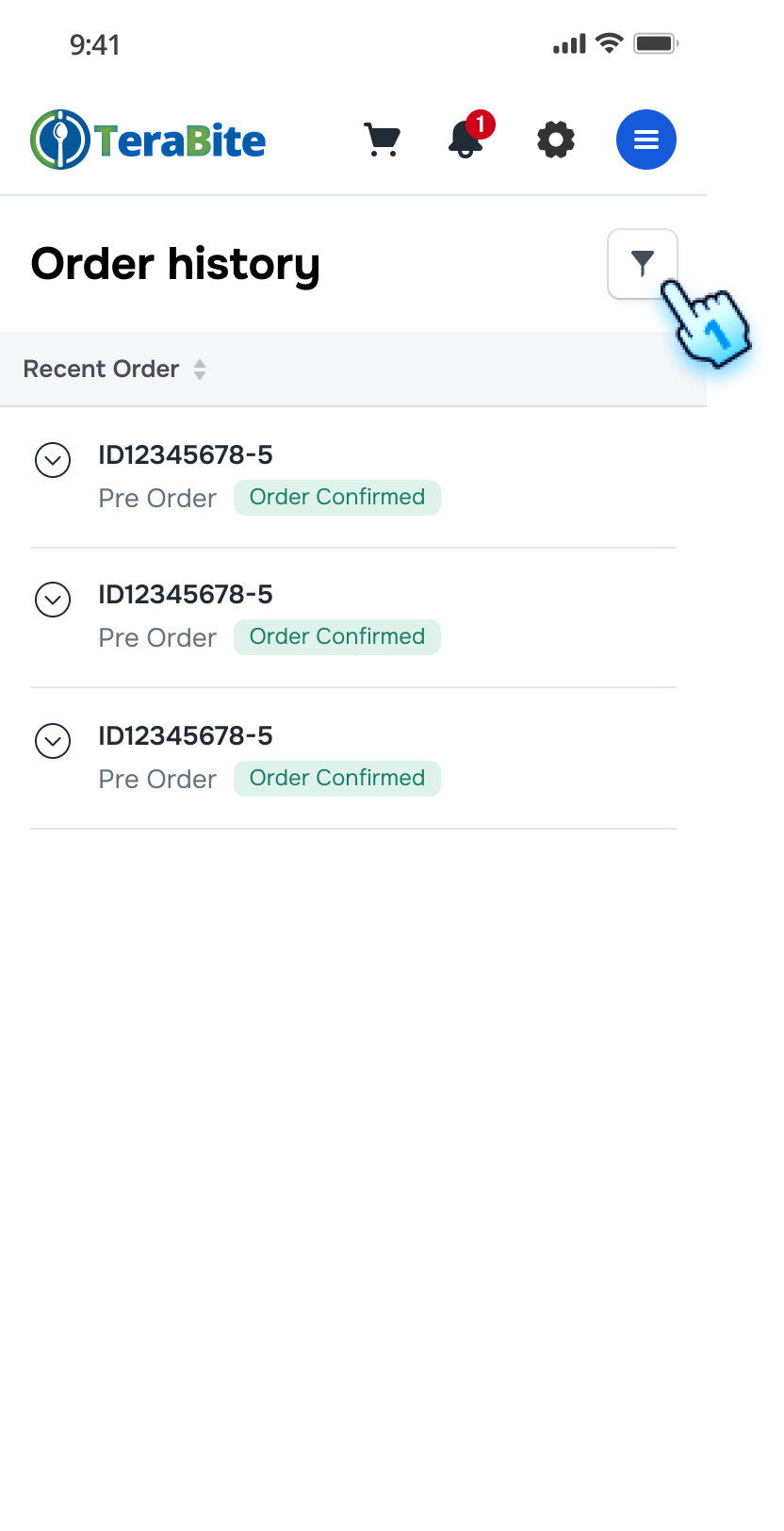
- Access to Filter setting
- Click the filter button on the Order History page.
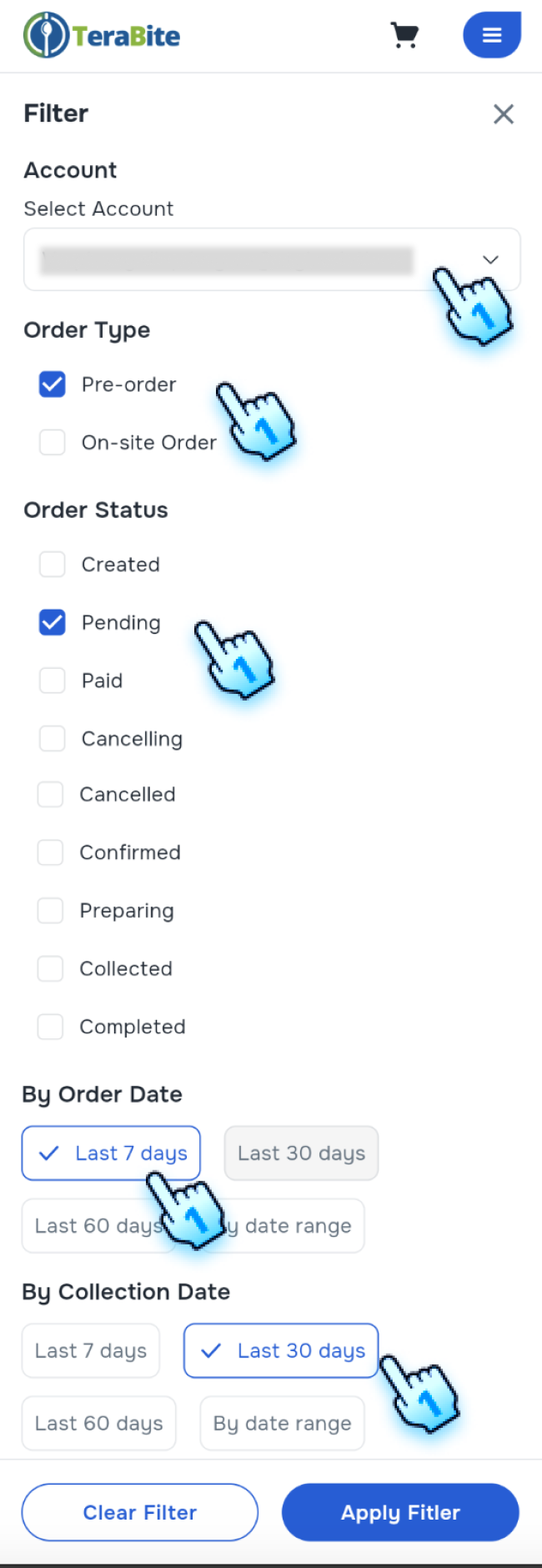
- Select Filter Criteria
- Select Account/ Sub-Account
- Select Order Type (Pre-Order, Instant Order)
- Select a status filter (e.g., Created, Preparing,Completed, Pending, etc.).
- Select By Order Date
- Select By Collection Date
Note: Criteria can be single selected or multiple selected
- Apply filter
- Click "Apply Filter."
- The order list will update to show orders according to the filter crieria.
Conclusion
The Order History section provides role-based meal visibility, clear Buyer and Consumer identification, and standard cancellation tracking in Family Concept.