#
Add Website Shortcut to Home Screen
#
Description
This document outlines the steps to add a website shortcut to the home screen for both iOS and Android devices. This functionality allows users to quickly access their favorite websites directly from their home screens.
#
For iOS
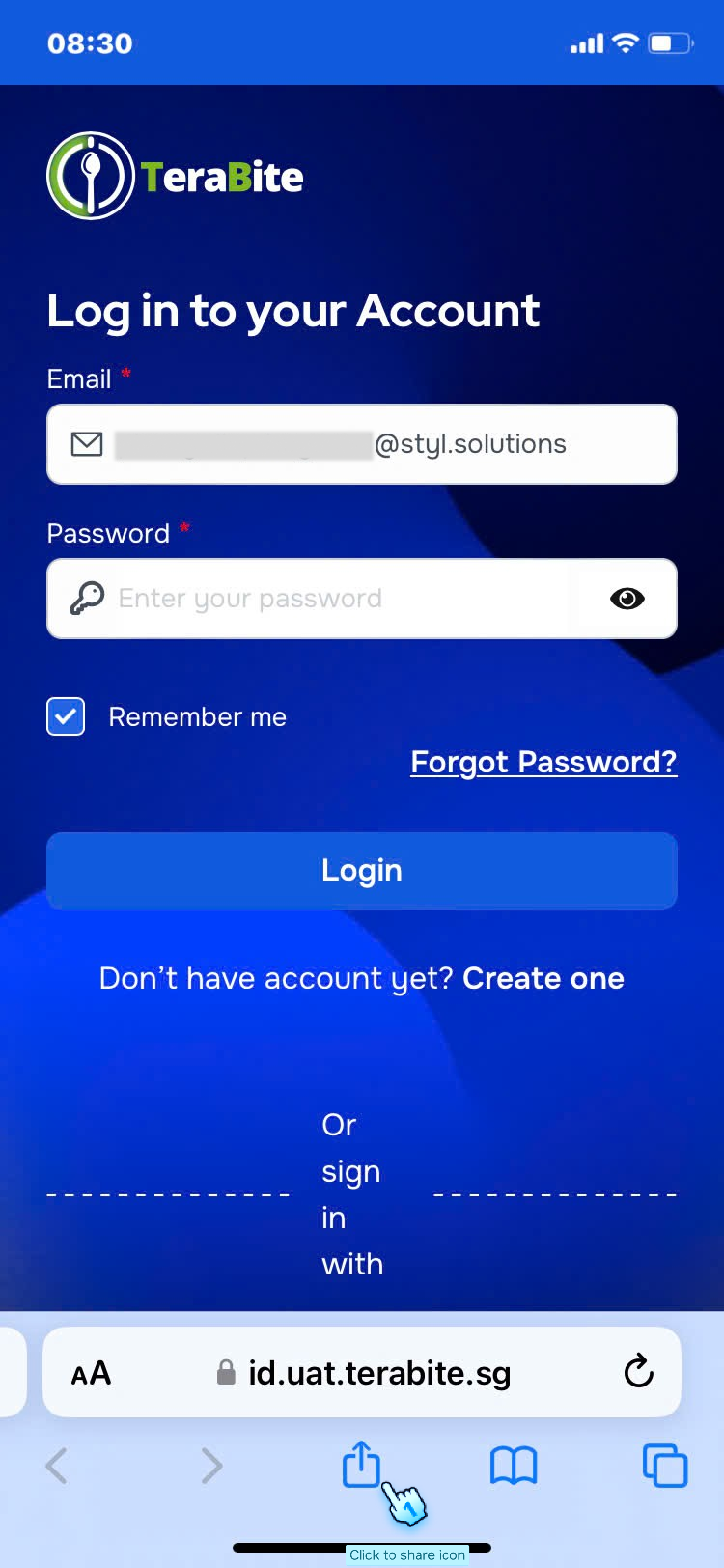
- Access a Website URL via Safari
- Open the Safari browser and navigate to the desired website URL.
- Click the Share Icon
- Tap the Share Icon, typically represented by a square with an upward arrow.
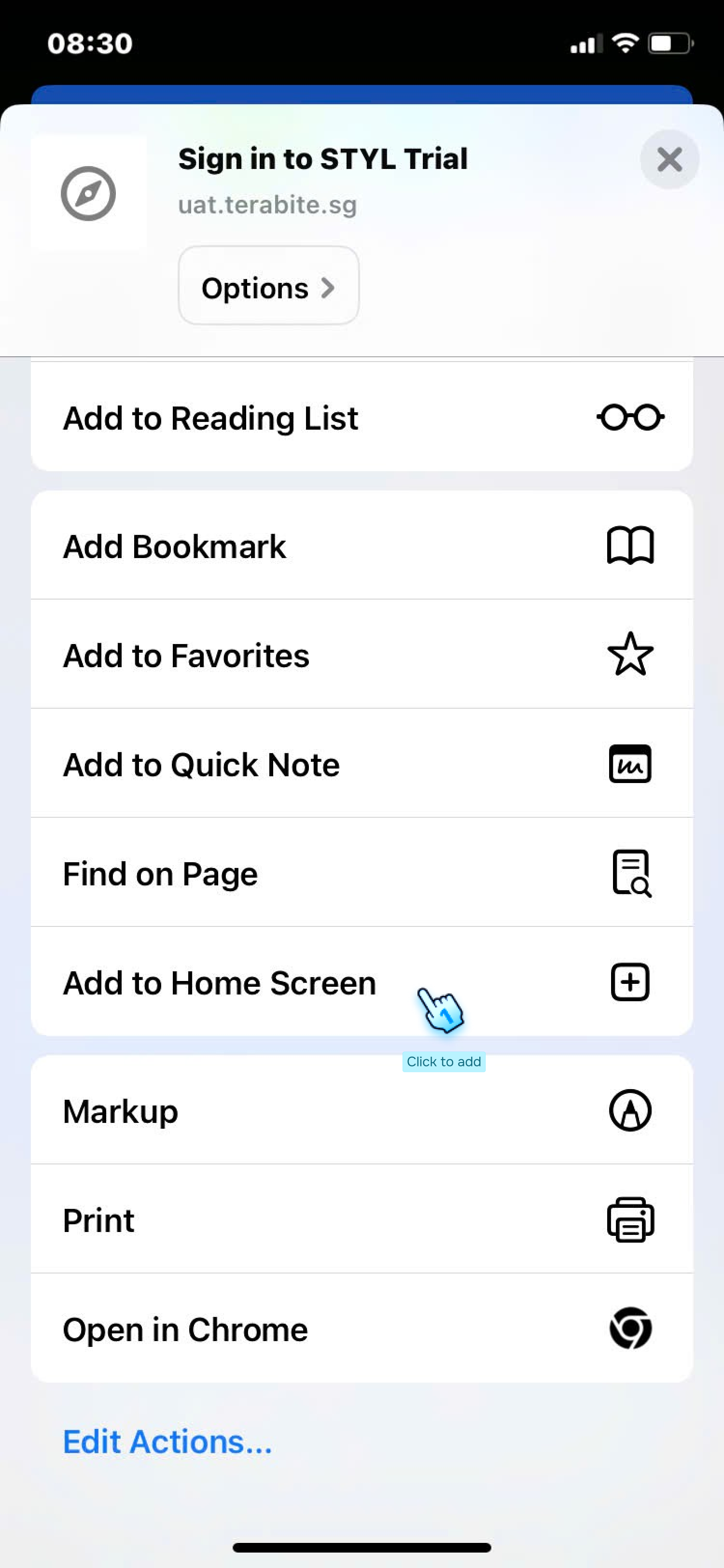
- Select "Add to Home Screen"
- In the list of options that appears, click on "Add to Home Screen."
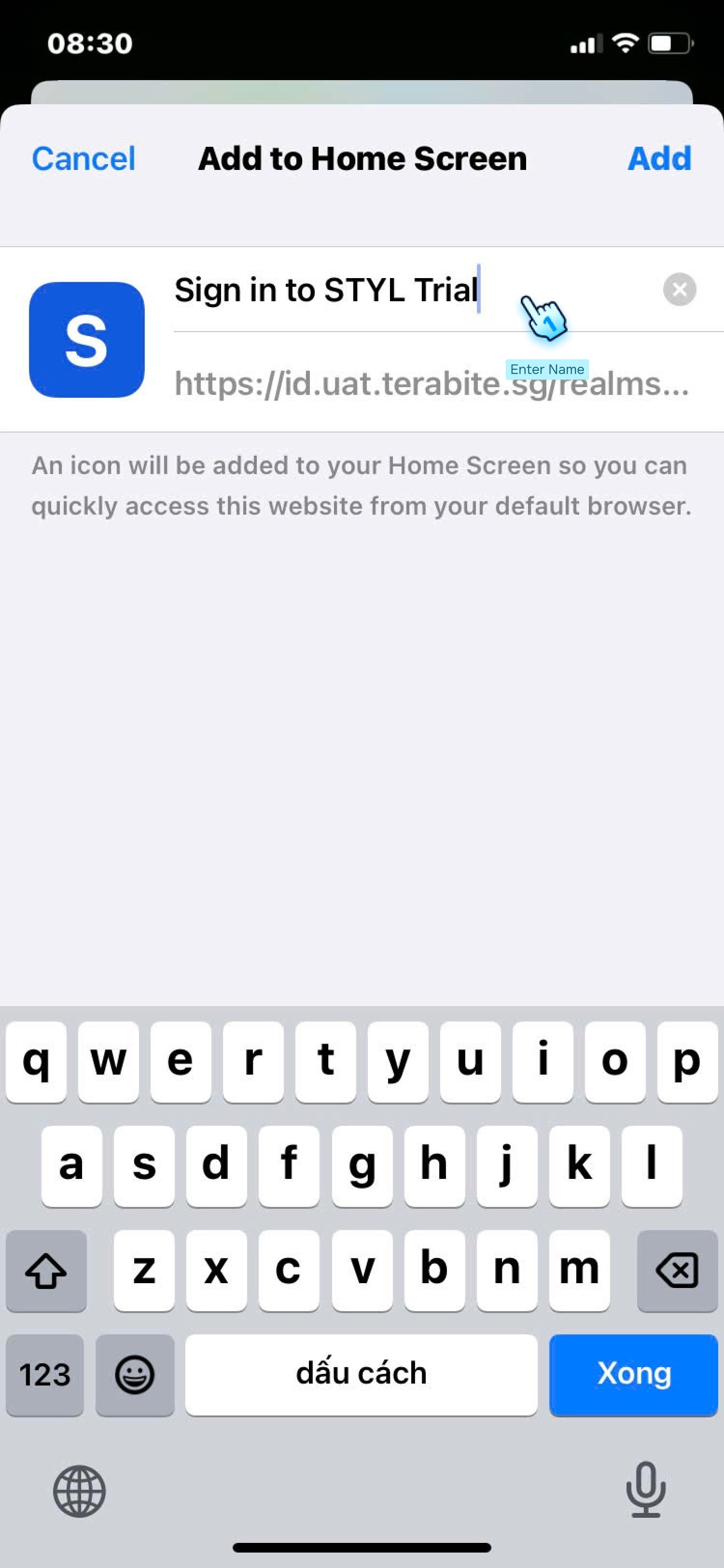
- Enter the Name for Shortcut
- Provide a name for the shortcut that will appear on your home screen.
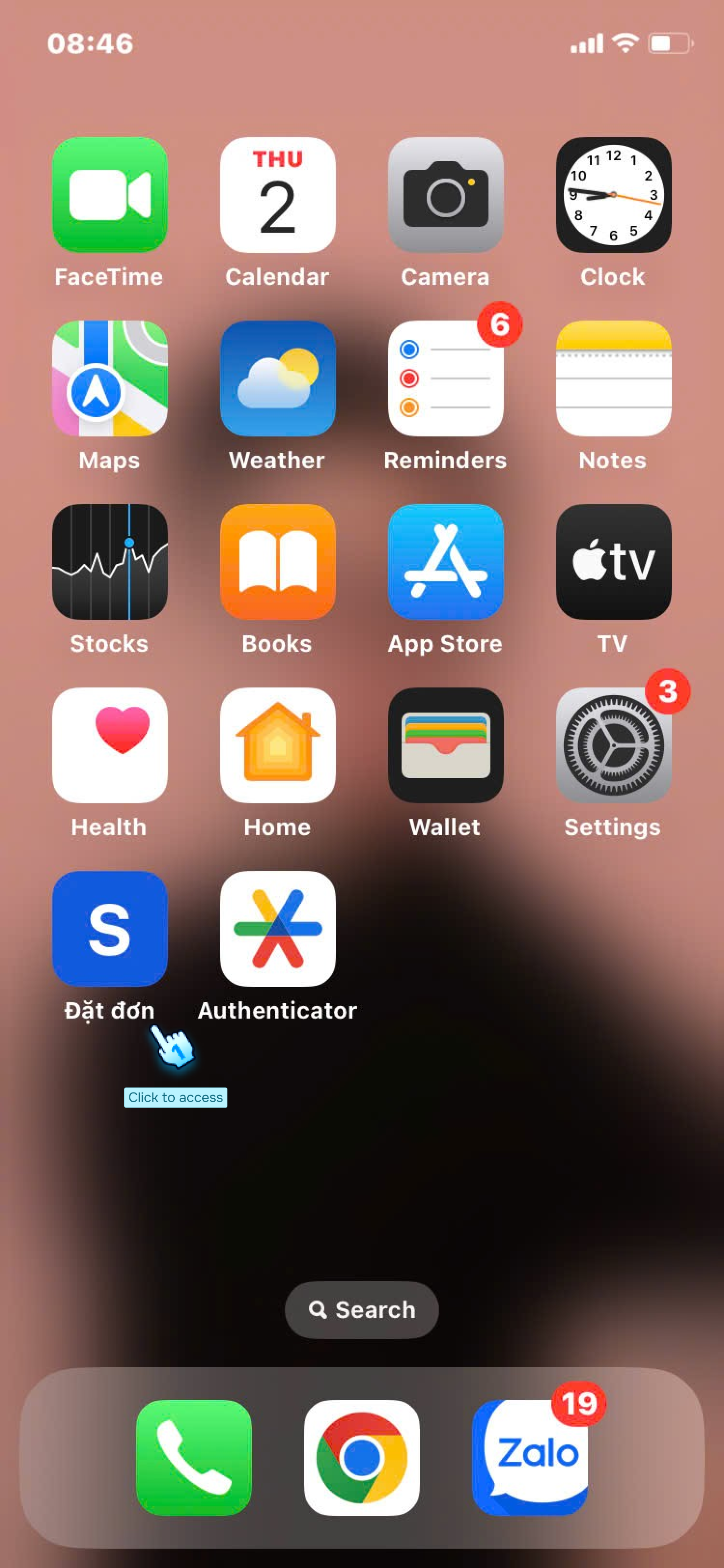
- Find it in Home Screen
- Locate the newly created shortcut on your home screen for easy access.
#
For Android
- Access a Website URL via Google Chrome
- Open the Google Chrome browser and navigate to the desired website URL.
- Click the Three-Dot Button
- Tap the three-dot menu icon located in the upper-right corner of the browser.
- Select "Add to Home Screen"
- In the dropdown menu, click on "Add to Home Screen."
- Enter the Name for Shortcut
- Provide a name for the shortcut that will be displayed on your home screen.
- Find it in Home Screen
- Locate the newly created shortcut on your home screen for quick access.
#
Conclusion
By following these steps, users can easily add website shortcuts to their home screens on both iOS and Android devices. This enhances convenience and improves navigation to frequently visited sites. For further assistance, please refer to additional documentation or contact support.
#
Screen flow